
KeyTray HME: user manual
This manual explains KeyTray HME, the version of KeyTray for home respiratory therapy and home medical equipment companies in the United States. The screenshots are from the test company Test Sure USA; all the names, addresses and amounts are invented.
KeyTray HME is the version of KeyTray for companies that provide home respiratory therapy and home medical equipment services in the United States. Your company visits the patients of the medical supply companies (DME companies) that hire you: you install and check oxygen, CPAP/BiPAP, ventilators and other equipment at the patient's home, fill in the visit form, have it signed, and then bill each DME company once a month. KeyTray HME also handles your own rental fleet (hospital beds, scooters, wheelchairs, respiratory equipment) rented directly to patients.
This is the daily flow:
- Once, you set up the zones, the equipment types, how often each patient is visited (frequencies), the rates each DME company pays you and the visit form.
- Each DME company is a customer of yours, with the email where it receives the visit forms and its contracts (Work for Hire and BAA).
- Each patient has the DME companies that send them, their payer (Medicare, Medicaid...), their zone and the equipment installed at home.
- Visits Due tells you which patients must be visited this month and which ones are overdue.
- The technician does the visit on the phone (it works without signal) or the office enters it on the desktop: form, readings, services, two signatures, and Complete.
- Every morning KeyTray emails each DME company the PDF of each visit completed the day before.
- At the end of the month, Monthly Billing creates one invoice per DME company with all its completed visits.
- The own rental fleet is billed to the patient every month with Rental Billing.
Everything is in the Home Medical tab of the ribbon, in four groups: Patients (List Explorer, New Patient), Visits (New Visit, Visits Due), Billing (Monthly Billing, Email Visits, Rental Billing) and Setup (Medical Supply Company, HME Setup, Contracts, Rental Equipment).
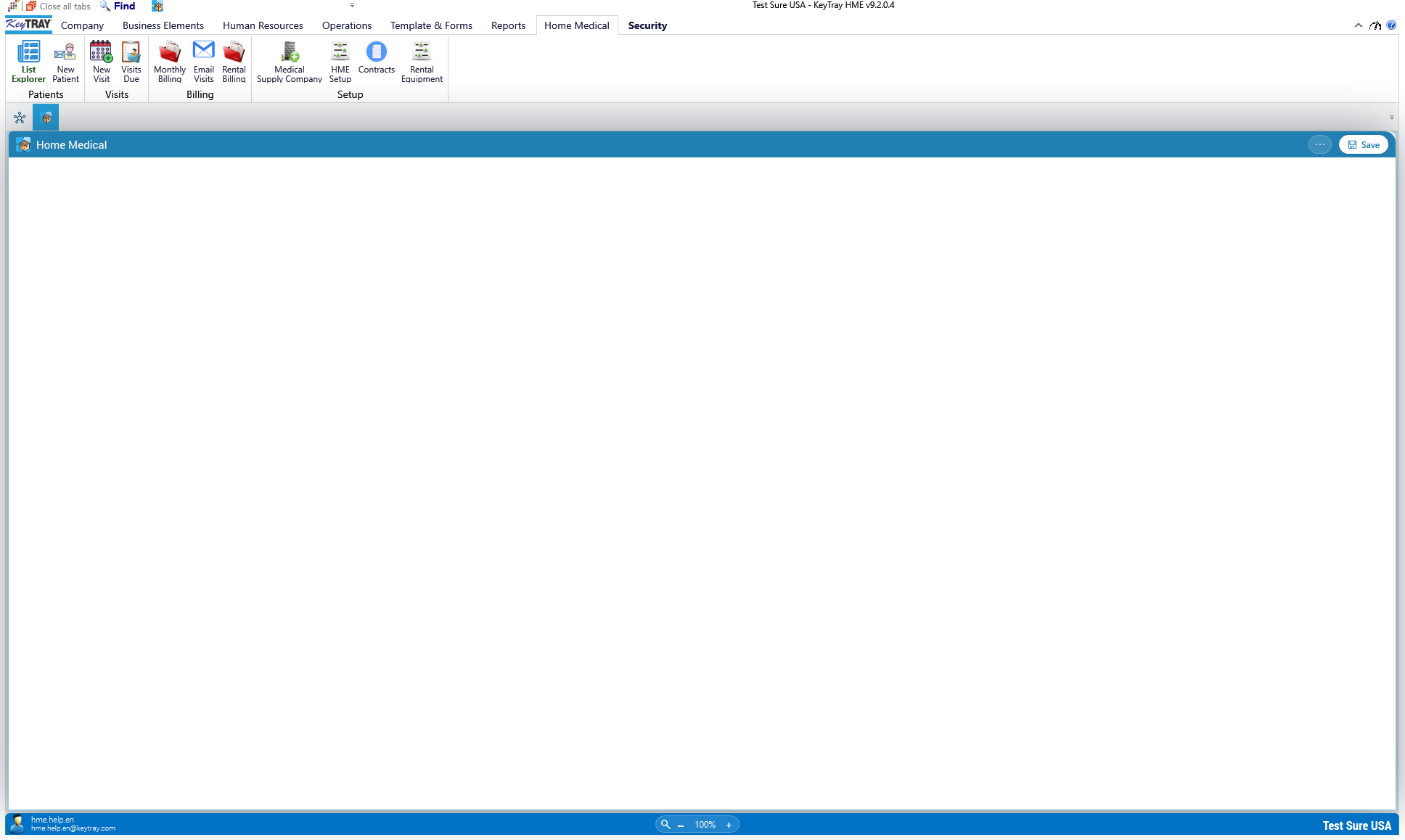
Who sees what: what each user sees in the Home Medical tab is decided by their role. A KeyTray HME company is created with seven roles, among them Field Technician, which works only from the phone. See section 12.
The screenshots in this chapter are from the sample company Test Sure USA. All the names, addresses and amounts in them are invented.
Contents
- 1. Setting up KeyTray HME
- 2. Medical supply companies (DME)
- 3. Patients and their equipment
- 4. Contracts and contract templates
- 5. Visits in KeyTray (desktop)
- 6. Visits due
- 7. Emailing the visits to each DME company
- 8. The technician's mobile app
- 9. Month-end billing
- 10. Own rental equipment
- 11. Rental billing
- 12. Lists, roles and the Field Technician
1. Setting up KeyTray HME
A KeyTray HME company is created with New Company, choosing KeyTray HME as the application type (it is available for the United States only). The new company already comes with:
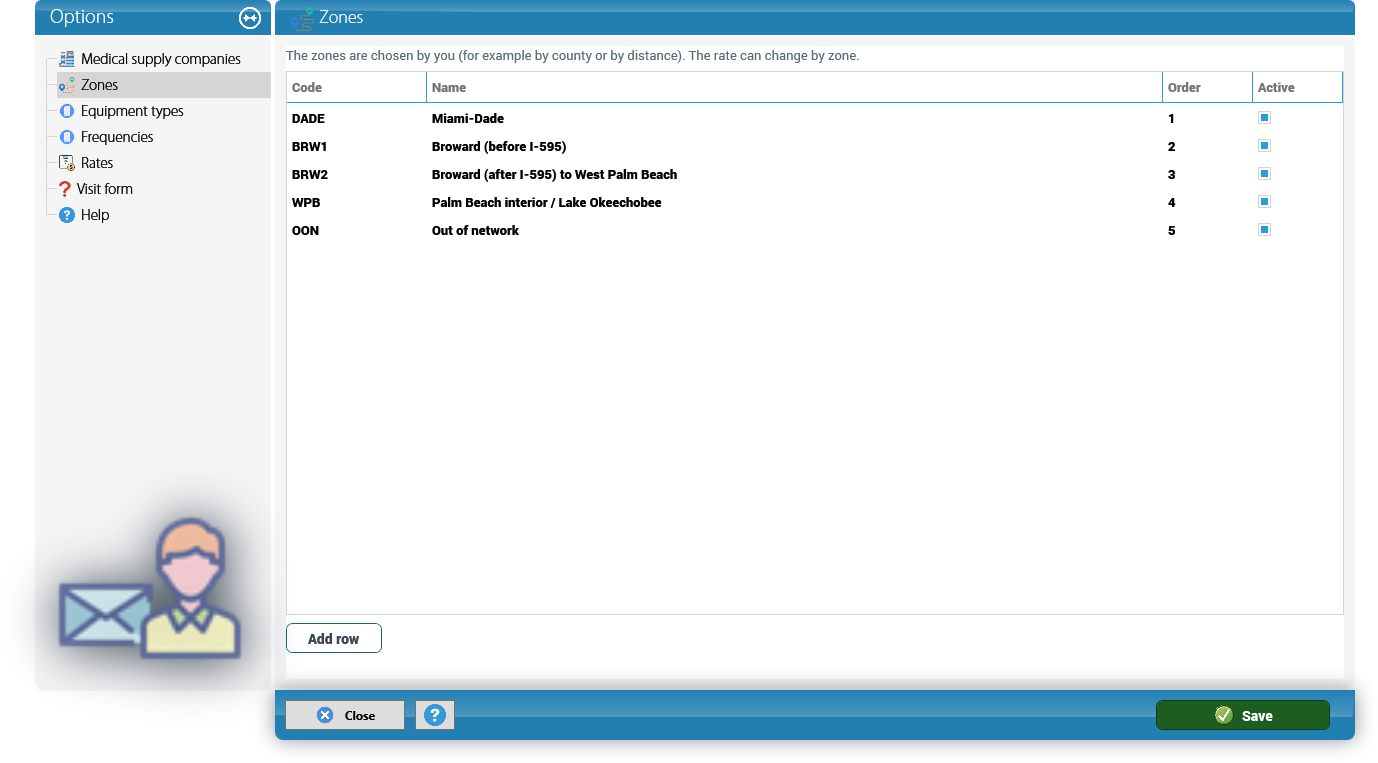
- Five sample zones (Miami-Dade, Broward before and after I-595, Palm Beach interior and Out of network) that you can rename or replace.
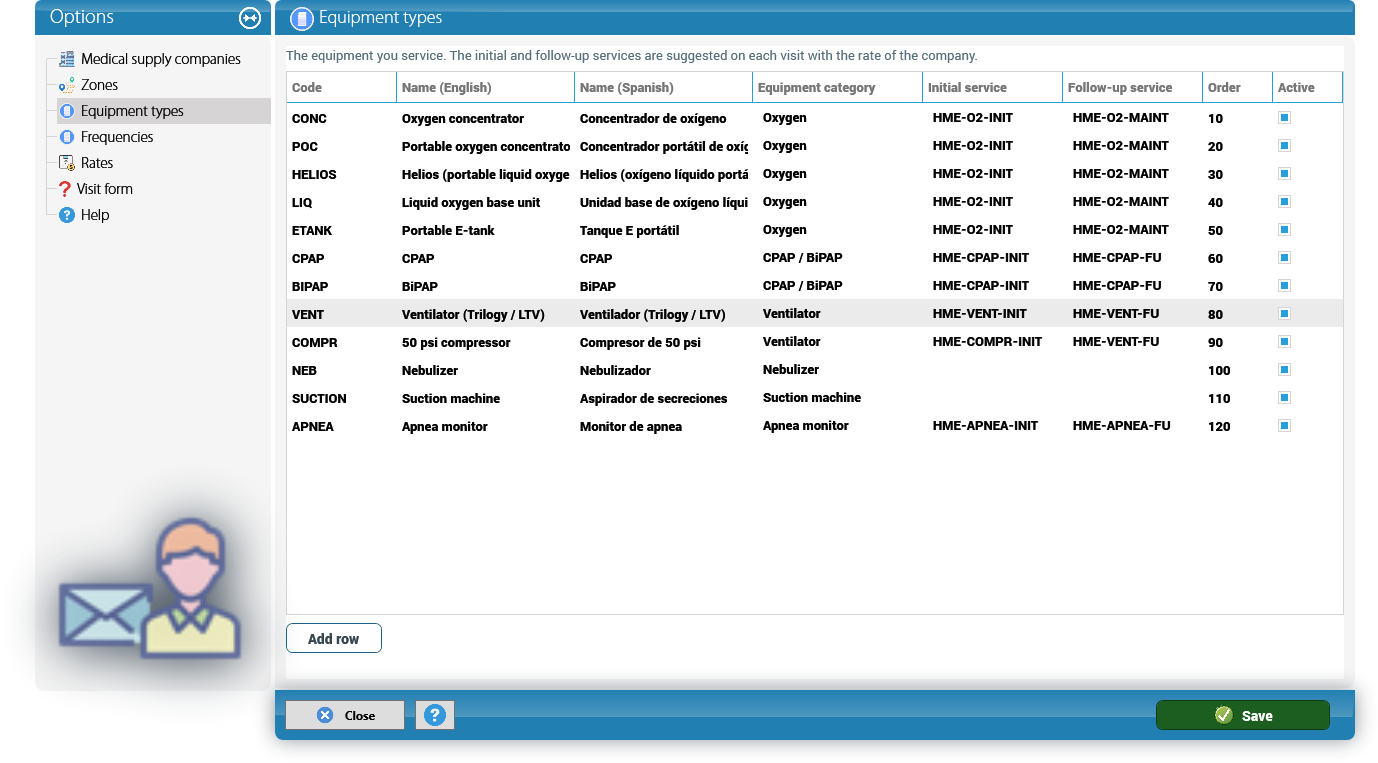
- Twelve equipment types (oxygen concentrator, portable concentrator, liquid oxygen, E-tank, CPAP, BiPAP, ventilator, 50 psi compressor, nebulizer, suction machine, apnea monitor...).
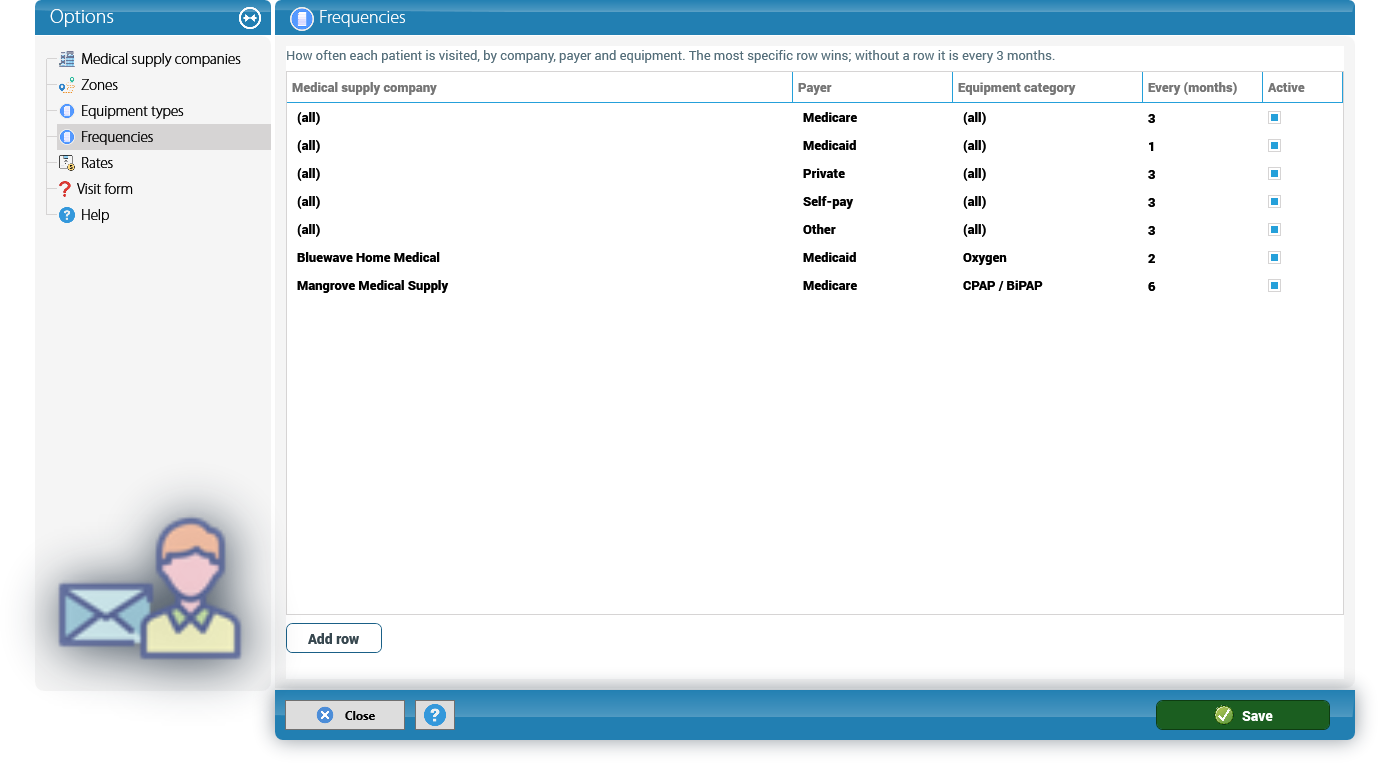
- The frequencies by payer: Medicare every 3 months, Medicaid every month, and Private, Self-pay and Other every 3 months.
- A visit form with 29 questions in English and Spanish.
- The services you bill (items whose code starts with HME-, for example HME-O2-MAINT Oxygen maintenance visit), already linked to the HME chart of accounts.
- Sample contract templates (Work for Hire, BAA and Rental Agreement) in the company's language.
Everything else is reviewed in Home Medical > HME Setup. The window has one page per topic. The grids are edited in place: Add row adds a line and Save, in the blue bar, saves the whole list of the page you are on. Rows are never deleted: uncheck Active on the ones you no longer use.
Zones. You choose them: by county, by distance, or however you organize your routes. Each zone needs a Code and a Name, and two zones cannot share a code. The zone matters because a rate can change by zone.
Equipment types. The equipment you service. Each type needs a Code, a Name (English) and an Equipment category (Oxygen, CPAP / BiPAP, Ventilator, Nebulizer, Suction machine, Apnea monitor or Other); if Name (Spanish) is left empty, the English name is used. Initial service and Follow-up service are the service codes KeyTray suggests on each visit, depending on whether it is an initial or a follow-up visit.
Frequencies. How often each patient is visited, by Medical supply company, Payer and Equipment category, in months (Every (months), from 1 to 36). (all) in the company or the category means the rule applies to any. When several rules match, the most specific one wins: first the one for the patient's company, then the one for the equipment category. Without any rule, the patient is visited every 3 months.
Rates. The price of each service for each DME company: Medical supply company, Service, Zone, Price, Valid from and Valid to. An empty zone ((all)) means any zone. The price must be zero or more and Valid from is required. A visit takes the rate in force on the visit date, for its zone; a rate for the zone wins over the one for any zone, and between two of the same kind, the newest one.
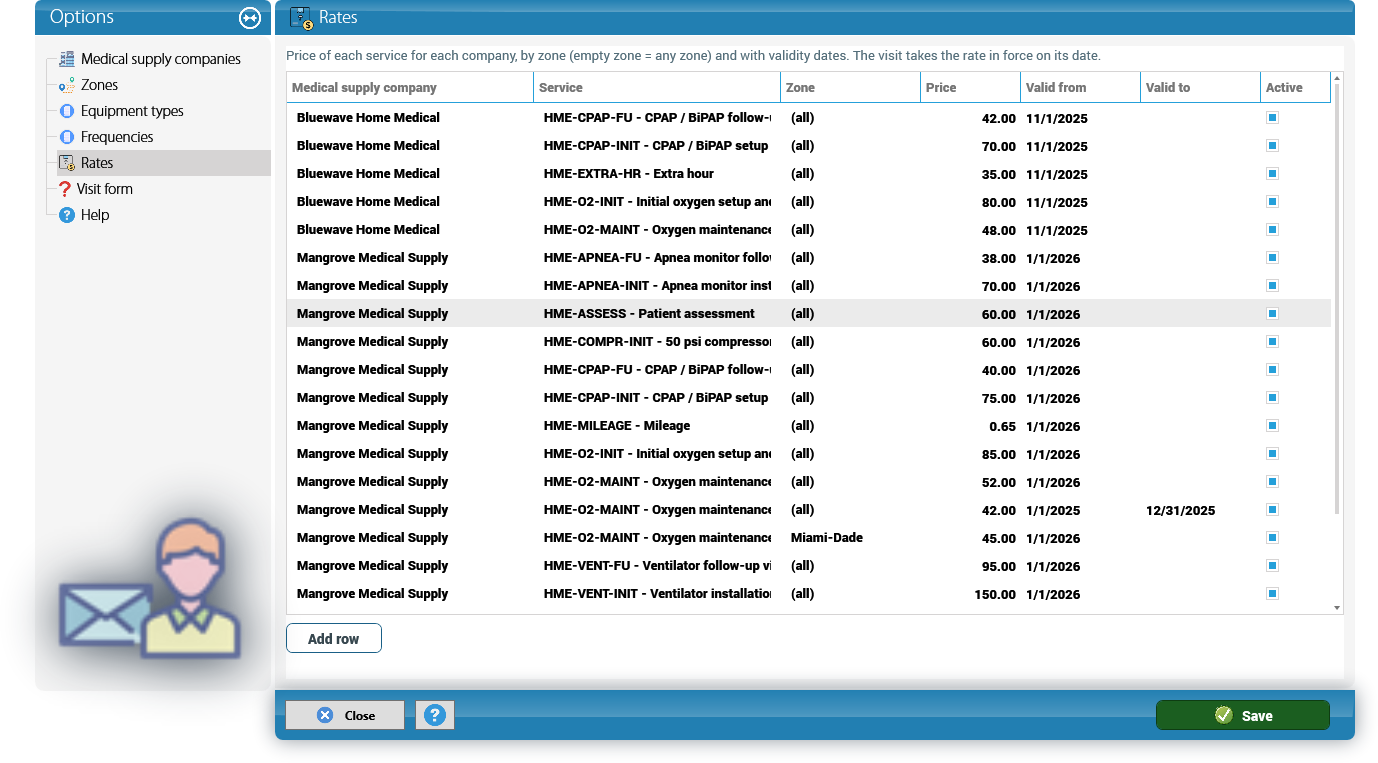
Why it matters: to change a price, do not edit the old rate: close it with Valid to and add a new row with the new Valid from. Visits already done keep their price, and visits of the new period take the new one.
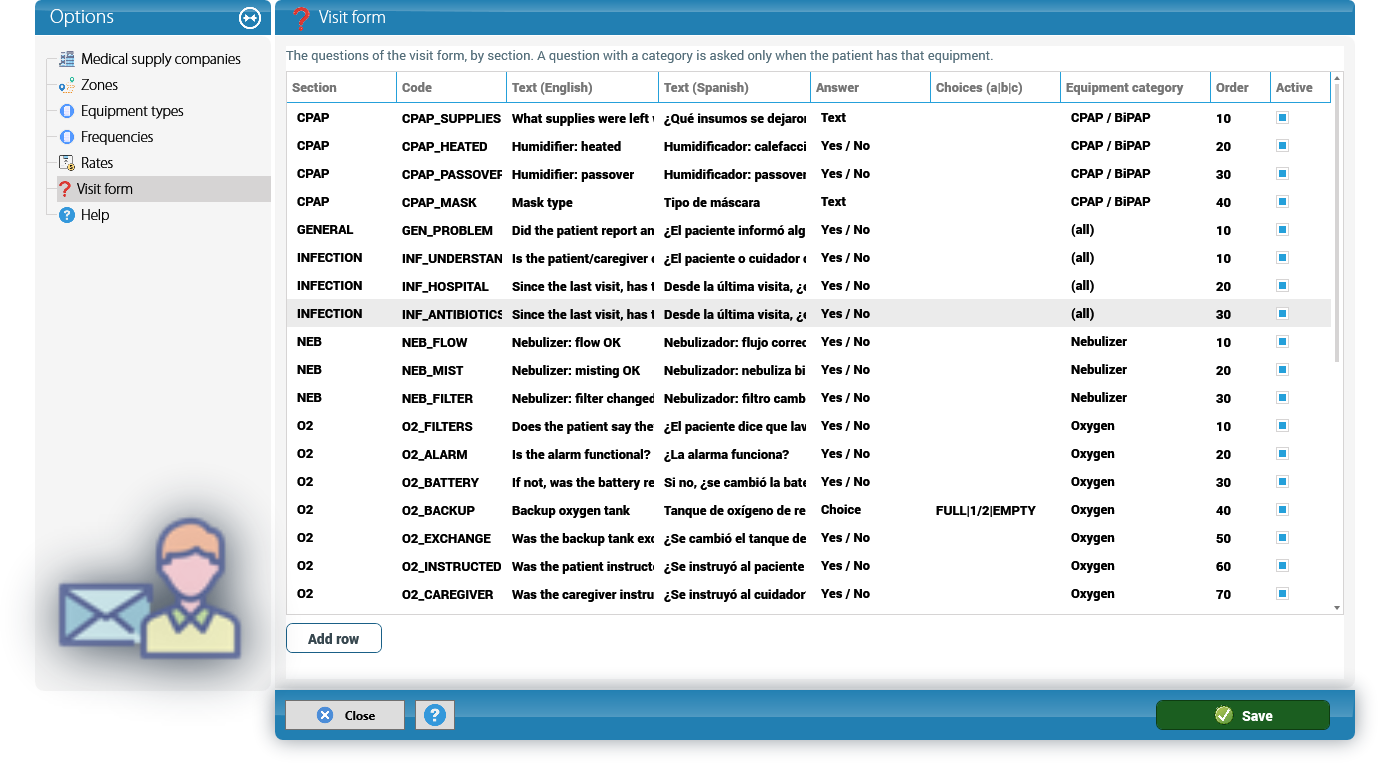
Visit form. The questions of the visit, by Section (O2, CPAP, NEB, SUCTION, INFECTION, SAFETY or GENERAL). Each question has a Code, Text (English), Text (Spanish) and the type of Answer: Yes / No, Text, Number or Choice. A Choice question needs its Choices separated by | (for example FULL|1/2|EMPTY). A question with an Equipment category is asked only when the patient has equipment of that category; without a category it is asked on every visit.
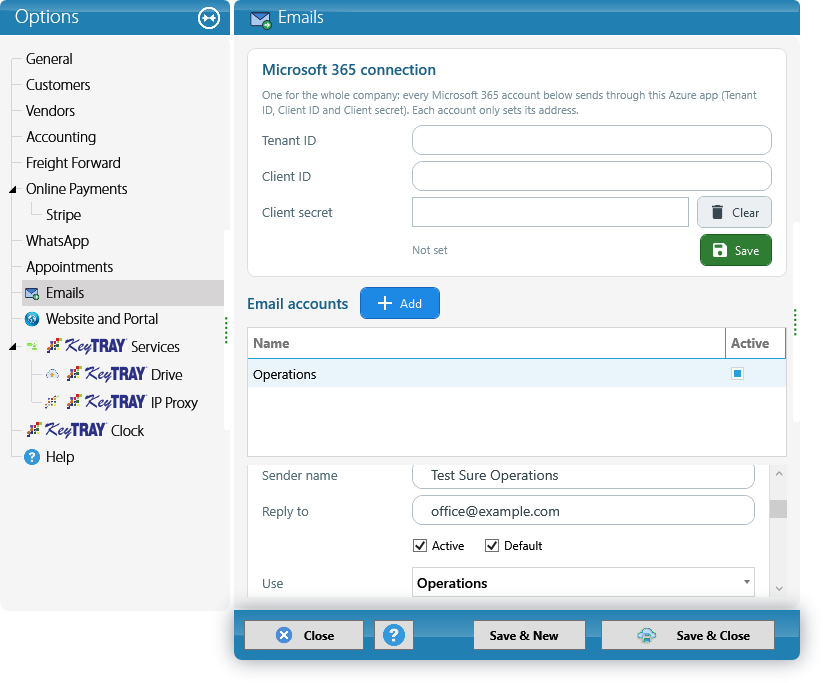
Email account. The visit emails go out from the company's mailbox. Set it up in System Options > Emails (the same accounts the CRM uses) and choose its Use: KeyTray uses the Operations account; if there is none, the Corporate one, and if not, the General one. Without an account, sending fails with The company has no email account (System Options > Emails).
2. Medical supply companies (DME)
A medical supply company (DME company) is a company you work for. In KeyTray it is a customer: it receives the monthly invoice and the daily email with the visit forms.
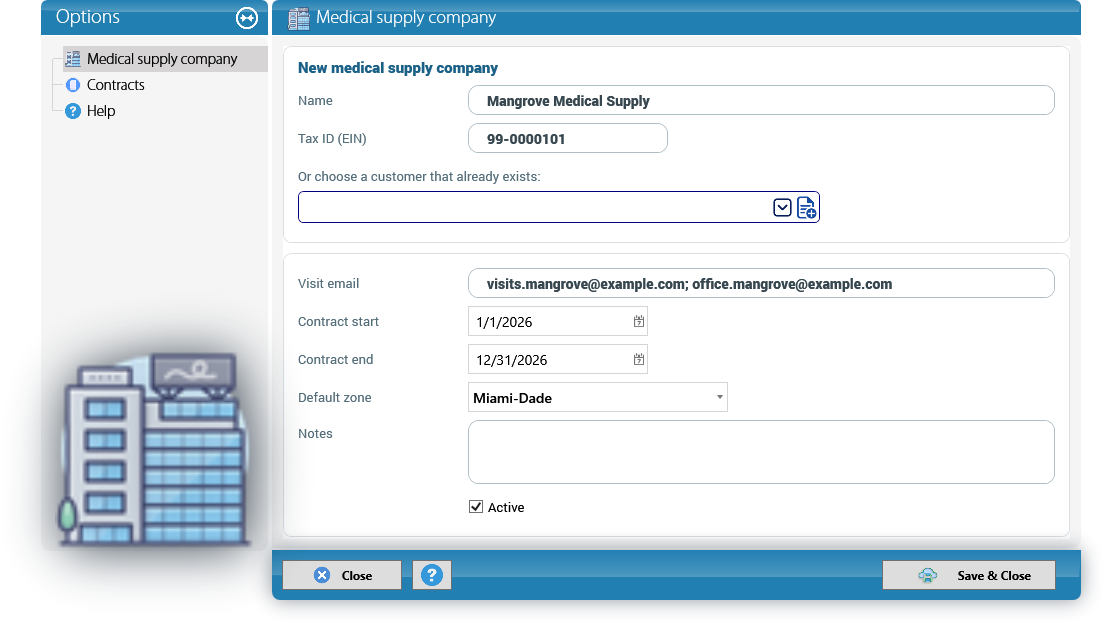
Create it with Home Medical > Medical Supply Company or from HME Setup > Medical supply companies > New medical supply company. In a new company:
- Write the Name and the Tax ID (EIN): KeyTray creates the customer. The name is required.
- Or, in Or choose a customer that already exists:, pick a customer you already have. A customer that is a patient cannot be a DME company.
Then fill in the HME details:
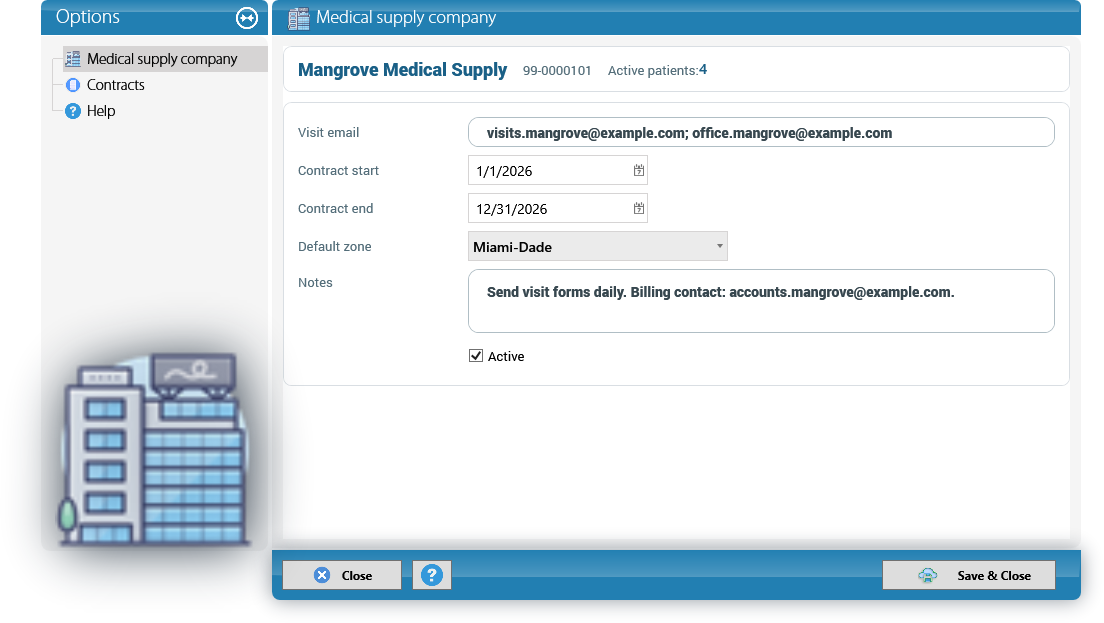
- Visit email: where the daily email with the visit forms goes. You can enter several addresses separated by
;. - Contract start and Contract end: the dates of your agreement with the company (the end cannot be before the start).
- Default zone: used on a visit when the patient has no zone.
- Notes and Active.
Save with Save & Close.
When you open an existing company, the top shows its name, its Tax ID and its Active patients. Its name, address and payment terms are edited in the regular customer window; here you only edit the HME details.
The Contracts page shows the company's contracts (section 4). It works once the company is saved: on a new company KeyTray says Save first. Save it with Save & Close and open it again from HME Setup > Medical supply companies > Open or from the List Explorer.
Payment terms: the due date of the monthly invoice comes from the payment terms of the customer. Set them in the customer window (for example, Net 30) before the first billing.
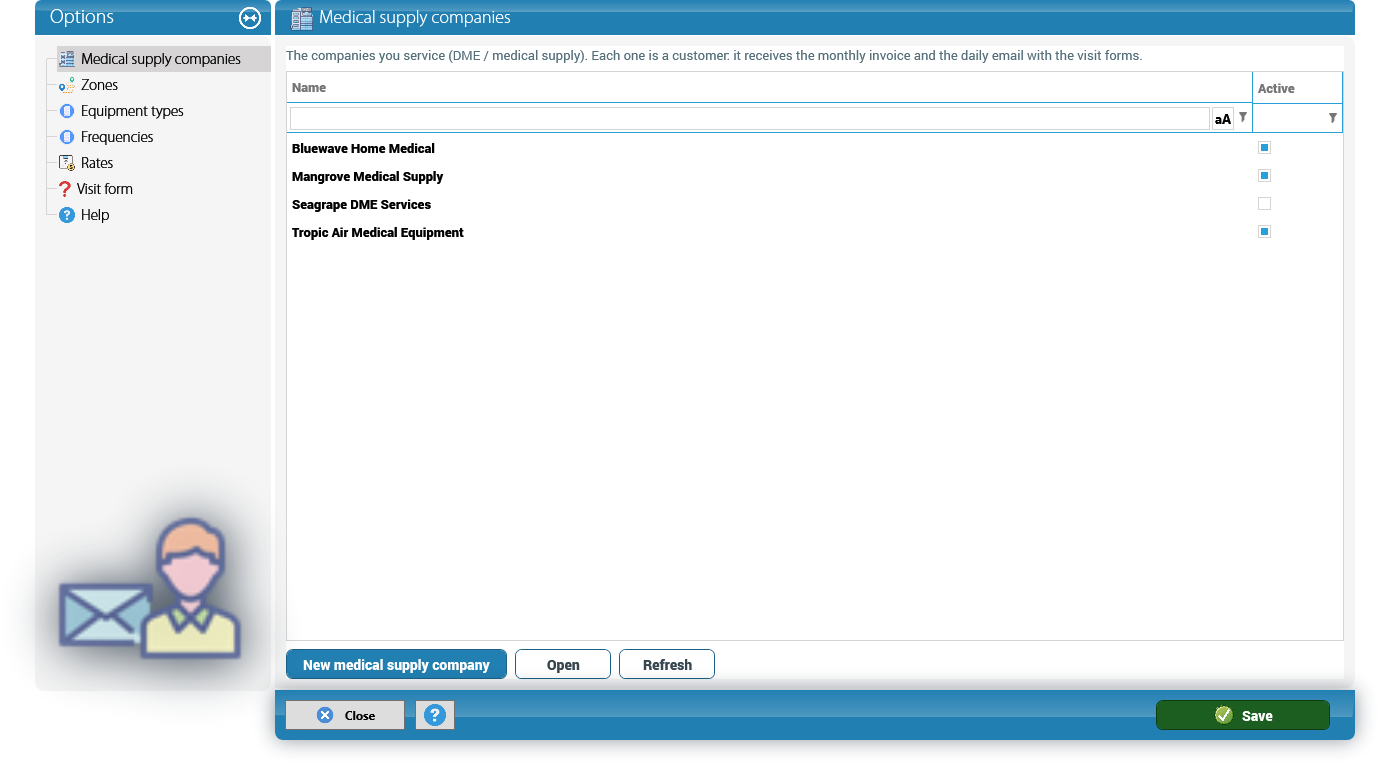
The Medical supply companies page of HME Setup lists all of them, with Open and Refresh:
3. Patients and their equipment
A patient is also a customer of KeyTray (name, address, phone, email) with their HME record. Create one with Home Medical > New Patient. The window has five pages: General, Medical supply companies, Equipment, Visits and Contracts. Save with Save in the blue bar (the window stays open) or Save & Close.
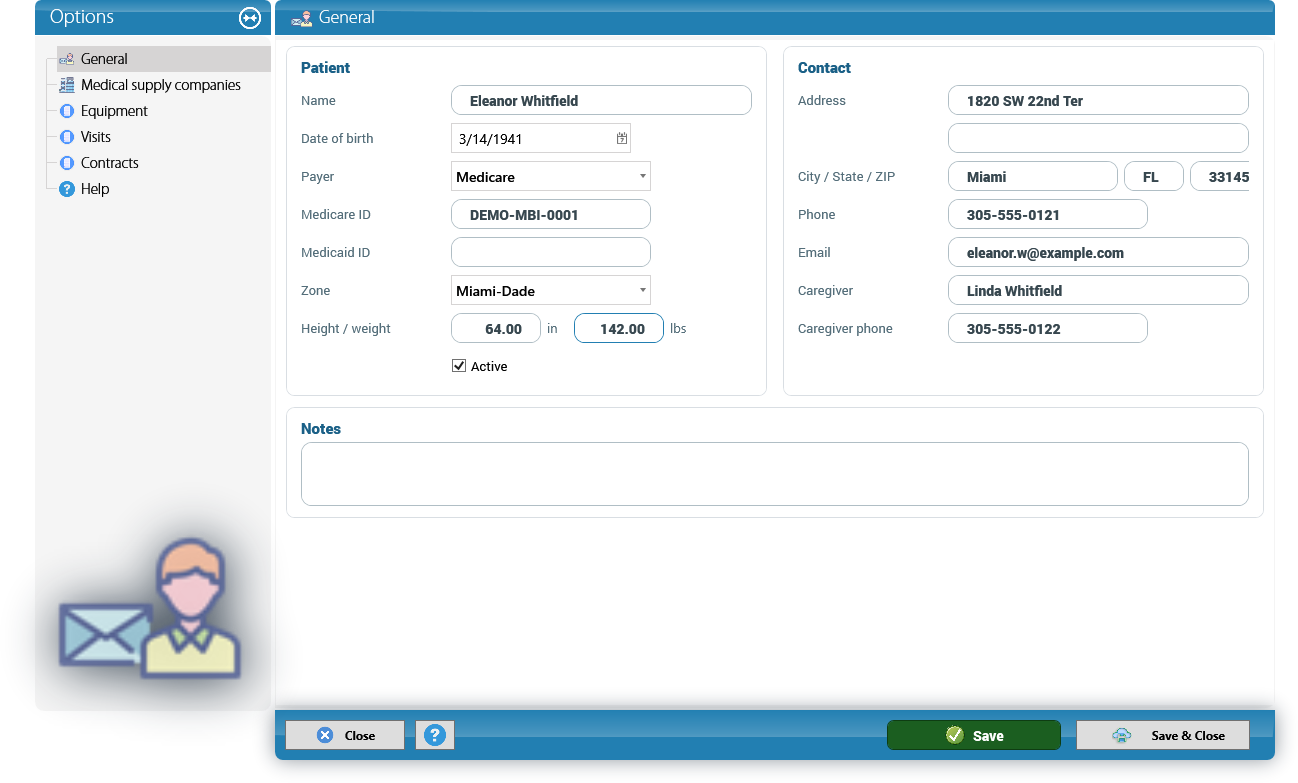
General. The Name is the only required field. Below: Date of birth, Payer (Medicare, Medicaid, Private, Self-pay or Other), Medicare ID, Medicaid ID, Zone, Height / weight (inches and pounds) and Active. On the right, the Contact: Address, City / State / ZIP, Phone, Email, Caregiver and Caregiver phone. At the bottom, Notes.
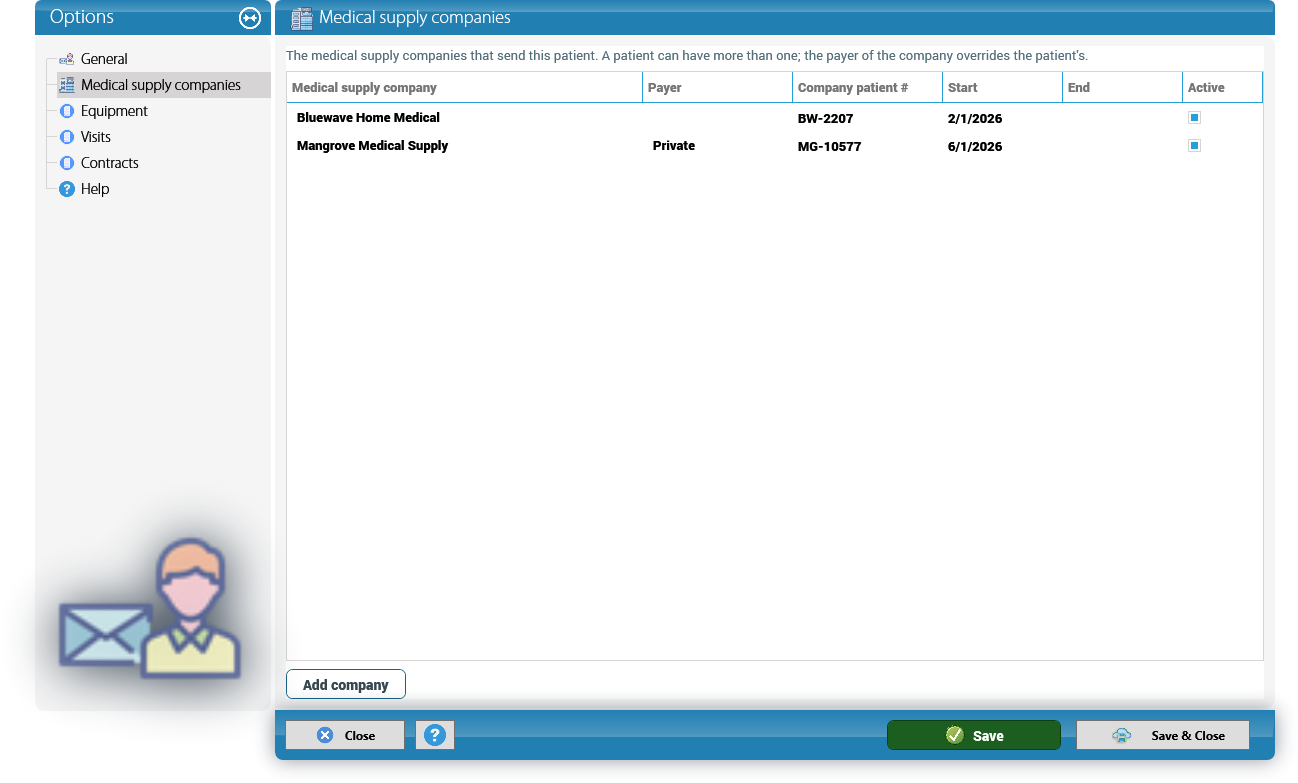
Medical supply companies. The DME companies that send this patient; a patient can have more than one. Add each one with Add company: Medical supply company, Payer, Company patient # (the patient's number at that company), Start, End and Active. The payer of the line overrides the patient's payer; leave it empty to use the patient's. The same company cannot be active twice for one patient: KeyTray says The same company is listed twice for the patient. The list offers only the active DME companies.
Equipment. The equipment installed at the patient's home. Add equipment adds a line: Equipment (the type), Owner (the DME company that owns it, or empty if it belongs to the patient), Manufacturer, Model, S/N, Meter hrs, LPM, CMH2O, Hrs/day, Installed, Removed and Active. When you enter the Removed date, the equipment becomes inactive.
Below, the Equipment history is written by KeyTray, never by hand: Installed when you add equipment, Serial number change when the S/N changes, Visit reading when a visit is completed, Removed and Edited.
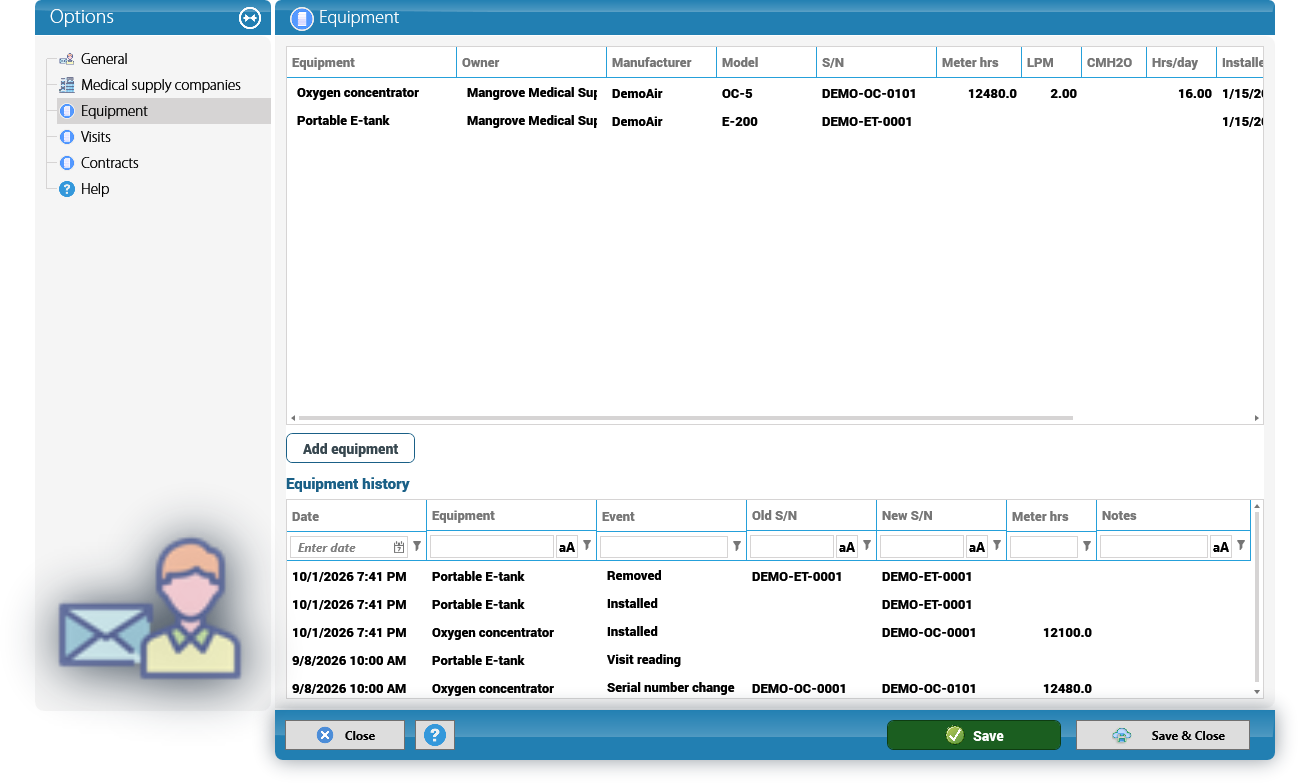
Why it matters: the equipment decides the visit. A visit for a DME company includes the equipment owned by that company and the patient's own equipment (no owner); the form asks only the questions of those equipment categories, and the suggested services come from their equipment types.
Visits. The patient's last visits, with their number, date, type, Status, company, technician and Amount. New visit opens a visit for this patient (the patient must be saved first) and Open opens the selected one.
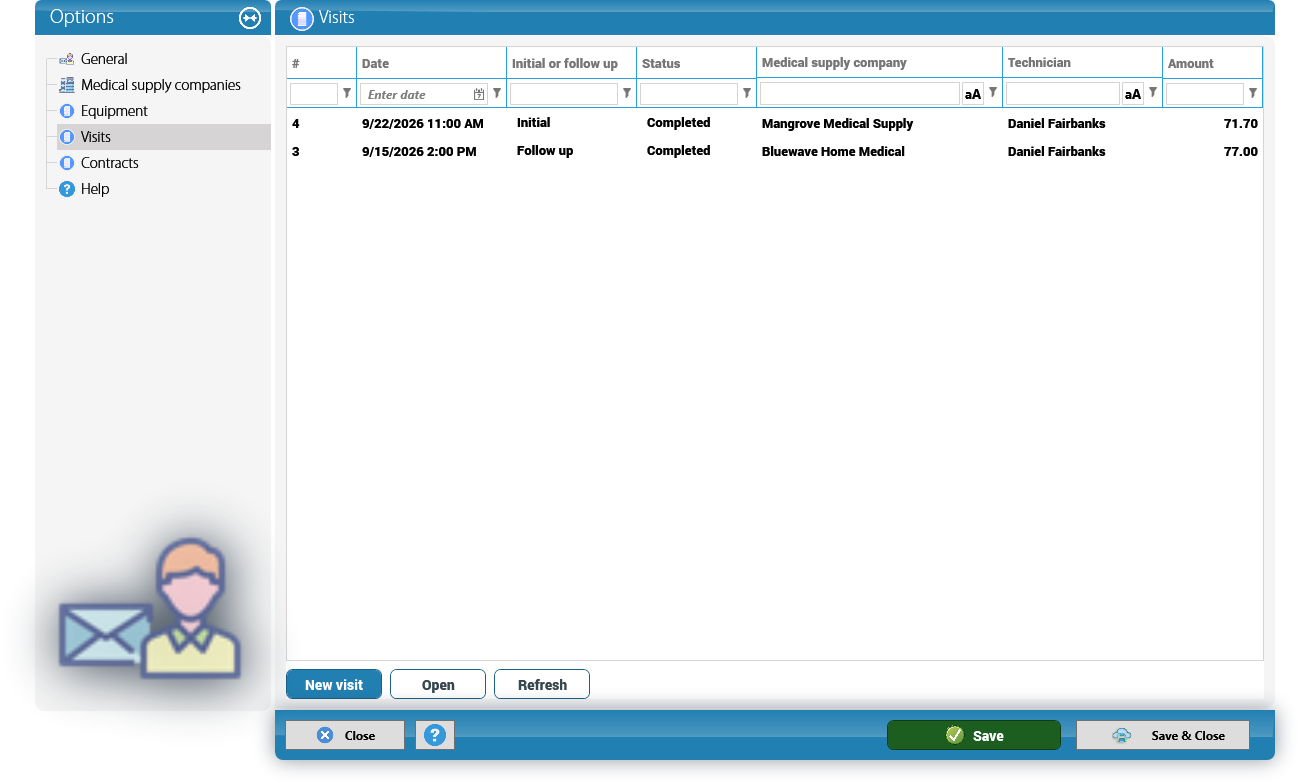
Contracts. The patient's rental agreements (sections 4 and 10).
4. Contracts and contract templates
KeyTray HME keeps three kinds of contracts:
- Work for Hire: your service agreement with a DME company. It has a Renewal fee.
- Business Associate Agreement (BAA): the agreement with a DME company about protected health information.
- Rental Agreement: the rental of your own equipment to a patient (section 10).
KeyTray numbers them by type: WFH-0001, BAA-0001, RA-0001, and so on.
The contracts list. Home Medical > Contracts shows all of them: Number, Contract type, Company / patient, Start, End, Days left, Status (In force or Void), Signed on and whether it has a PDF. Filter by Medical supply company and, to see renewals coming up, check Only the ones expiring within (days) (60 by default) and click Refresh: only contracts in force with an end date within those days are shown, the closest first (already expired ones too). The bottom line summarizes how many expire.
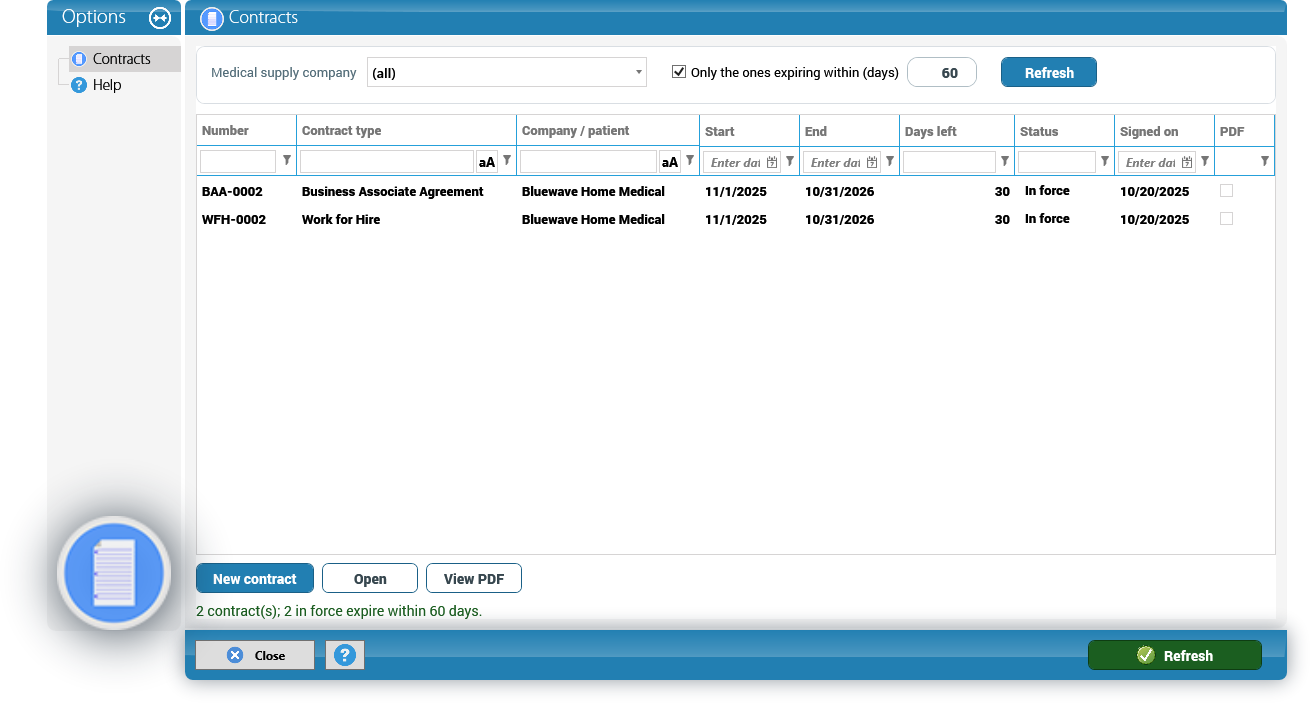
A new contract. New contract (in the list or in the Contracts page of the DME company) creates a Work for Hire; change the Contract type to BAA if needed and choose the Medical supply company (from the company's page it is already filled in). Fill in Start and End (by default, one year), Signed on, the Renewal fee (Work for Hire only) and Notes, and click Save. Once saved, the type and the company can no longer be changed. Rental agreements are created from the patient: the New contract button of the patient's Contracts page creates the rental agreement with the patient already filled in.
The rules KeyTray checks: the end cannot be before the start (The contract end is before its start.) and amounts cannot be negative (Amounts cannot be negative.).
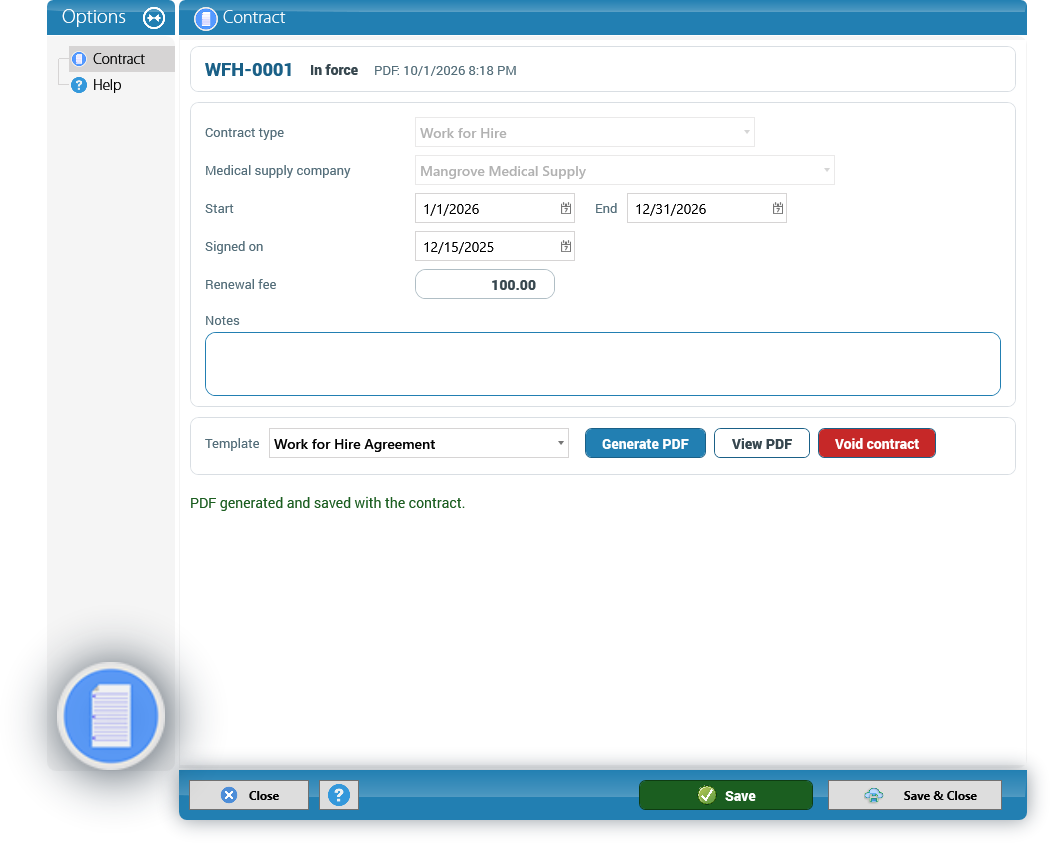
The PDF. Choose the Template and click Generate PDF: KeyTray saves the contract, fills the template with its data and keeps the PDF inside the contract. If some field of the template had no data, KeyTray says how many were left blank. If the contract already had a PDF, it asks before generating it again with the current data. View PDF saves a copy where you choose and opens it.
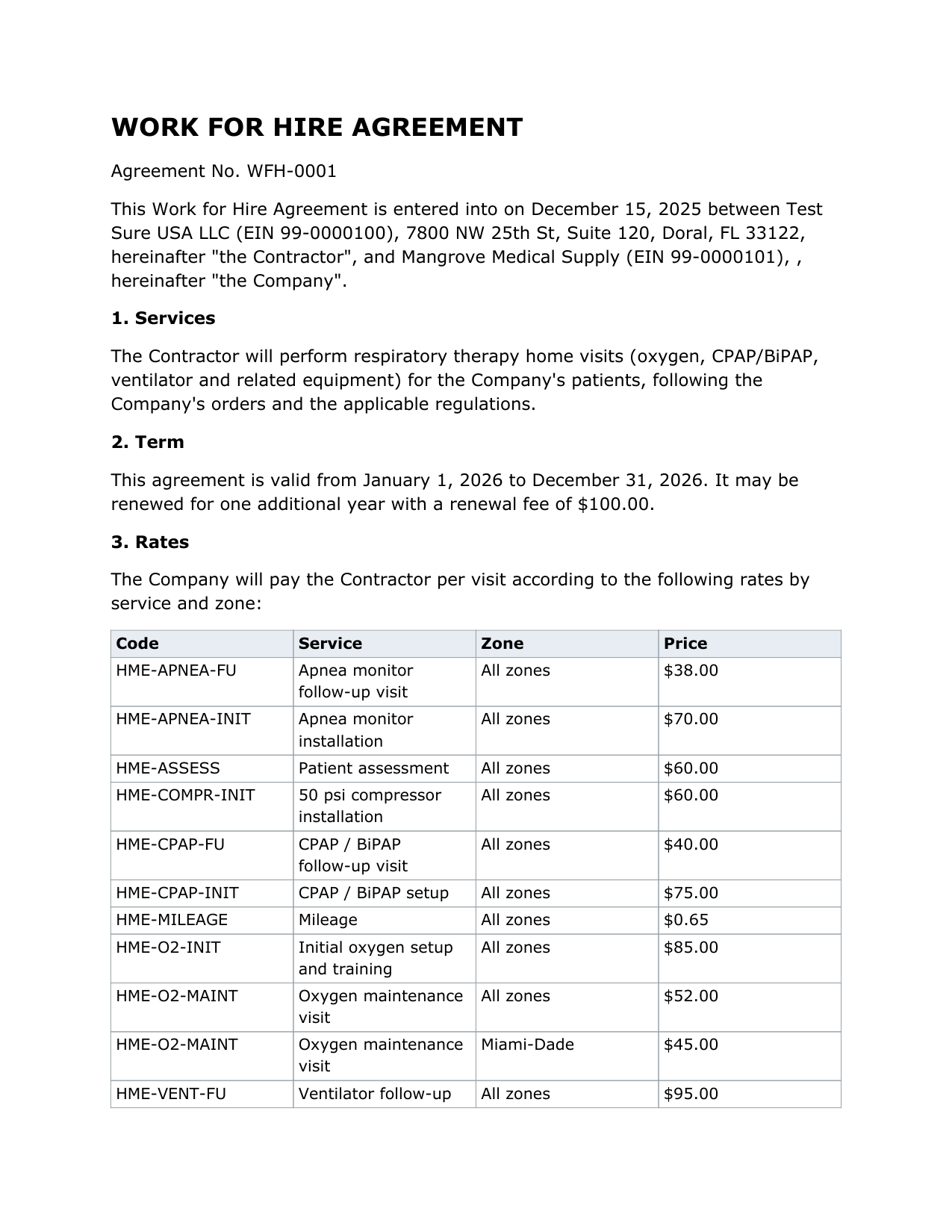
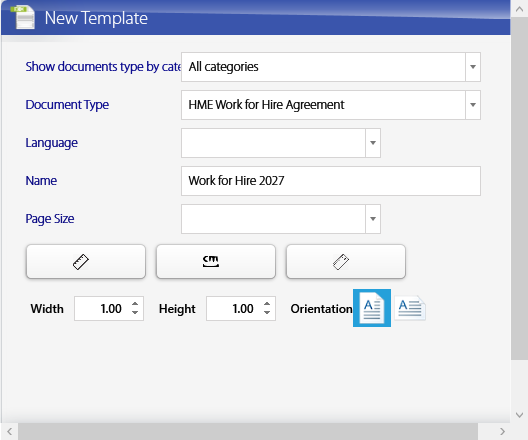
Templates. Contract templates are regular KeyTray templates. Create or edit them in Templates & Forms > New Template, choosing as the document type HME Work for Hire Agreement, HME Business Associate Agreement or HME Rental Agreement (the template name can have up to 30 characters). The fields include the contract number, type and dates, your company's legal name, EIN, address and phone, the DME company's name, EIN, address and visit email, and, in the rental agreement, the patient, the equipment, the monthly rent, the deposit and the late fee per week. The Work for Hire also has the Rates table: the company's rates in force on the contract start date. If there is no template for a type, KeyTray says There is no template for this type of contract....
Void. Void contract asks for confirmation; the contract stays in the list as Void and can no longer be changed (its PDF can still be viewed).
5. Visits in KeyTray (desktop)
Visits usually come from the technician's phone (section 8), but the office can enter or correct any visit on the desktop. Open a new visit with Home Medical > New Visit, from the patient's Visits page or from Visits Due. The window has four pages: Visit, Visit form, Services and Signatures.
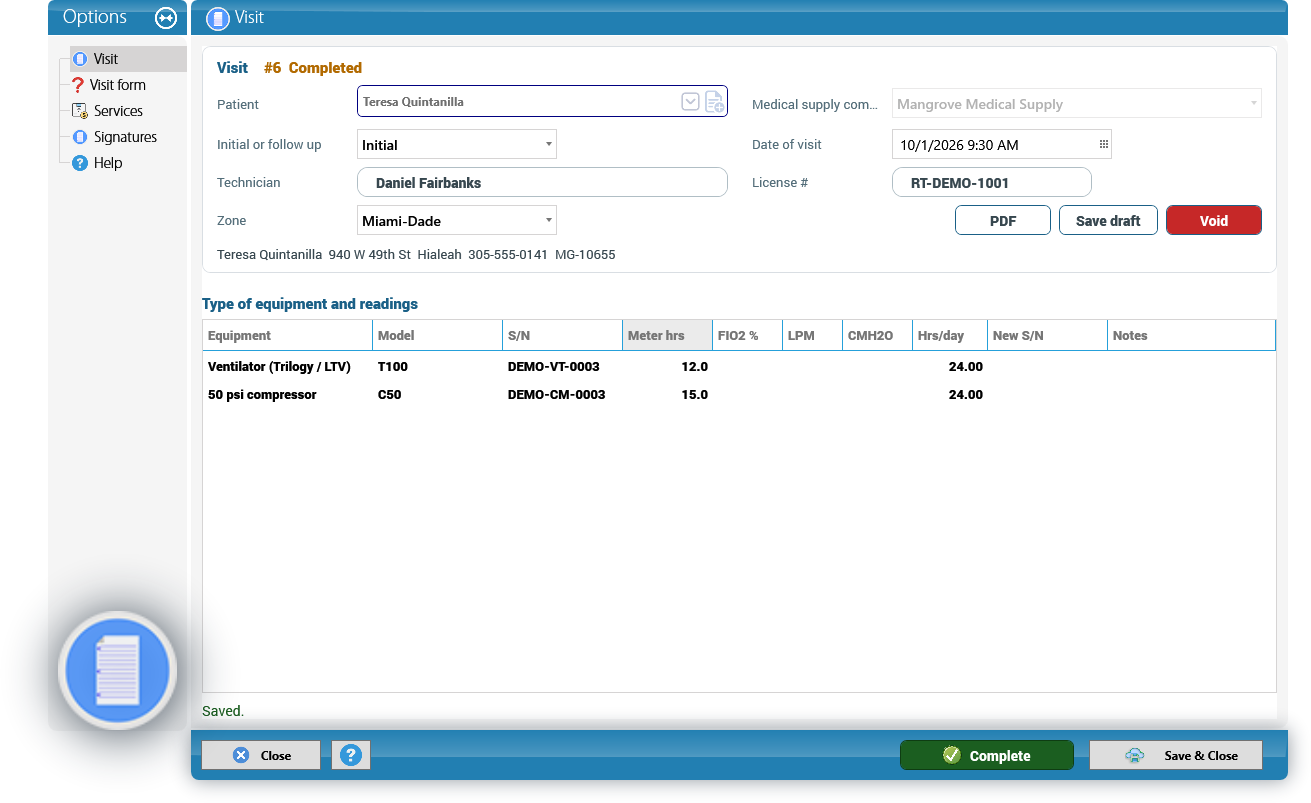
Visit. Choose the Patient (a customer with a patient record; otherwise KeyTray says Choose a patient (a customer with a patient record).), the Medical supply company (only the patient's active companies) and Initial or follow up. With those three, KeyTray builds the visit: the questions that apply to the patient's equipment, the equipment for the readings and the suggested services with the company's rate. Then complete the Date of visit, the Technician, the License # and the Zone (the patient's zone or, if it has none, the company's default zone). KeyTray remembers the last technician and license you used.
In Type of equipment and readings, enter for each piece of equipment the Meter hrs, FIO2 %, LPM, CMH2O and Hrs/day, and the New S/N if the equipment was replaced.
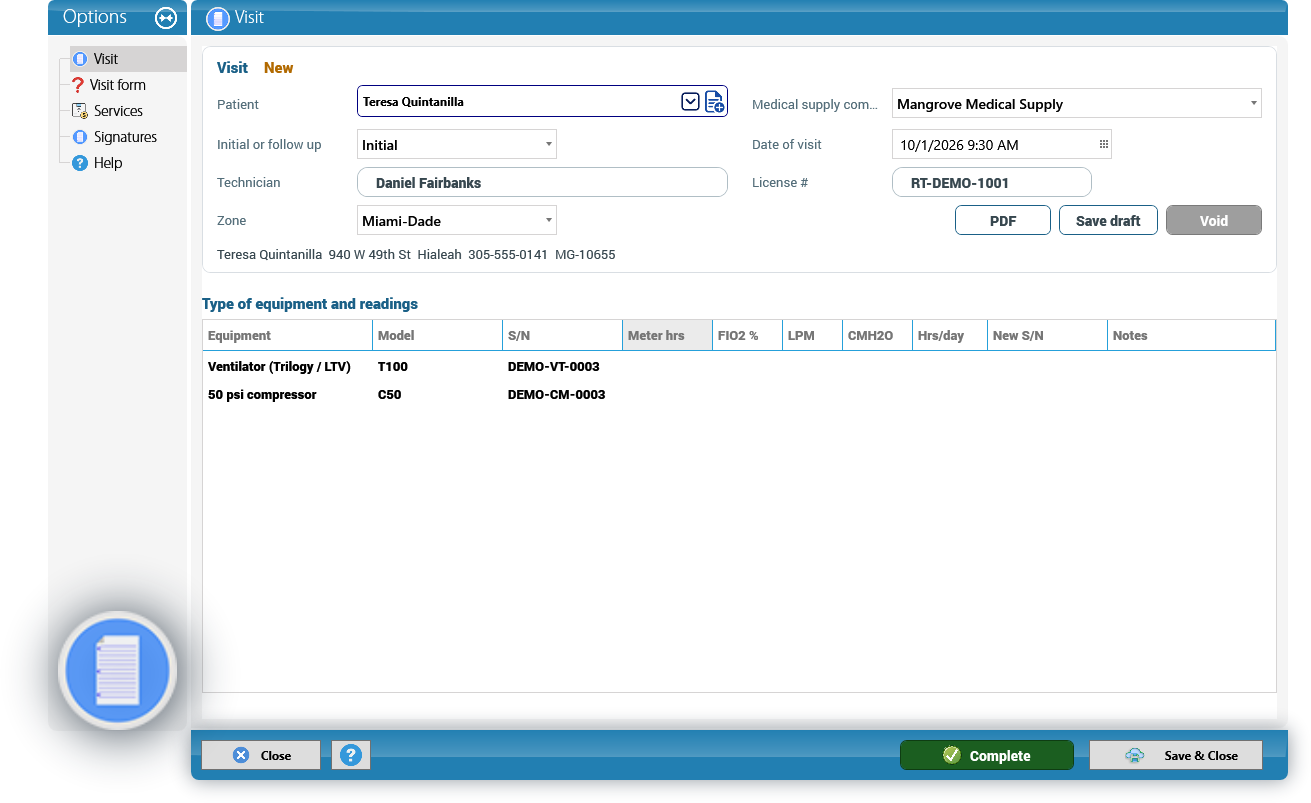
Tip: choose the patient, the company and the visit type first. Changing the company or the type of a new visit rebuilds the form and the services, and the answers already typed are lost.
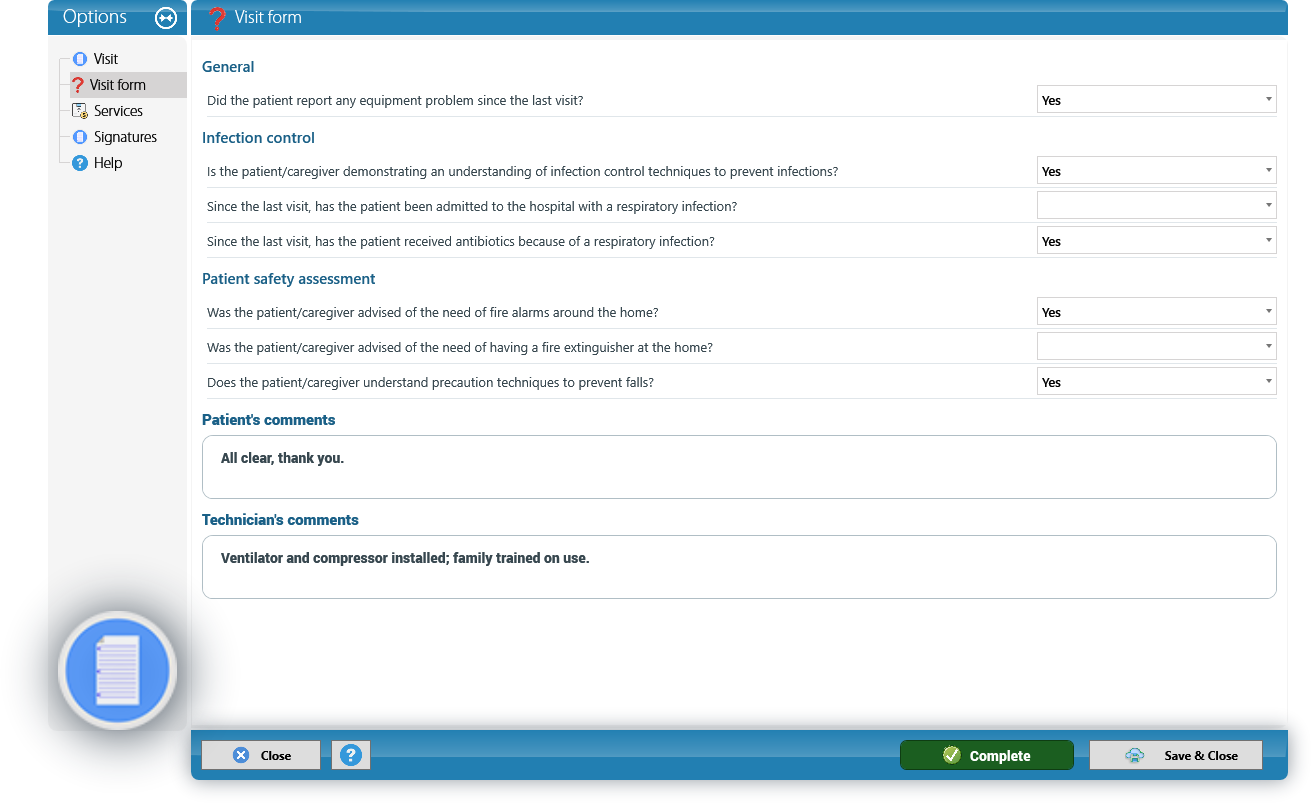
Visit form. The questions, grouped by section, answered with Yes / No, text, a number or one of the choices. At the end, Patient's comments and Technician's comments.
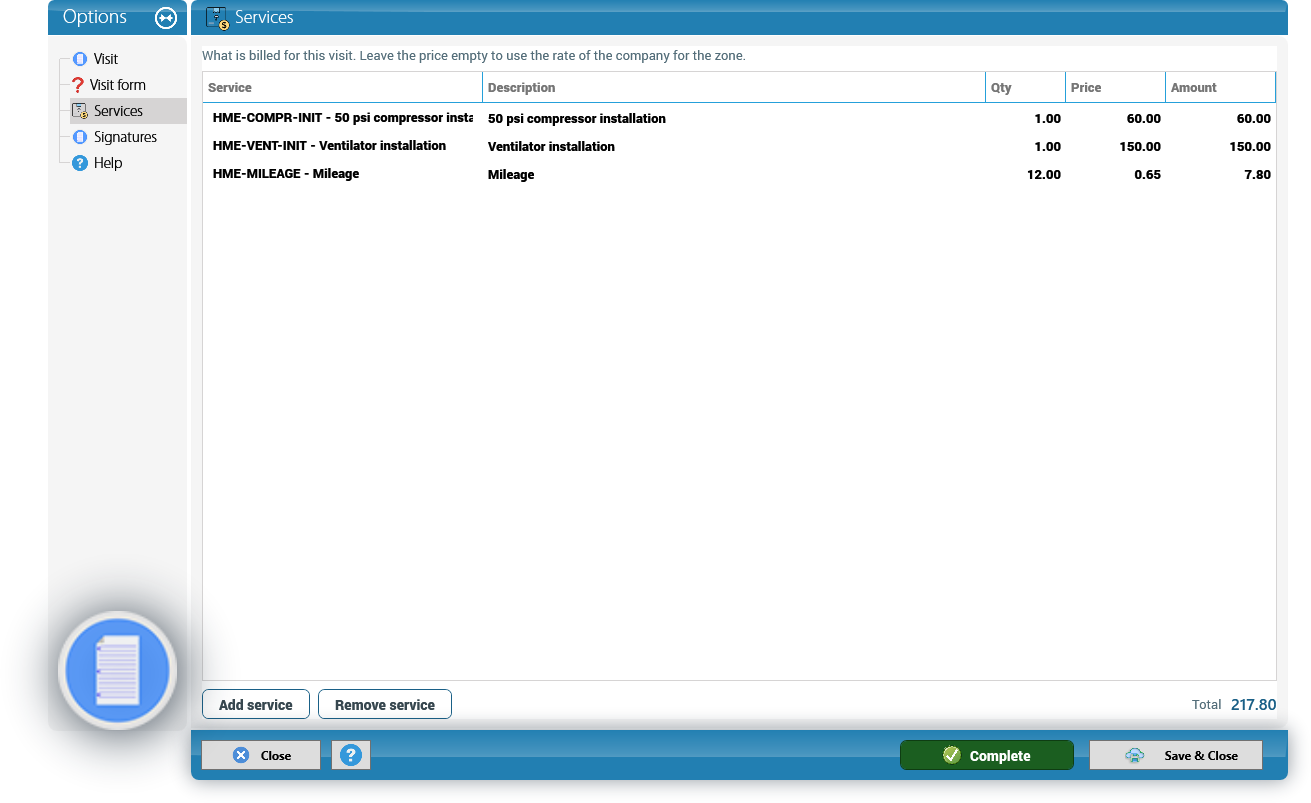
Services. What is billed for this visit. KeyTray suggests the initial or follow-up service of each piece of equipment with the company's rate. Add service adds another one (for example HME-MILEAGE or HME-EXTRA-HR) and Remove service removes the selected one. Leave the Price empty to use the company's rate for the zone; if there is no rate for that service, the price stays at zero. The Total is at the bottom.
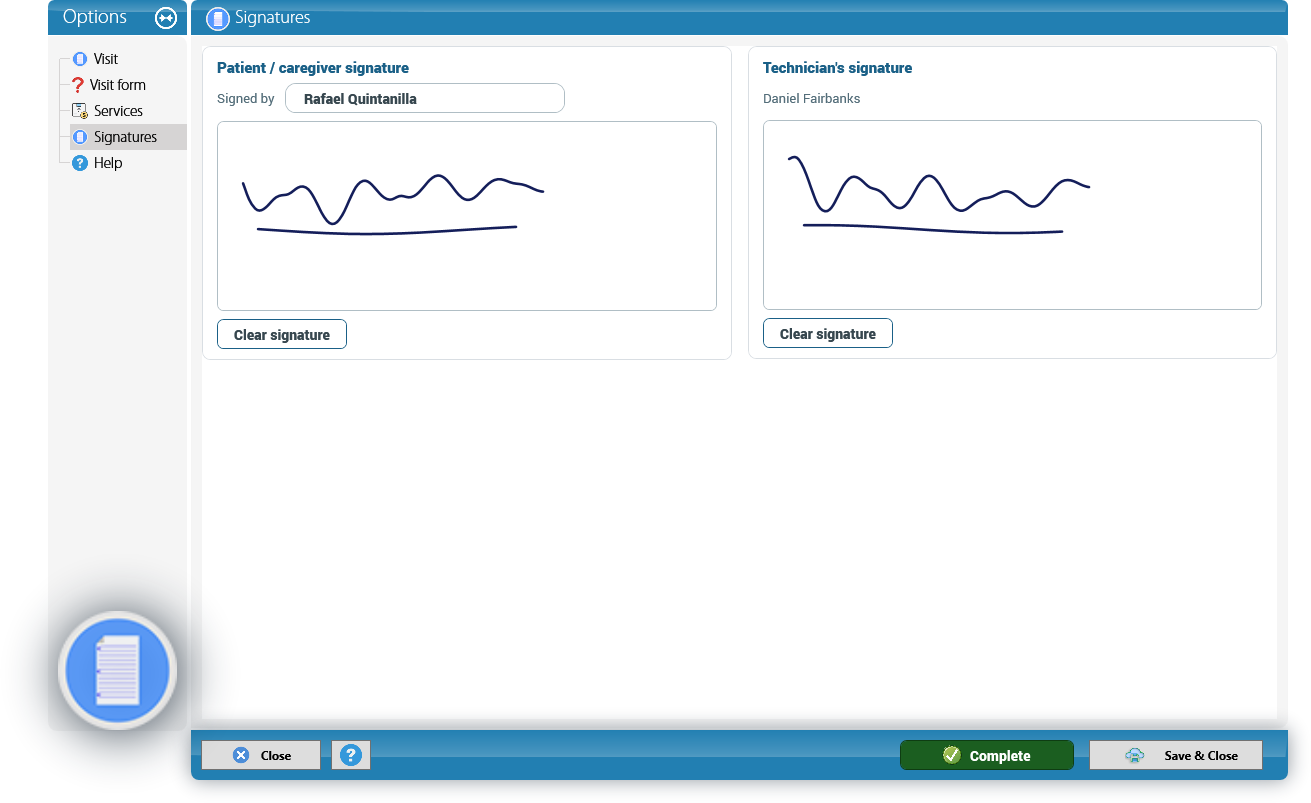
Signatures. The patient or the caregiver signs in Patient / caregiver signature (write who signs in Signed by) and the technician in Technician's signature, with the mouse or a signature pad. Clear signature erases it to sign again. The signatures are saved as images when you save the visit.
Draft, completed, billed, void. A visit has four statuses:
- Draft: saved with Save draft (or Save & Close). It is not billed or emailed.
- Completed: saved with Complete, in the blue bar. Only completed visits are emailed and billed. To complete it, the visit needs the Technician and at least one service (A completed visit needs the technician., A completed visit needs at least one service.). When it is completed, the readings update the patient's equipment (meter hours, settings and the new S/N) and are written in the equipment history.
- Billed: it was included in a monthly invoice. It can no longer be changed or voided (The visit is billed or void: it cannot be changed.).
- Void: Void asks Void this visit? It will not be billed nor emailed. A billed visit cannot be voided.
A completed visit can still be corrected until it is billed; saving it keeps it completed. The status and number show at the top (for example #12 Completed).
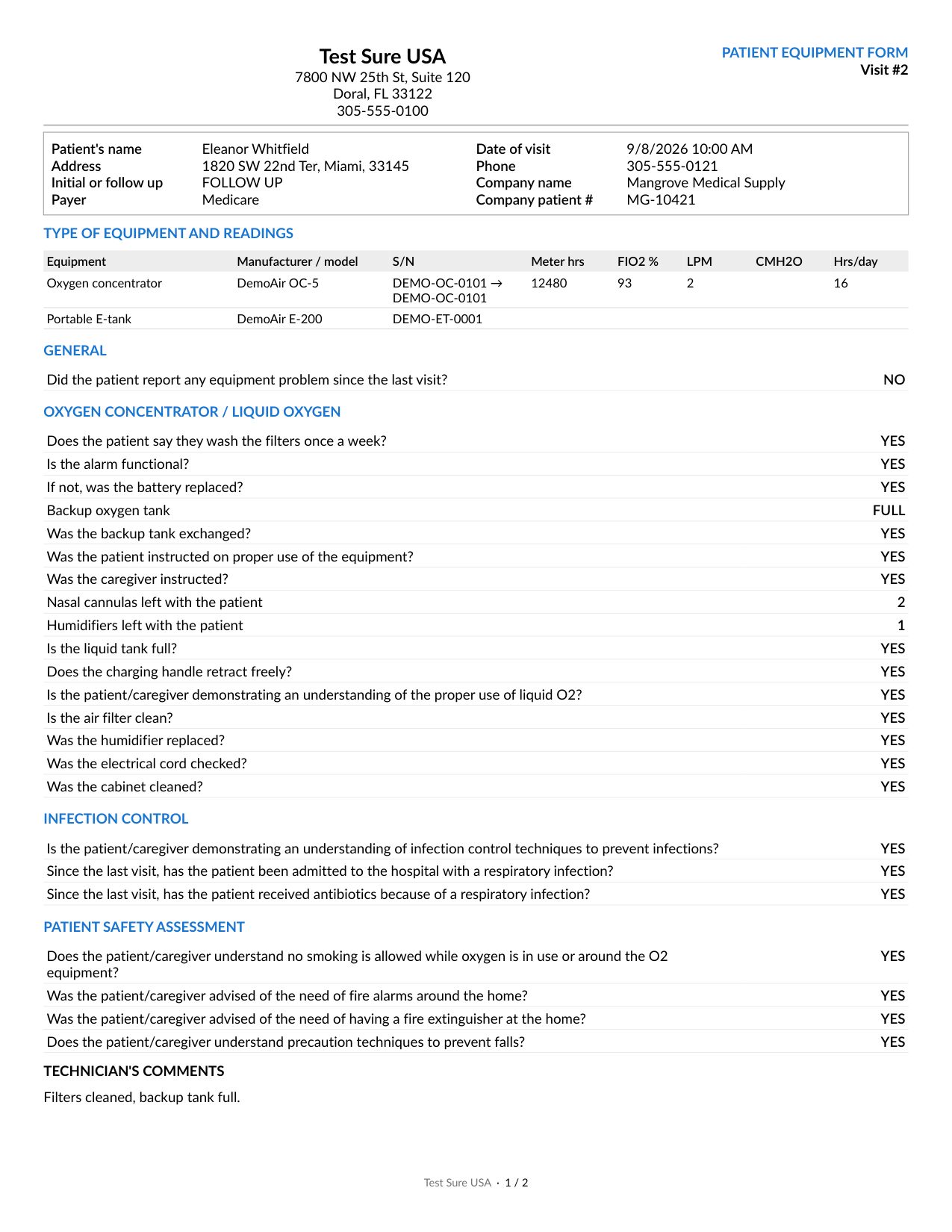
The PDF. PDF (on the Visit page, once the visit is saved) creates the Patient Equipment Form of the visit: patient and visit details, equipment and readings, the answers by section, the comments and both signatures. It has no prices: it is the visit record for the DME company, not the invoice. It is the same PDF the DME company receives by email, and it is in the company's language.
The Visits list of the List Explorer (section 12) shows all visits with their status, amount, invoice and the date they were emailed.
6. Visits due
Home Medical > Visits Due answers the question of every month: which patients must be visited. Choose the Month and, if you want, one Medical supply company, and click Refresh.
For each active patient and each of their active companies, KeyTray calculates the Next visit: the date of the last completed visit plus the frequency. The frequency is the shortest one among the categories of the patient's equipment, for that company and payer (section 1). A patient that was never visited is due from the start date of the company in the patient's record. The list shows the patients due up to the end of the chosen month:
- Overdue is checked when the visit was due before the chosen month.
- Days late counts the days from the due date to today.
- The other columns: Patient, Phone, Address, Zone, Medical supply company, Payer, Equipment, Every (months) and Last visit.
Only overdue leaves only the overdue patients. The bottom line says how many patients are due and how many are overdue.
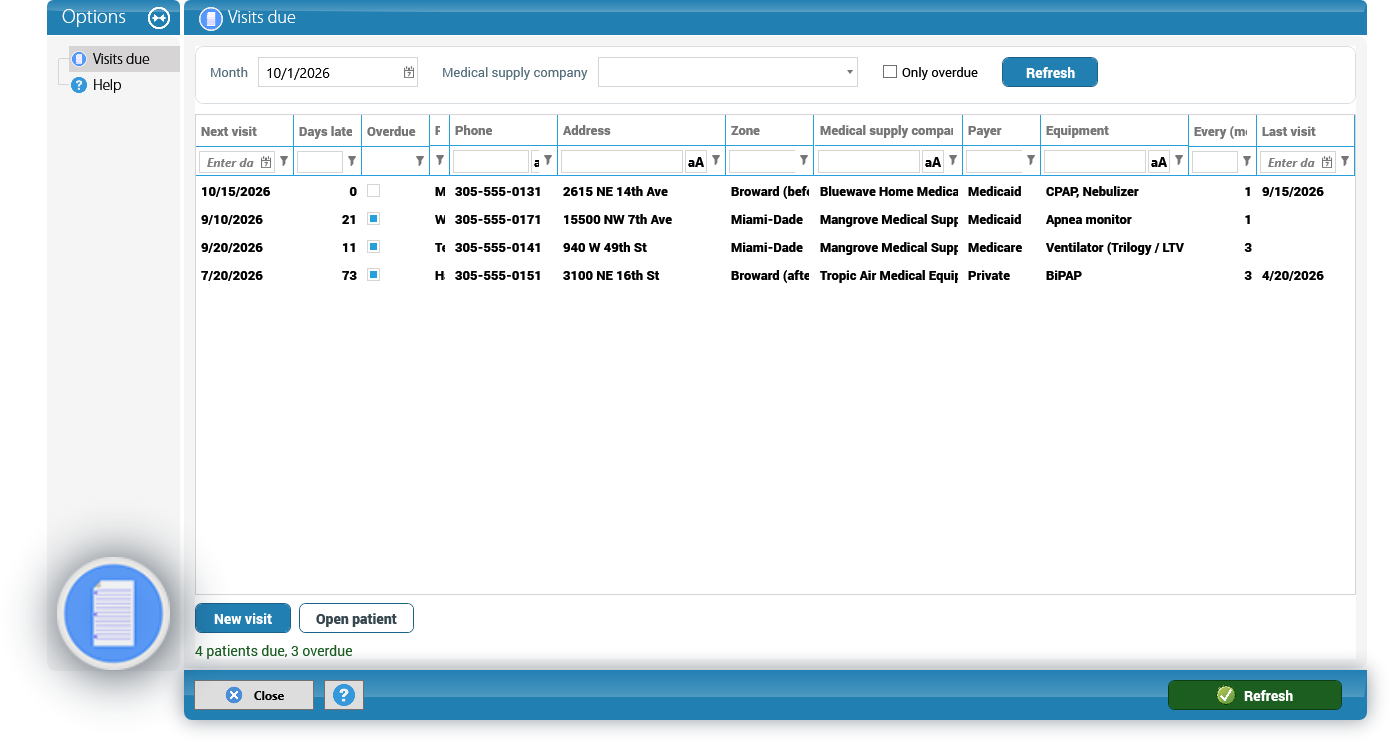
Select a patient and click New visit: the visit opens for that patient and company, as Initial if they were never visited or Follow up if they were. Open patient opens the patient's record.
7. Emailing the visits to each DME company
Each DME company receives one email with the PDF of every completed visit of its patients that was not sent before. The email goes to the company's Visit email, with a copy to the owners of your company (if no owner has an email, to the company's email address), and it is sent from the account of section 1.
Every morning, automatically. From 6:00 a.m., the KeyTray server sends the visits completed up to yesterday that have not been sent yet. Each visit is sent only once: KeyTray records the date it was emailed (the Emailed column of the Visits list), so the same visit never goes twice.
A visit corrected after it was emailed is not sent again.
Now, by hand. Home Medical > Email Visits does the same at once, including today's visits. KeyTray asks for confirmation and then says how many emails and visits were sent, and the errors if there were any.
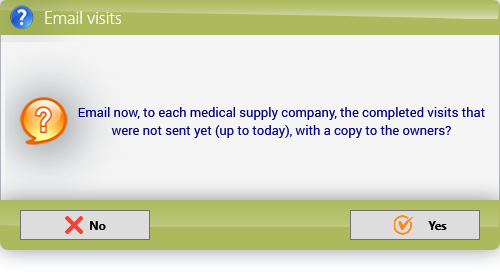
Why it matters: a DME company with no Visit email, or marked as not Active, does not receive emails: its visits stay unsent. Draft and void visits are never emailed.
8. The technician's mobile app
The technician works with the same KeyTray app for Android and iPhone. In a KeyTray HME company the app shows the Visits, Account and Settings tabs. The Visits tab works without signal: the technician downloads the work once and can visit patients all day without connection.
Download. With signal, tap Download (the first time, the app downloads by itself). The phone keeps the patients due this month (and the overdue ones) and next month, plus the draft visits of that technician. The top shows the date of the Last download. Each card shows the patient, address, DME company and phone, and Due or Overdue since with the date.
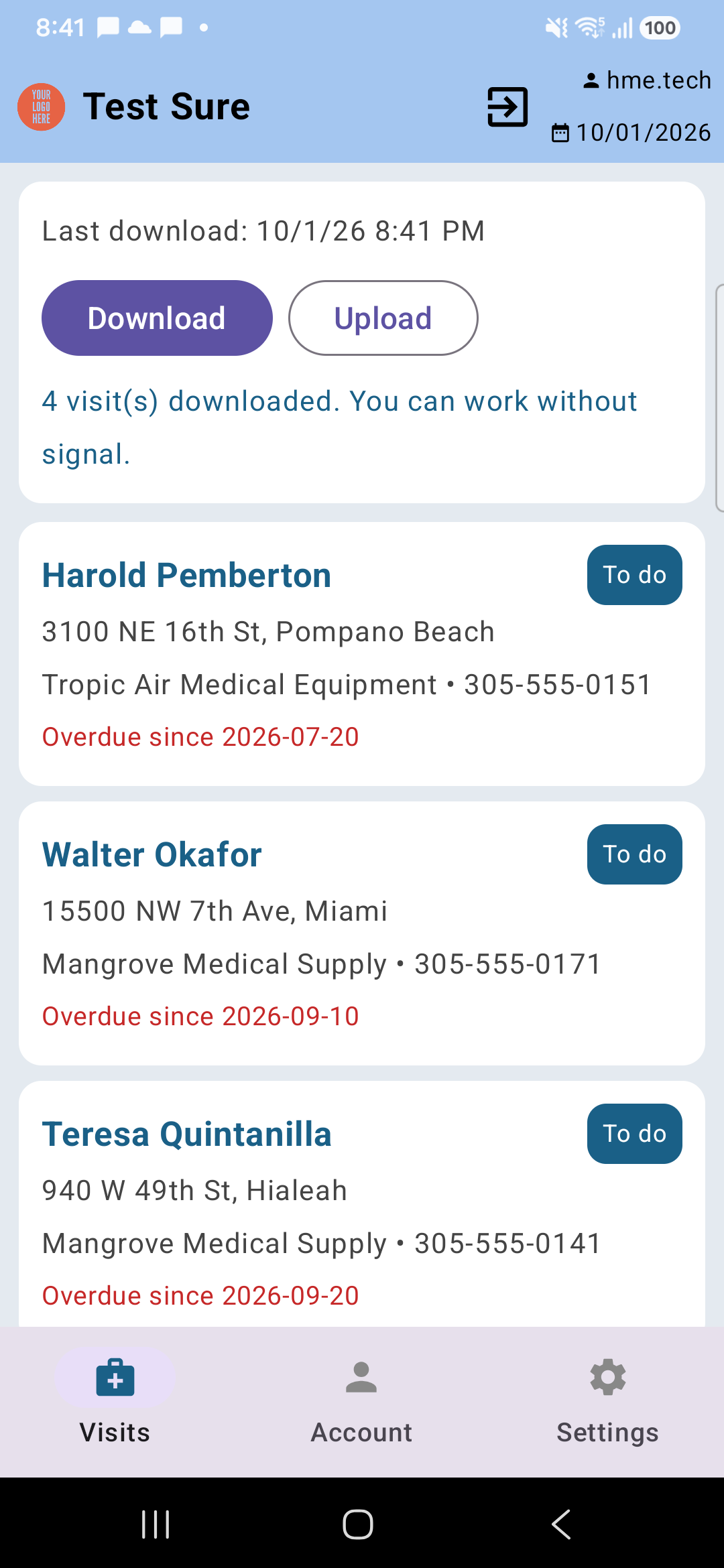
Doing the visit. Tap the patient. The visit has three tabs:
- Visit: the patient's details, Visit type (Initial, Follow-up, Other), the Equipment readings (meter hours, hours per day, LPM, FiO2 %, cmH2O and the new serial number if the equipment was replaced), the Services with their quantity (− and +) and the Comments of the patient and the technician.
- Form: the questions of the visit form.
- Signatures: Technician, License, Signed by (patient or caregiver) and the two signature boxes, with Clear.
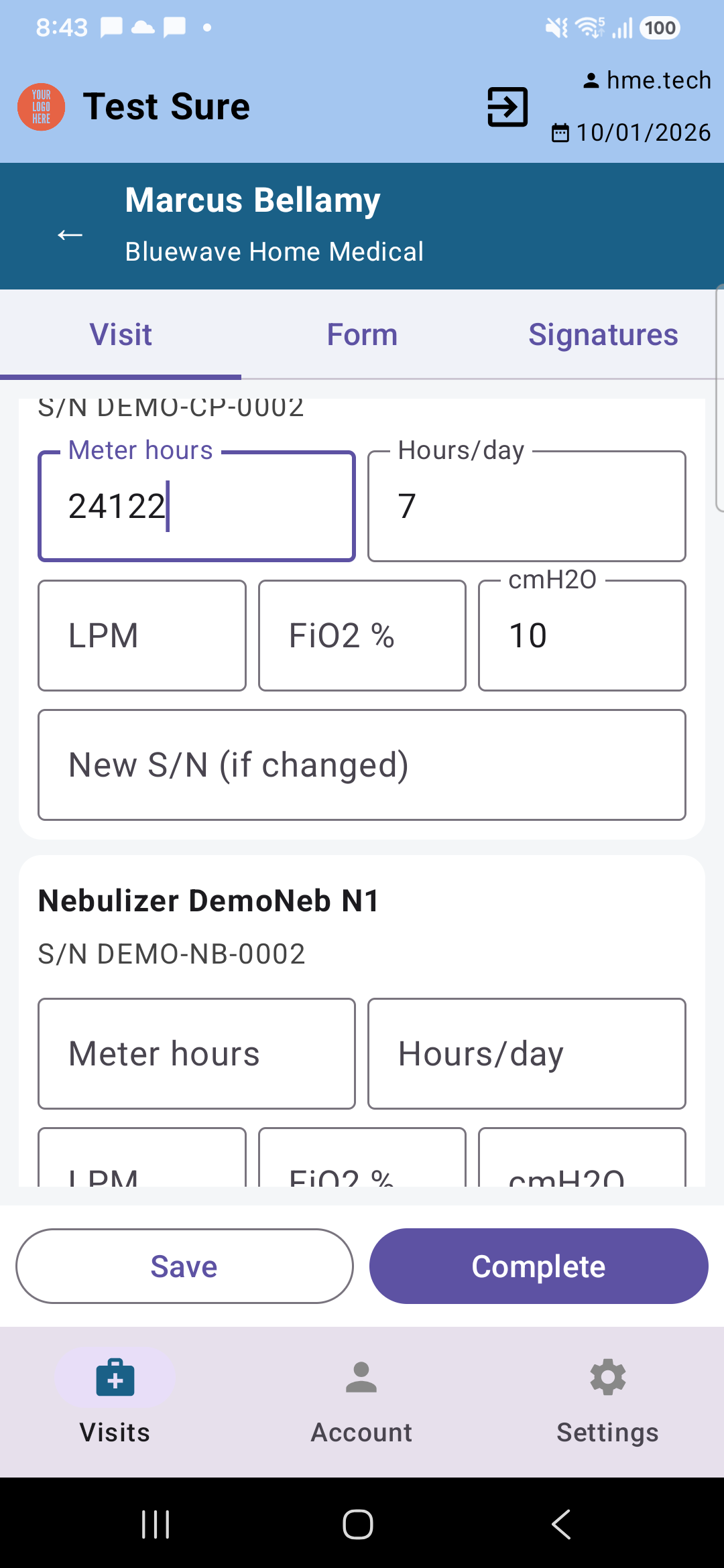
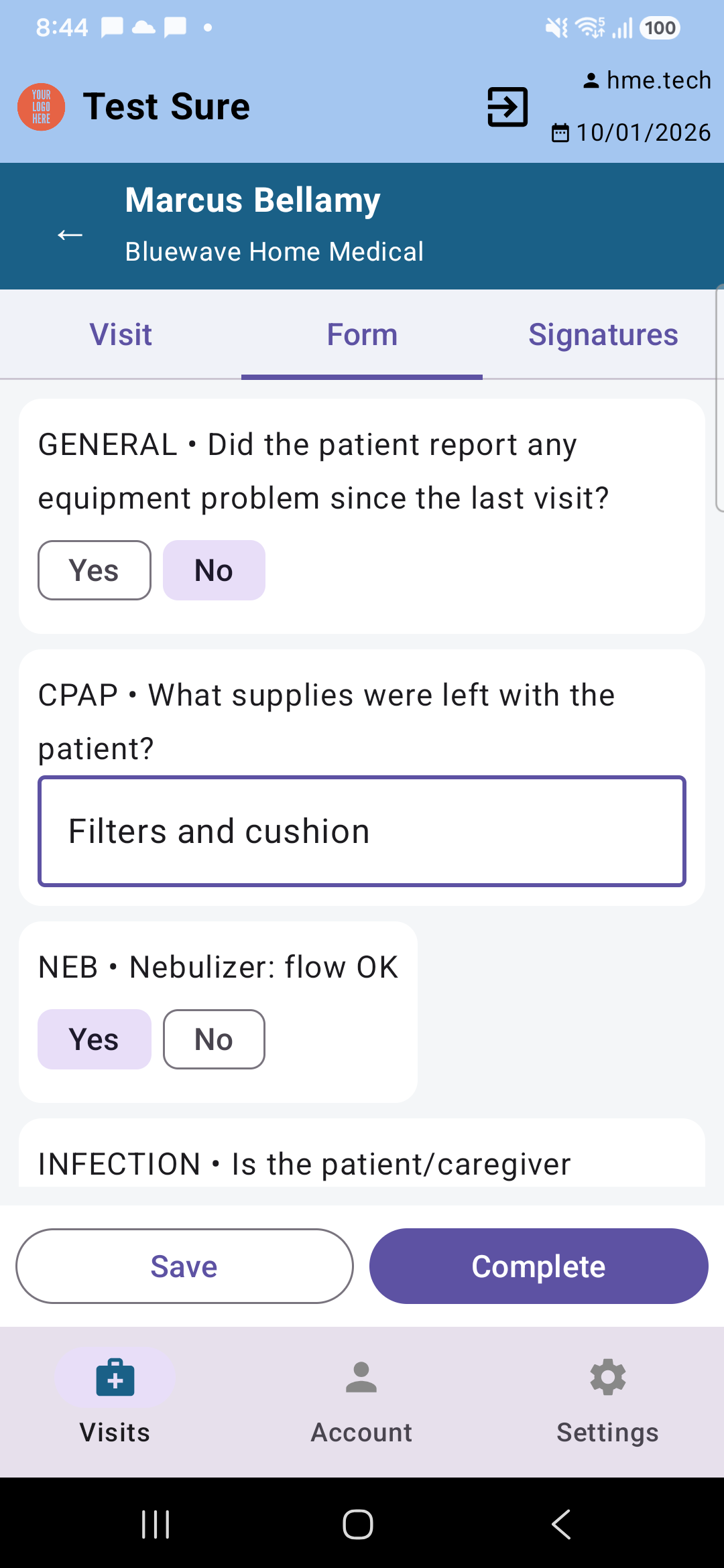
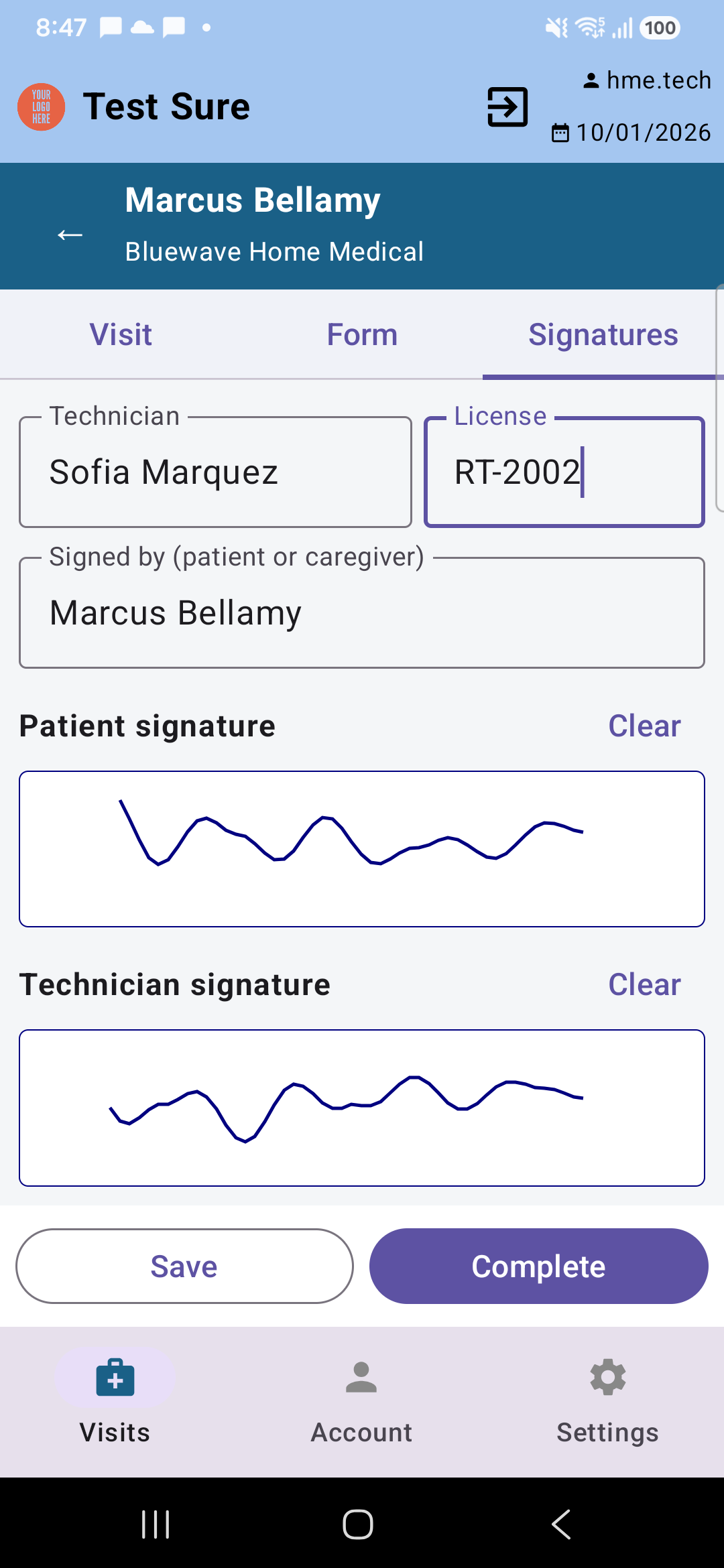
Save keeps the visit on the phone to finish it later. Complete closes it: on the phone, completing requires the technician's name, the name of who signs for the patient and both signatures. The phone remembers the technician's name and license for the next visits.
Upload. A completed visit uploads by itself as soon as there is signal; Upload (with the number of visits waiting) uploads at once. KeyTray never duplicates a visit: if the signal drops in the middle of an upload and the phone retries, KeyTray returns the visit it already saved. On KeyTray, the uploaded visit is a completed visit like any other: it goes in the next morning's email and in the monthly invoice.
Each card shows its state: To do, Draft, On the phone (saved but not completed), To upload, Uploaded # (with the visit number in KeyTray) or Rejected. A visit is rejected when KeyTray does not accept it (for example, a service with quantity zero): open it, correct it and complete it again.
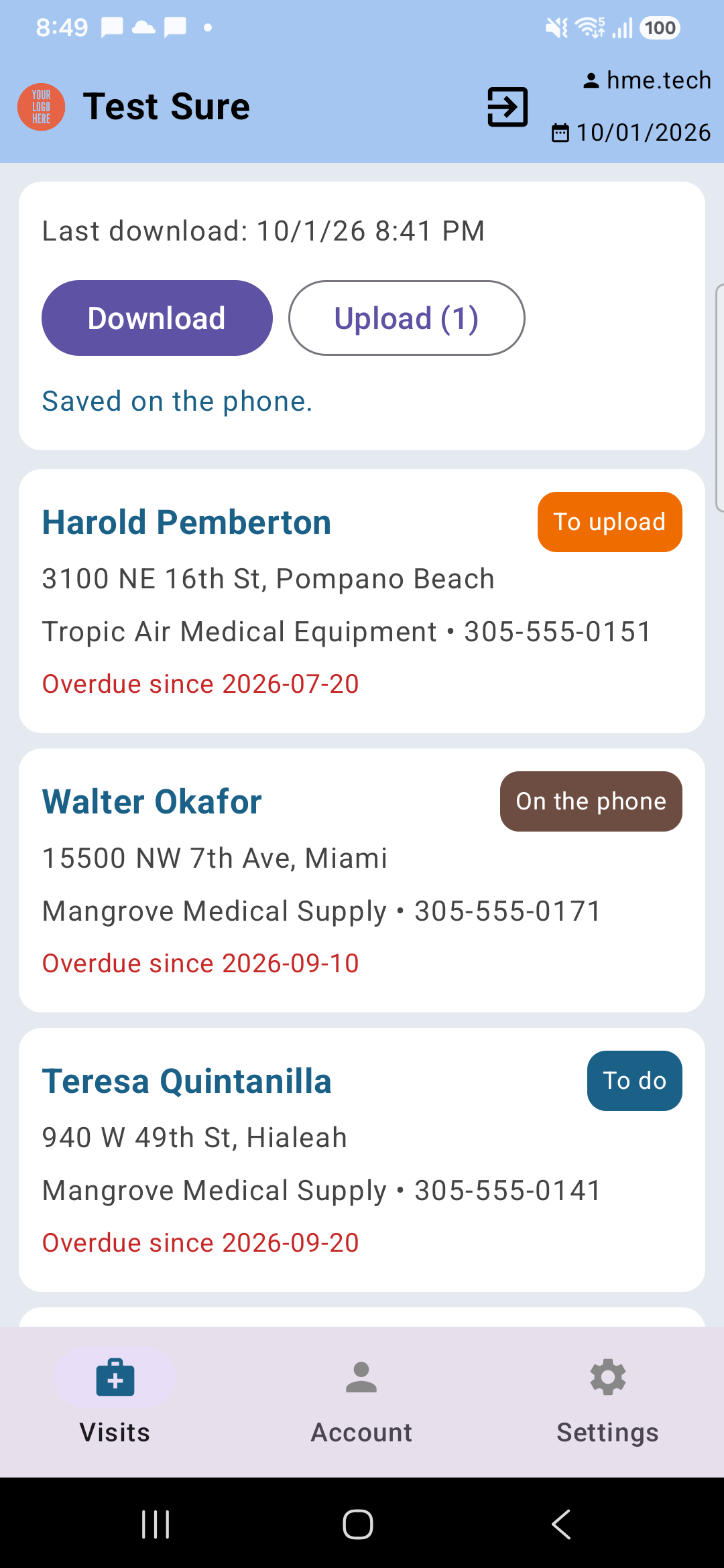
Tip: to upload, the technician must be signed in. If the app says Sign in again to upload., they sign in again and the pending visits upload.
9. Month-end billing
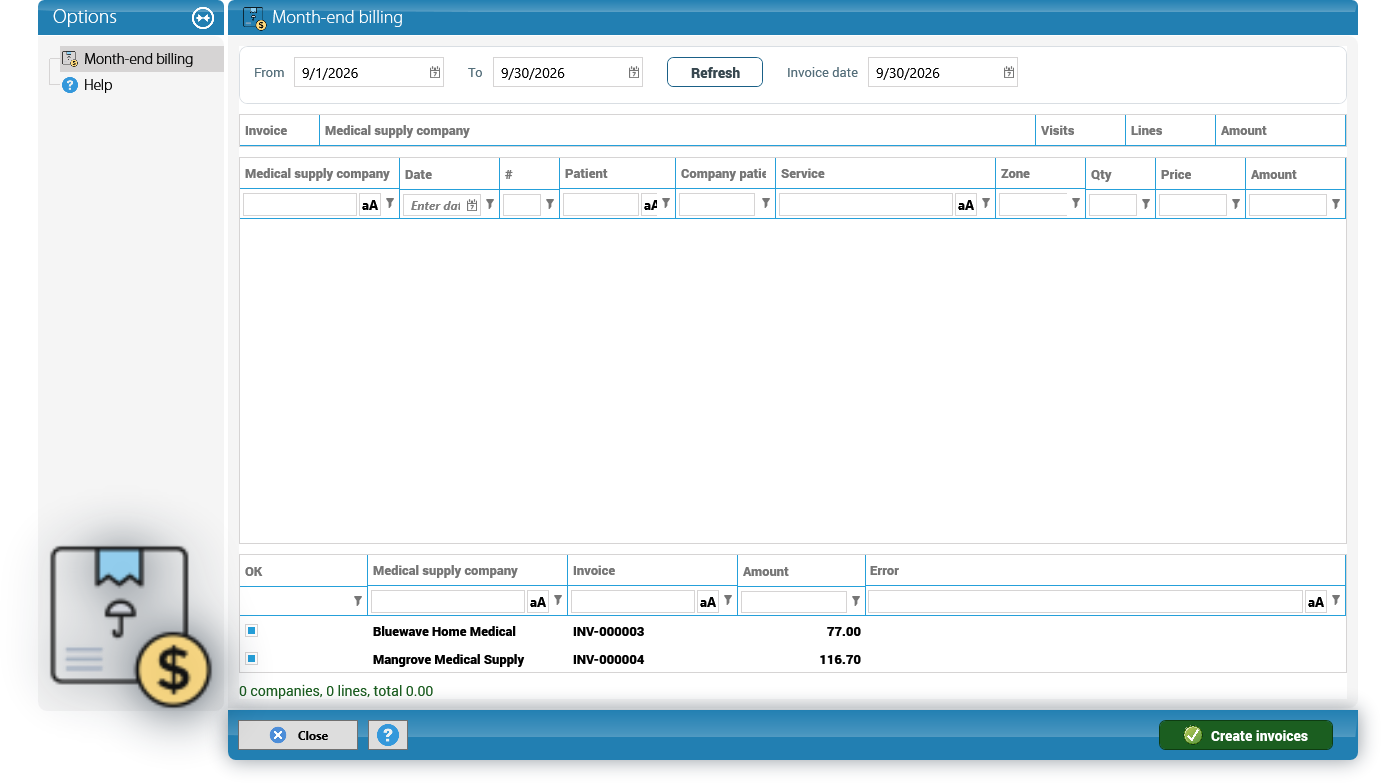
At the end of the month, Home Medical > Monthly Billing creates one sales invoice per DME company with all the services of its completed visits that are not billed yet.
- Check From and To: they come with the previous month. Invoice date comes with the last day of that month. If you change the dates, click Refresh.
- The top grid shows one line per company, with its Visits, Lines and Amount. The Invoice column is checked on all of them: uncheck the companies you do not want to bill now.
- The grid below shows the detail: company, date, visit number, patient, Company patient #, service, zone, quantity, price and amount.
- Click Create invoices in the blue bar and confirm (Create 2 invoice(s) dated 09/30/2026?).
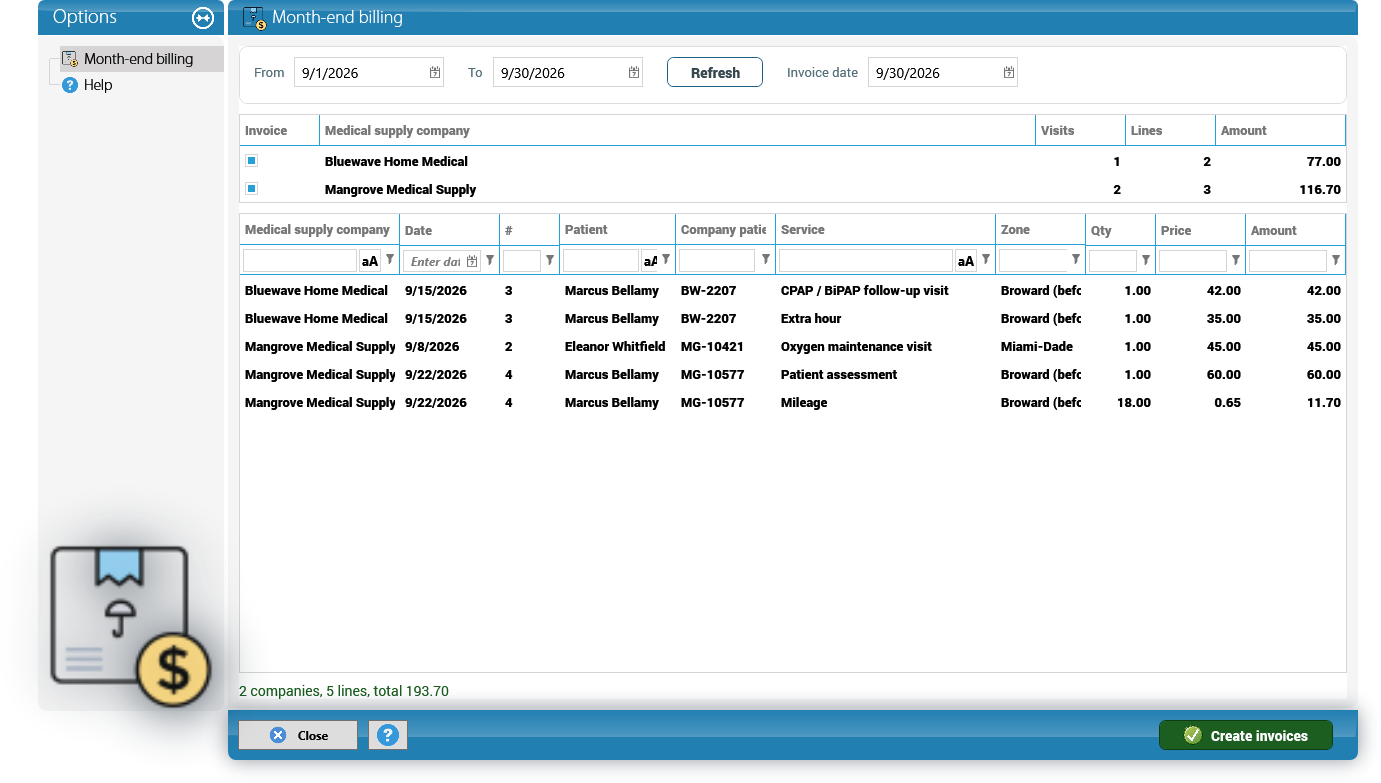
Only completed visits dated within the period are billed; drafts are left out, so complete all the visits before billing. Each invoice uses KeyTray's numbering, the company's currency and the due date of the customer's payment terms. Each line says the date, the visit number, the patient (with their number at the company) and the service. The invoice is a regular KeyTray sales invoice and is posted to accounting with the income accounts of the HME services.
When it finishes, the bottom grid shows the result for each company: OK, the Invoice number, the Amount or the Error. Each company is created separately: if one fails, the others are still created, and KeyTray says Some invoices could not be created: see the error column.
The billed services are marked with their invoice and the visit becomes Billed. The same service is never billed twice: if someone billed it in the meantime, KeyTray says Some of these services were already billed. Refresh and try again.
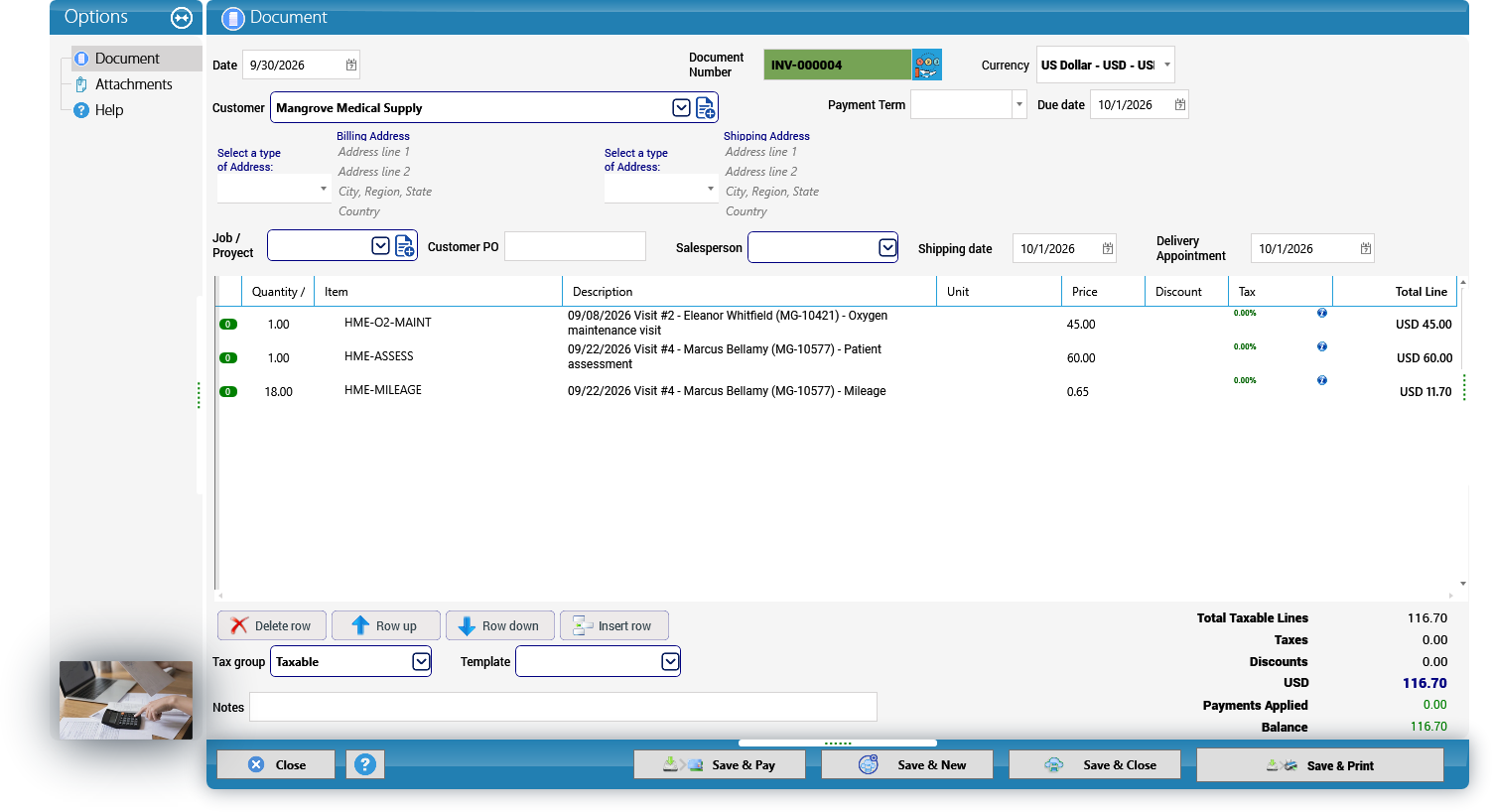
Why it matters: the invoice date must be within an open fiscal period; otherwise KeyTray does not create any invoice and says so.
10. Own rental equipment
Besides the visits, your company can rent its own equipment to patients: hospital beds, mobility equipment (scooter, wheelchair, lift), respiratory equipment and others.
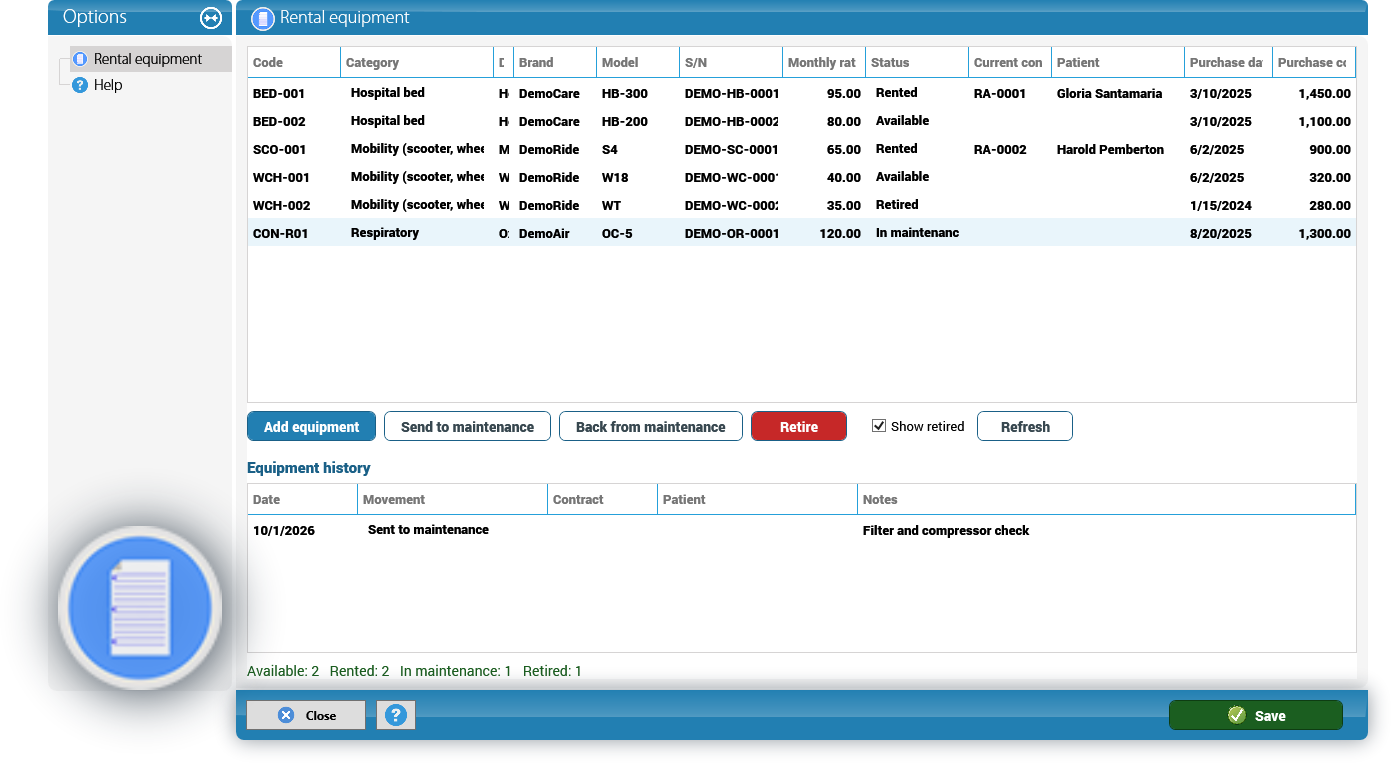
The fleet. Home Medical > Rental Equipment lists your equipment. Add equipment adds a line: Code (required and unique), Category (Hospital bed, Mobility (scooter, wheelchair, lift), Respiratory or Other), Description (required), Brand, Model, S/N, Monthly rate, Purchase date and Purchase cost. Save, in the blue bar, saves all the lines.
The Status is never edited by hand: Available, Rented, In maintenance or Retired. It changes with the movements. For the selected equipment:
- Send to maintenance: only when it is available.
- Back from maintenance: it becomes available again.
- Retire: only when it is available or in maintenance; asks for confirmation and it can no longer be rented. Retired equipment is hidden unless you check Show retired.
Current contract and Patient show who has the rented equipment. Below, the Equipment history shows every movement: Delivered, Picked up, Sent to maintenance, Back from maintenance and Retired, with its date, contract and patient. The bottom line counts the equipment by status.
The rental agreement. Open the patient, go to Contracts and click New contract: the Rental Agreement opens with the patient already filled in (the Medical supply company is optional). Fill in Start, End, Signed on, Rented equipment (the description), Monthly rent, Deposit, Late fee per week and Notes, and save it.
Deliver and pick up. Once the agreement is saved, it shows Equipment at the patient's home. Choose the Available equipment and the Date and click Deliver equipment: the equipment becomes Rented to this agreement. To pick it up, select it in the grid, choose the date and click Pick up. If it is the last equipment of the agreement, the agreement ends that day and is no longer billed after that month.
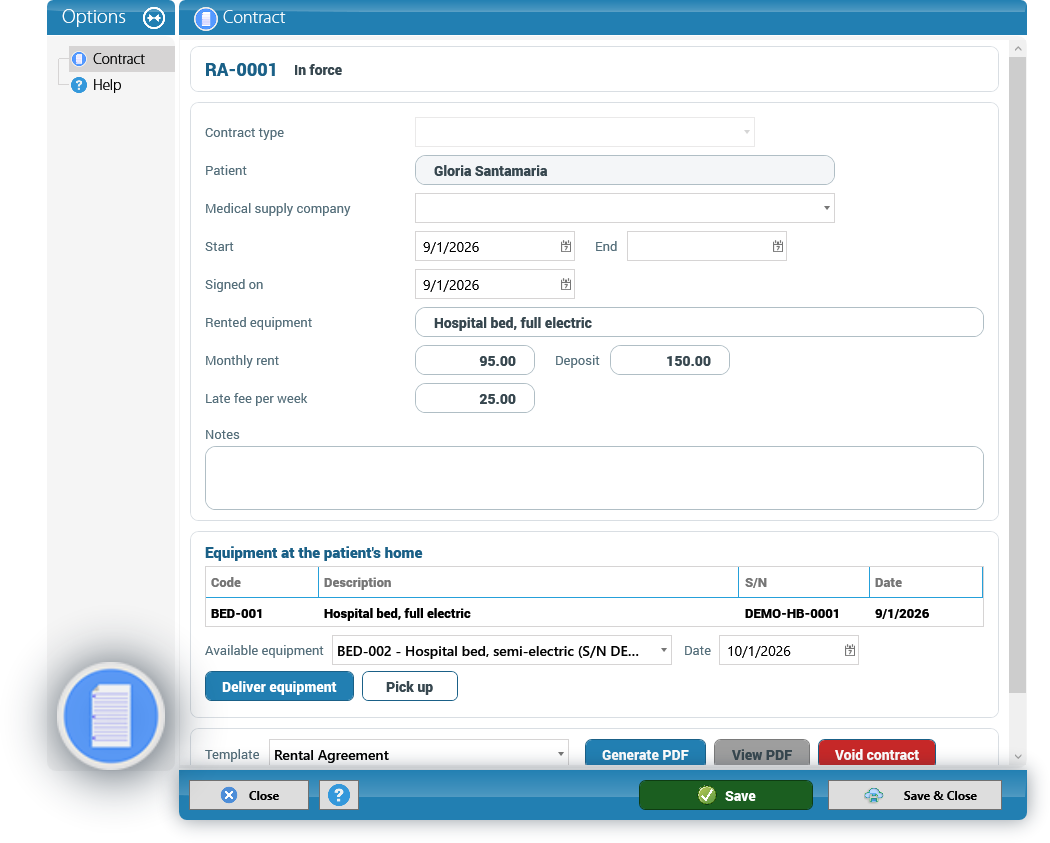
Careful: pick up the equipment before voiding a rental agreement. A void agreement can no longer deliver or pick up equipment.
11. Rental billing
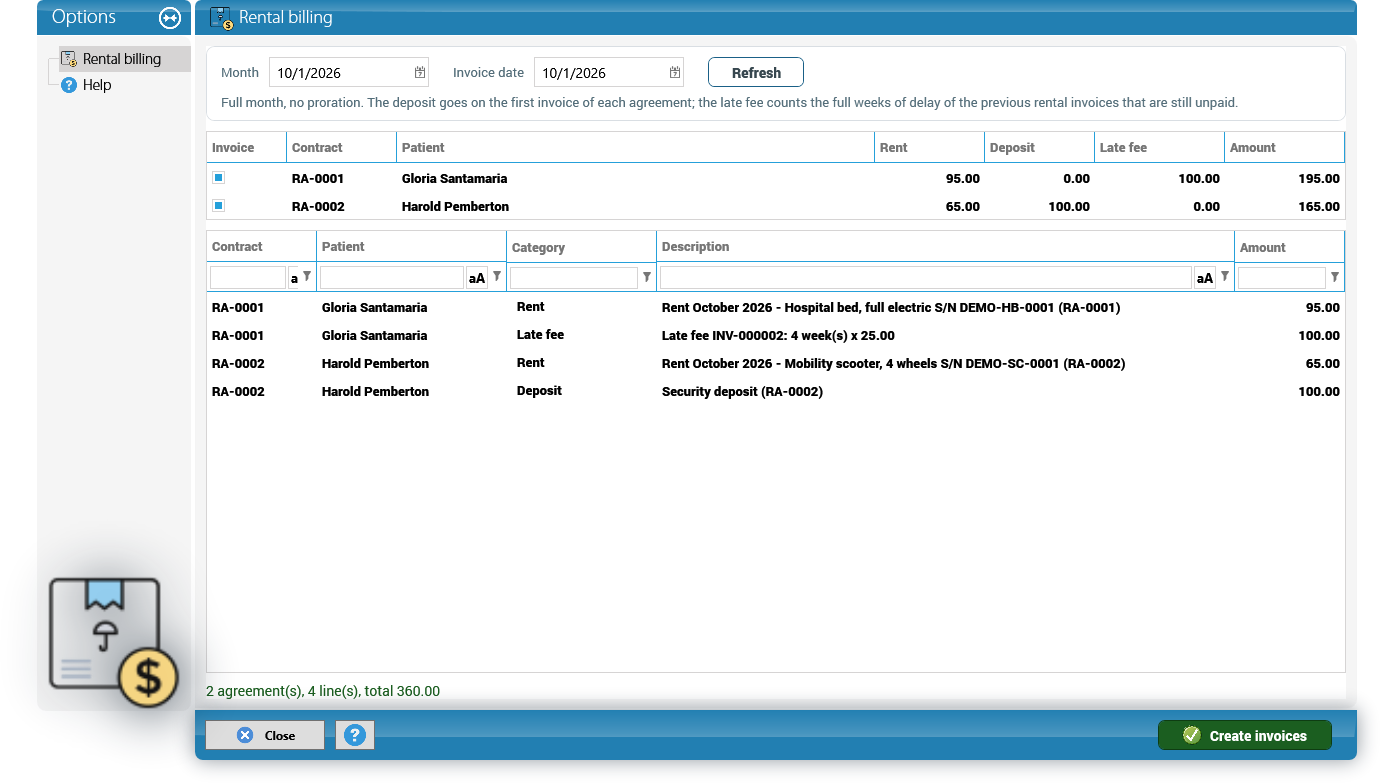
Home Medical > Rental Billing creates one invoice per rental agreement for the month, to the patient. Rent is billed in advance: the Month comes with the current month and the Invoice date with today.
The rules, which the window also shows:
- Full month, no proration. Every agreement in force during any day of the month is billed the whole Monthly rent.
- Deposit: it goes only on the first invoice of each agreement. It is posted as a liability (a deposit to be returned), not as income.
- Late fee: for each previous rental invoice of the agreement that is still unpaid, KeyTray counts the full weeks from its due date to the invoice date and charges the Late fee per week for each one. The same week is never charged twice.
The top grid shows one line per agreement with its Rent, Deposit, Late fee and Amount; uncheck Invoice on the ones you do not want to bill. Below are the lines of each invoice. Click Create invoices and confirm. As in the month-end billing, the result says the invoice number or the error of each agreement.
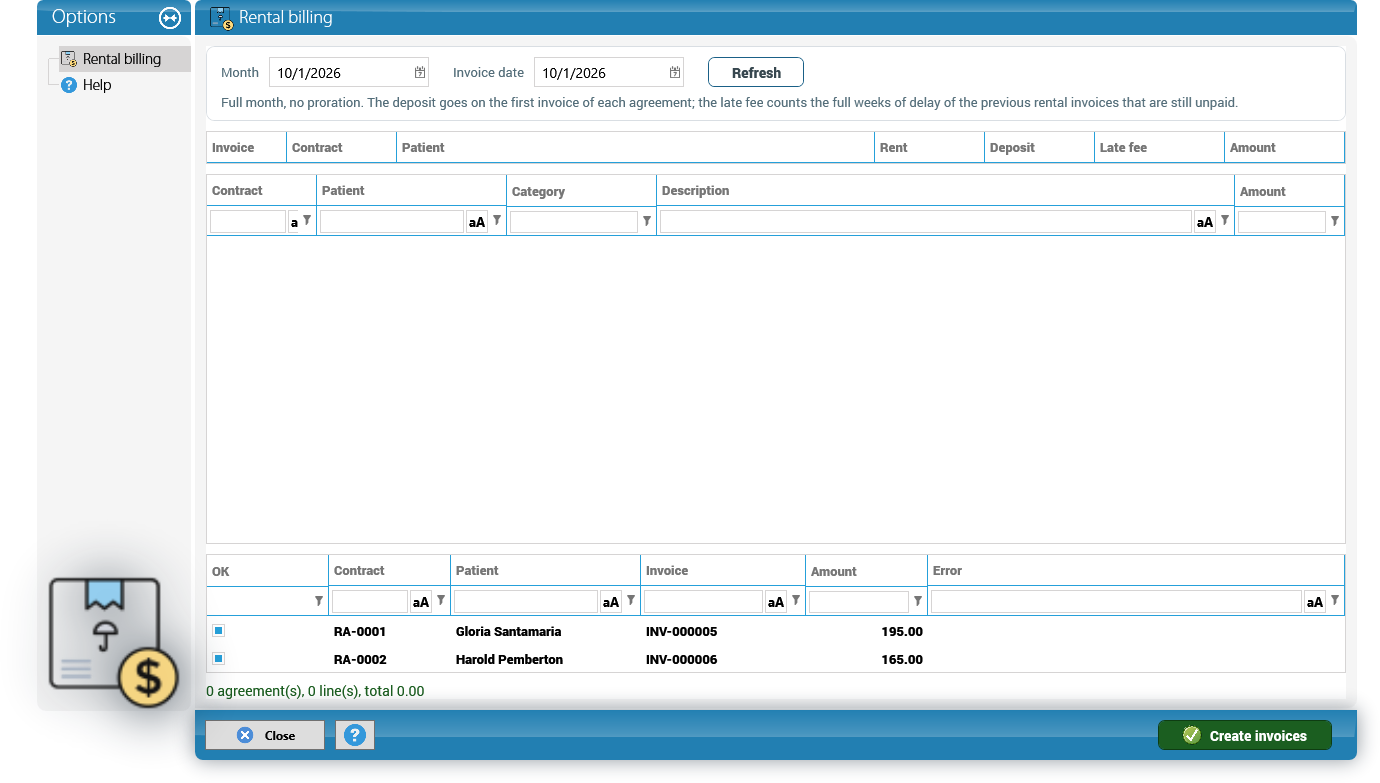
A month of an agreement is billed only once (That month of the agreement was already billed.): once invoiced, the agreement no longer appears for that month.
Tip: the late fee is calculated up to the Invoice date. Change the date and click Refresh to see the amounts again.
12. Lists, roles and the Field Technician
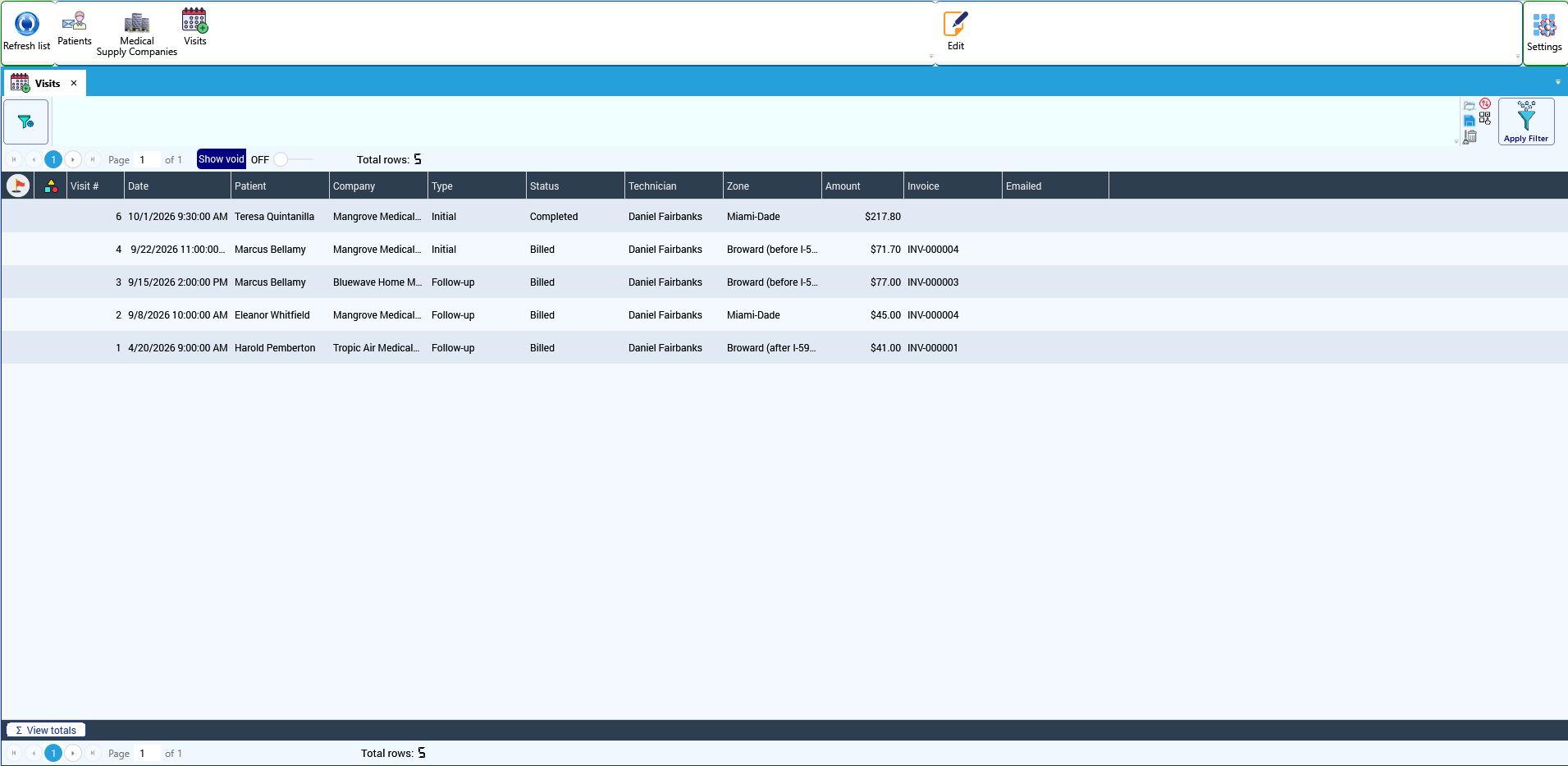
Lists. Home Medical > List Explorer has three lists: Patients, Medical Supply Companies and Visits. They work like any other KeyTray list. A double click (or Edit) opens the patient, the company or the visit.
- Patients: name, date of birth, payer, phone, address, zone, companies, equipment and last visit.
- Medical Supply Companies: company, EIN, visit email, contract dates, active patients and last visit.
- Visits: number, date, patient, company, type, status, technician, zone, amount, invoice and the date it was emailed.
Roles. A KeyTray HME company is created with seven roles. What each one sees in the Home Medical tab:
| Role | Home Medical tab |
|---|---|
| Administrator, Manager | Everything (full access) |
| Operations | Everything (edit) |
| Accountant | Billing (edit); Patients and Visits (view) |
| Administrative Assistant | Patients and Billing (edit); Visits (view) |
| Read Only | Everything (view only) |
| Field Technician | Nothing on the desktop: only the Visits, Account and Settings tabs of the phone |
Administrator, Manager and Operations also see the Visits tab of the phone. The owner changes these accesses in the role editor, like in any KeyTray application.
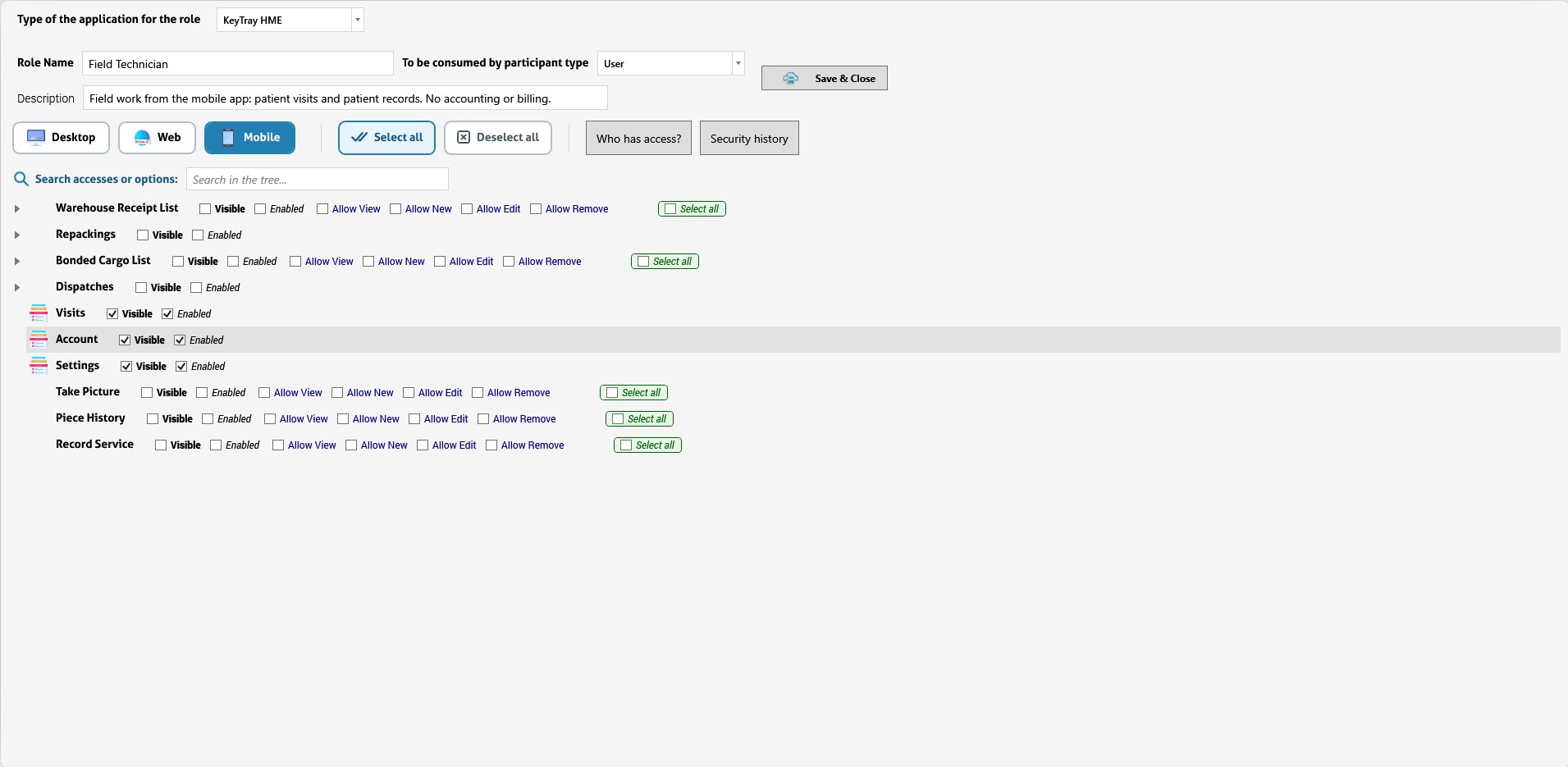
Why it matters: the Field Technician has no access to accounting or billing. Give this role to the technicians who only visit patients with the phone.