
KeyTray CRM: user manual
This manual explains the KeyTray CRM, which is the same in every application (commercial, cargo, services). The screenshots are from the sample company Cargo Masters (English), a cargo company: that is why rates and quotes show the Cargo and route block, which does not appear in the other applications. What the CRM adds in a cargo company is in chapter 15 of the KeyTray Cargo manuals.
The CRM organizes the company's sales work: from the first contact with a possible customer to the sale and everything that happens after it. It works the same in every KeyTray application (commercial, cargo, services); in a cargo company it adds what is specific to freight: the route, rates per kilo and the shipment request.
This is the flow:
- A lead is a company that is not a customer yet. You enter its details and its contacts.
- Each call, email or meeting is logged as an activity, with its next step.
- When there is a concrete deal, you open an opportunity, which moves through the stages of the pipeline until it is won or lost.
- Prices come from the rates. With them you build the quote, send it as a PDF by email and, if the customer accepts it, invoice it with the regular sales invoice.
- Each invoice generates the salesperson's commission.
- After the sale, the customer's claims and questions are after-sales cases, with response deadlines (SLA).
- The dashboard shows everything together.
Everything is in the CRM tab of the ribbon, in three groups: Sales, After-sales and Setup. The CRM Explorer brings together the lists: My Day, Leads, Opportunities, Activities, Contacts, Quotes, Rates, Commissions and Cases.
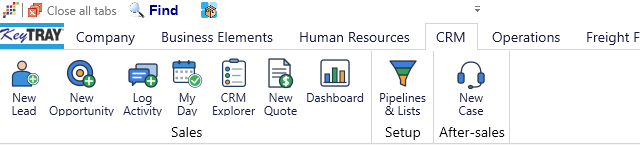
Who sees what: the company owner, managers and developers see every CRM record. Other users see only their own: the leads, opportunities, activities, quotes and cases where they are the Owner. The owner decides which CRM buttons each user sees in the role editor.
The screenshots in this chapter are from the sample company Cargo Masters (English).
Contents
- 1. Setting up the CRM
- 2. Leads
- 3. Activities and My Day
- 4. Sending emails from KeyTray
- 5. Opportunities and the pipeline
- 6. Rates
- 7. Quotes
- 8. Commissions
- 9. After-sales: cases and SLA
- 10. The dashboard
1. Setting up the CRM
The owner or a manager sets it up once, in CRM > Pipelines & lists.
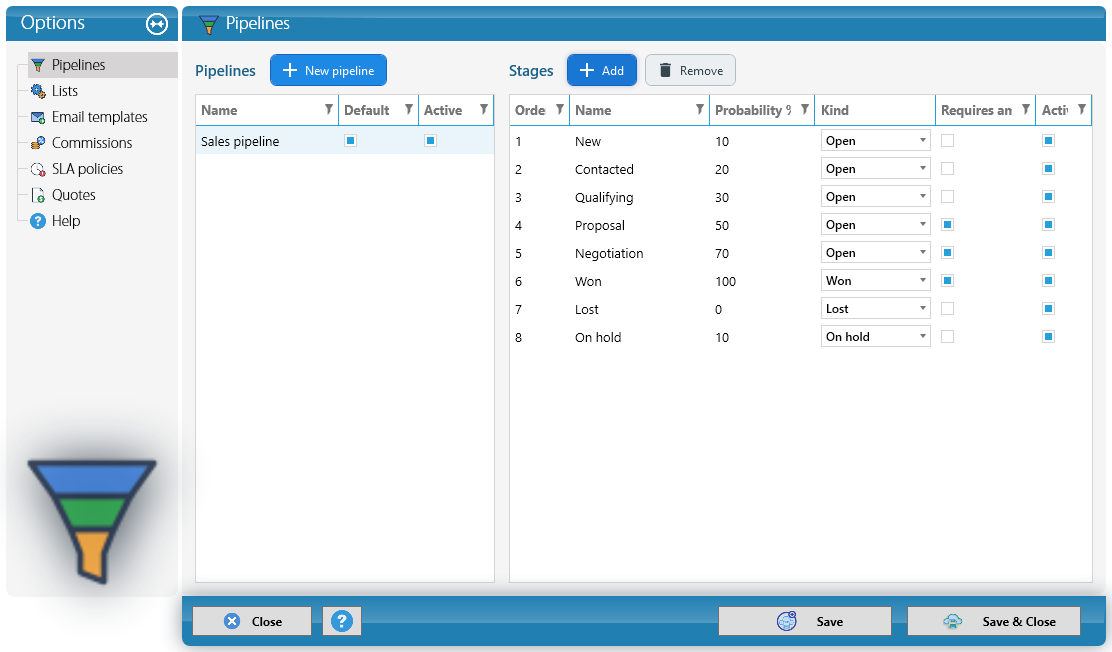
Pipelines. A pipeline is the list of stages a deal goes through. KeyTray comes with the Sales pipeline and eight stages: New, Contacted, Qualifying, Proposal, Negotiation, Won, Lost and On hold. You can rename, add or remove stages, and create more pipelines with New pipeline (for example, one for exports and another for imports). For each stage you define:
- Probability: the chance of closing the deal at that stage. It is used to calculate the weighted amount of the pipeline.
- Kind: Open, Won, Lost or On hold. Every pipeline needs at least one Won stage and one Lost stage.
- Requires amount: the opportunity cannot enter that stage without an amount.
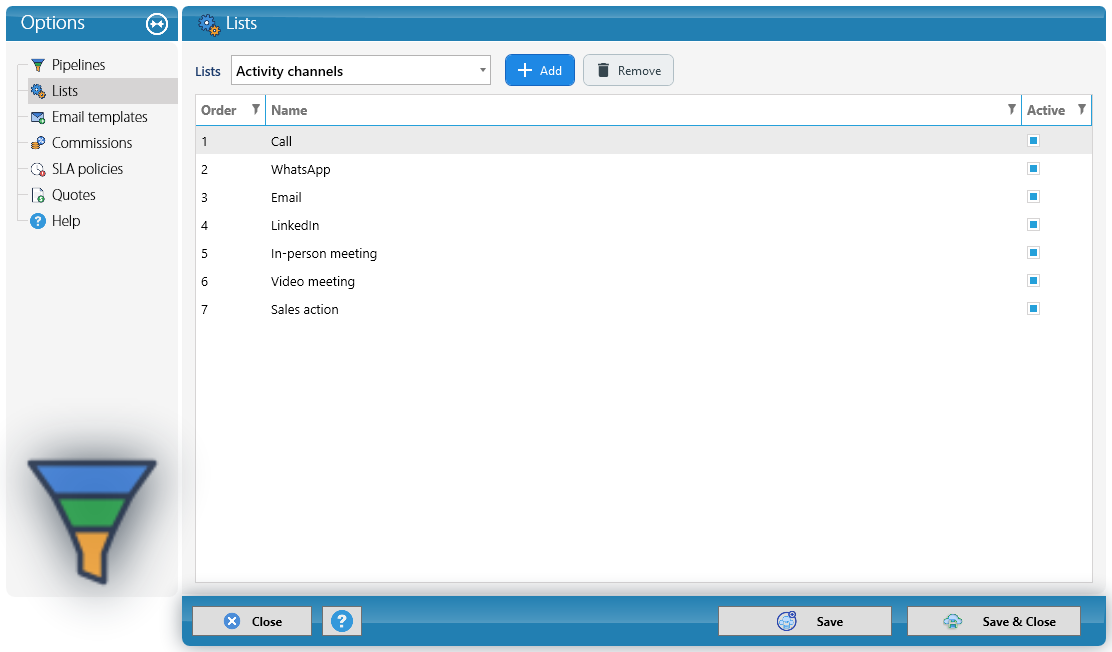
Lists. The values you pick in the CRM screens are edited here: Lead sources, Activity channels, Lost reasons, Party roles, Discard reasons and Case categories. Choose the list at the top, rename values, add new ones or uncheck Active on those you no longer use.
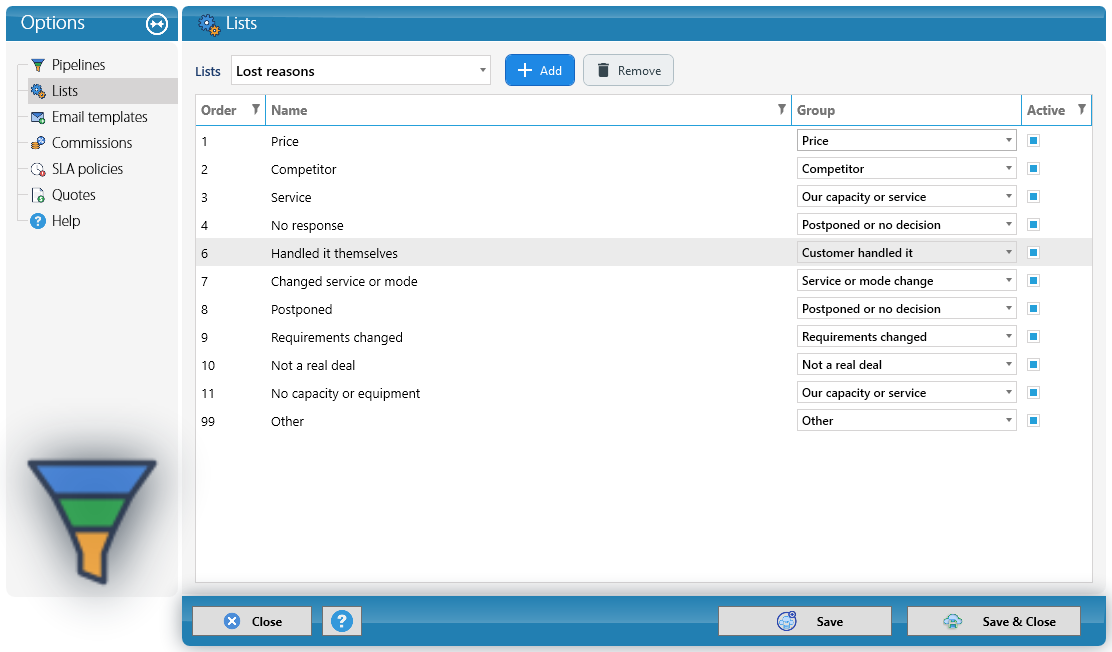
In the Lost reasons list each reason also has a Group: Price, Competitor, Customer handled it, Service or mode change, Postponed or no decision, Requirements changed, Not a real deal, Our capacity or service or Other. Each company can name its reasons as it likes; the group is what lets the dashboard show why quotes are lost.
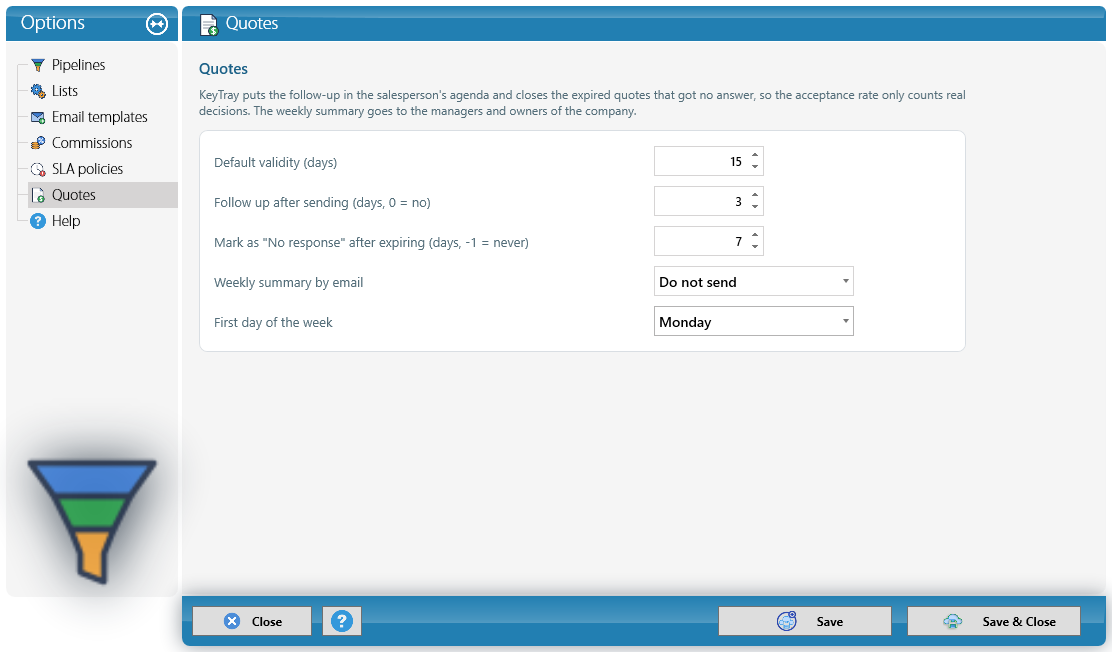
Quotes. The Quotes page sets how KeyTray follows up sent quotes:
- Default validity (days): how many days of validity a new quote starts with.
- Follow up after sending (days): how many days after sending, if the customer has not answered, KeyTray puts a follow-up activity in the salesperson's agenda and notifies them on the phone. 0 = none.
- Mark as "No response" after expiring (days): how many days after a sent quote expires without an answer KeyTray closes it as No response. -1 = never.
- Weekly summary by email: the day managers and the owner get the summary of the previous week's quotes.
- First day of the week: the day weeks start on in the dashboard and the summary (Monday, as in the ISO standard, or the one the company uses).
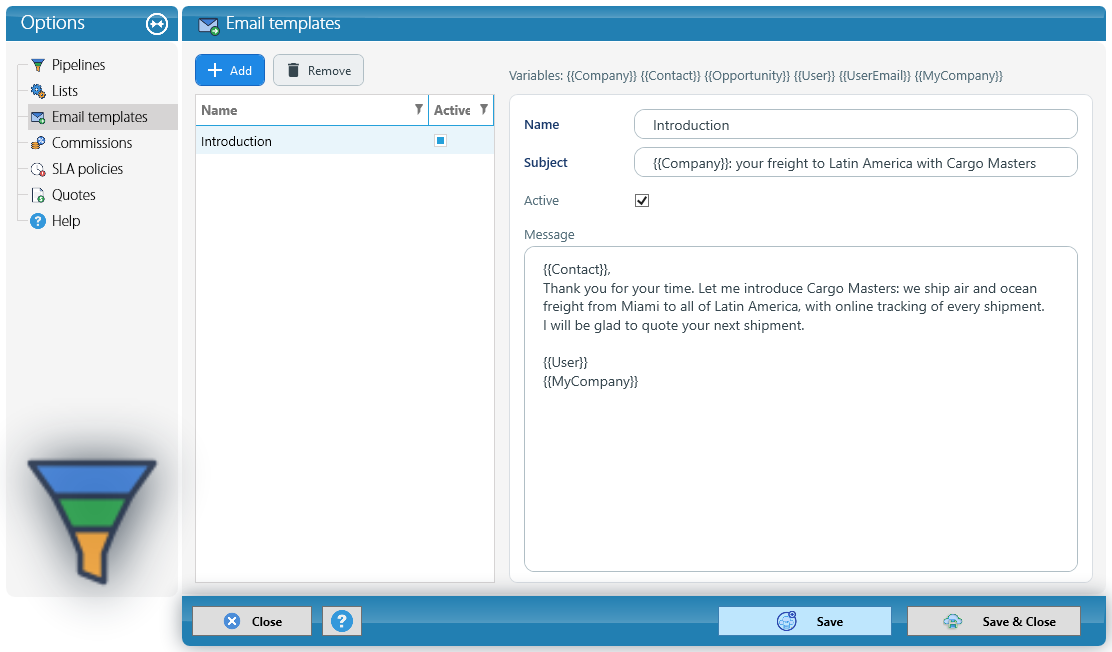
Email templates. A template is a ready-made email. The subject and the message can use variables that KeyTray replaces when you write the email: {{Company}} (the lead's or customer's company), {{Contact}} (the contact), {{Opportunity}}, {{User}} (the sender), {{UserEmail}} and {{MyCompany}} (your company).
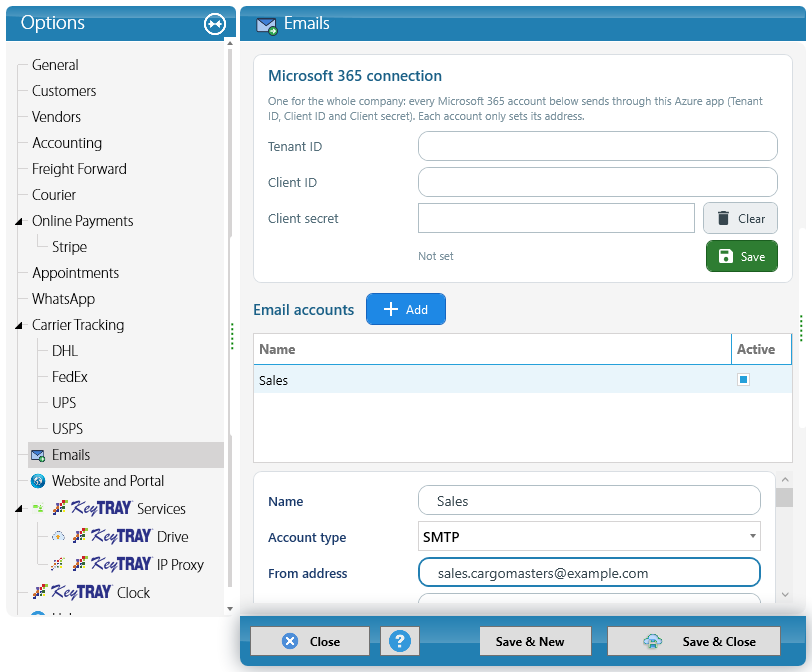
Email accounts. The CRM sends emails from the company's mailboxes. They are set up in System Options > Emails, with Add:
- Account type: Microsoft 365, SMTP or Gmail. Depending on the type, KeyTray asks for the connection details (Microsoft 365 Tenant ID and Client ID, SMTP server and port, or the Gmail refresh token).
- From address and Sender name, and optionally Reply to.
- Default: the account offered when writing an email.
- Users who can send from this account: if none is checked, everyone can use it.
Test sends a test email to the address you type.
Why it matters: passwords and secrets are stored encrypted and are never shown again: the field says it is already saved. To change it, type the new one.
2. Leads
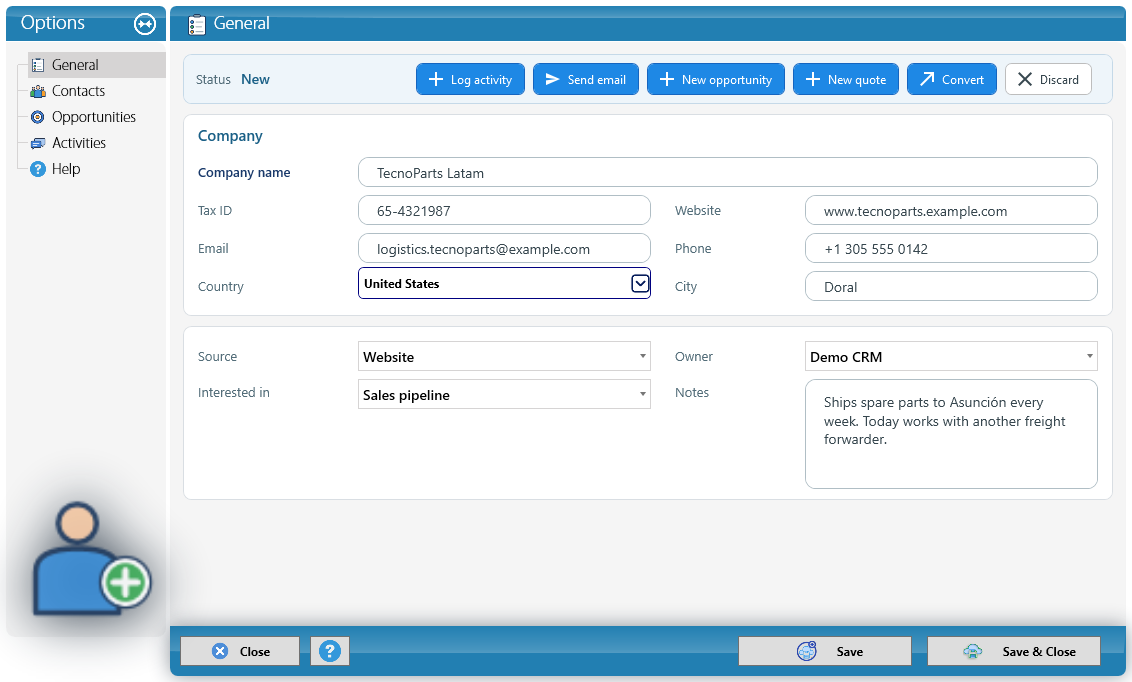
Create a lead with CRM > New Lead. In General, fill in the Company name (the only required field), tax ID, email, phone, website, country and city. Below:
- Source: where it came from (website, referral, trade show, social media...).
- Interested in: the pipeline it will be worked in.
- Owner: the salesperson in charge. By default, whoever creates it.
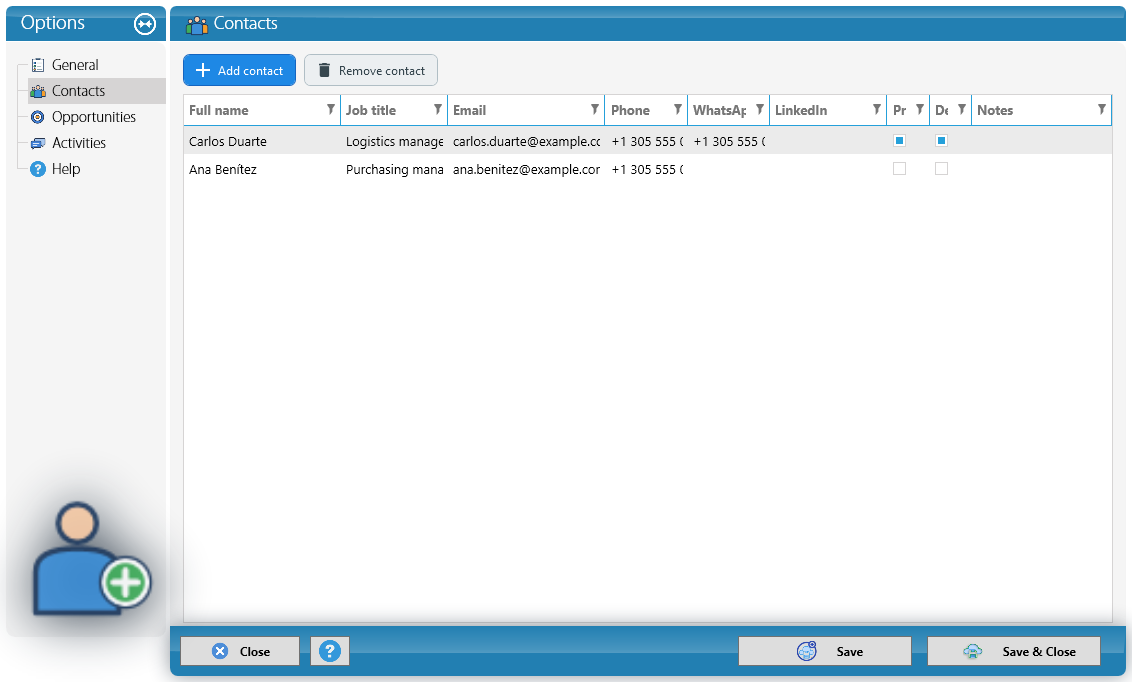
In Contacts, enter the people at that company, with job title, email, phone, WhatsApp and LinkedIn. Check Primary on the usual contact and Decision maker on whoever makes the decision.
Duplicates: when you save, KeyTray looks for the company among leads, customers and vendors, by name, tax ID and email. If it finds it, it shows the possible duplicates and asks whether to save anyway.
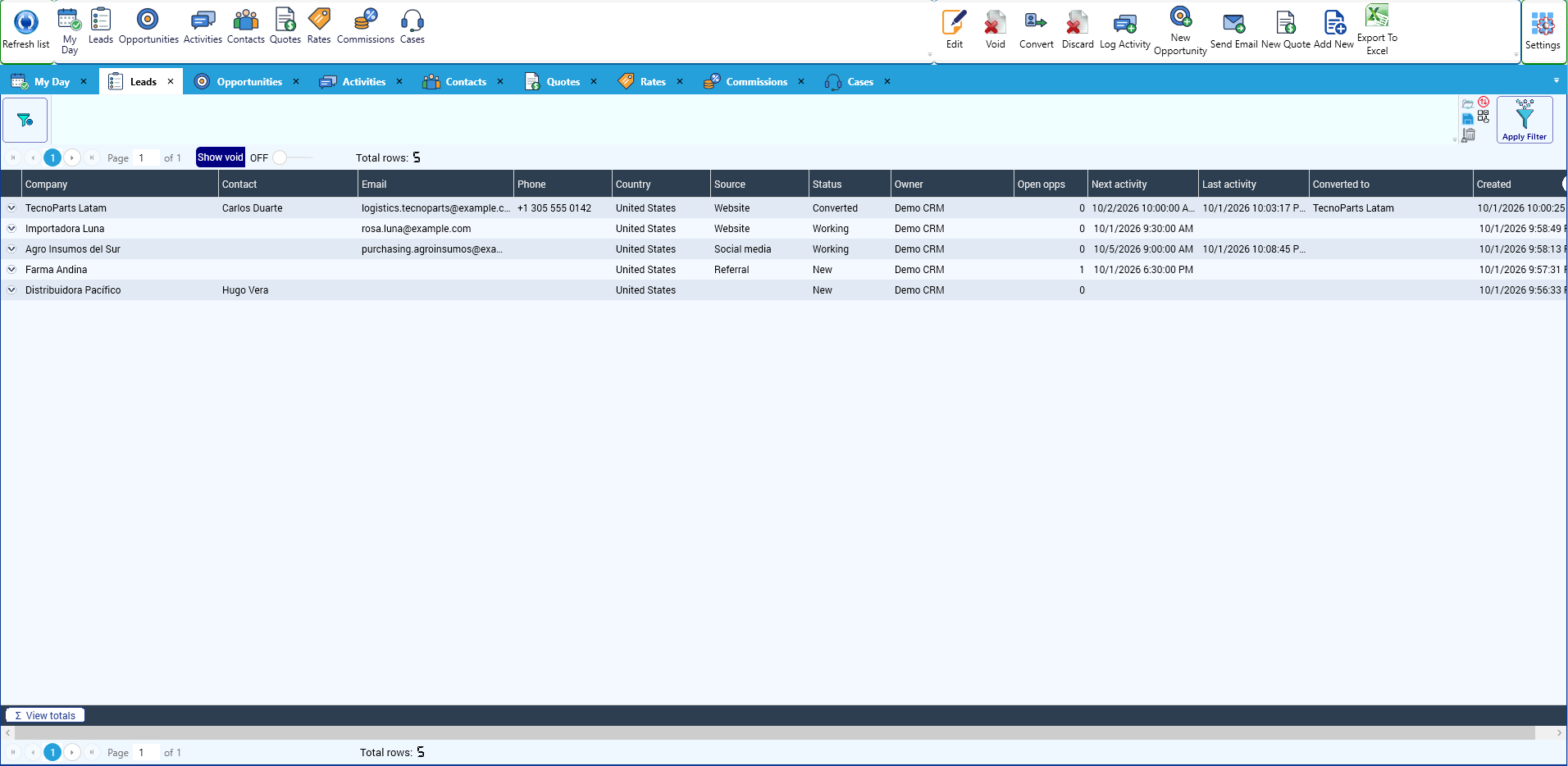
The actions are at the top of the record: Log activity, Send email, New opportunity, New quote, Convert and Discard. The Leads list in the CRM Explorer shows the status of each one (New, Working, Converted, Discarded), its open opportunities and its next activity:
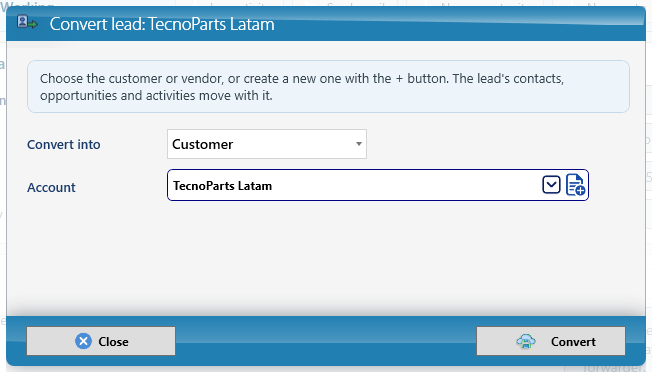
Convert into a customer. When the lead buys, click Convert. Choose the customer or vendor it becomes, or create it with the + button (the regular customer window). Its contacts, opportunities and activities move with it, and its history is still visible from the customer.
Discard. If there is no deal, Discard asks for the reason (the Discard reasons list). A discarded lead can be Reopened.
3. Activities and My Day
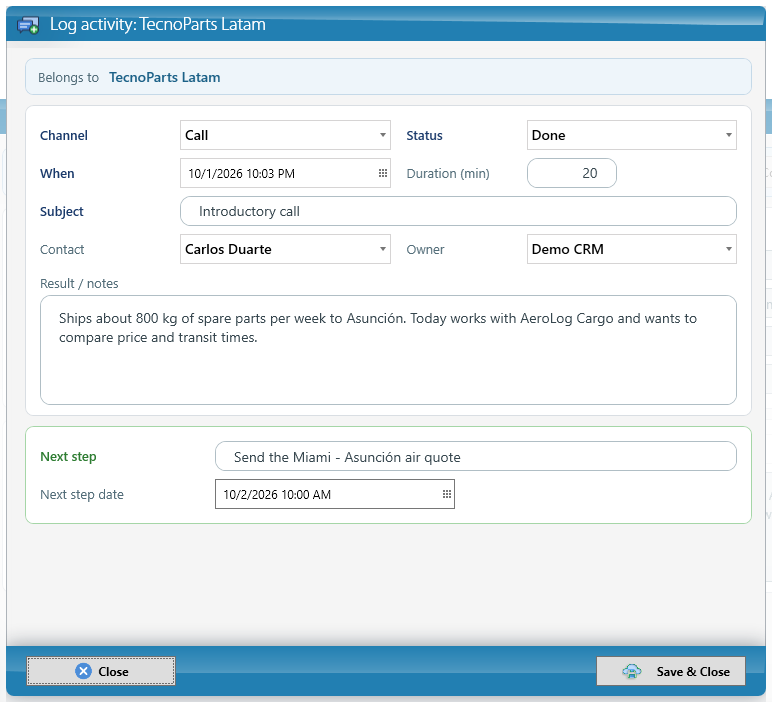
Each call, email, WhatsApp or meeting is an activity. Log it with Log activity from the lead, the opportunity or the ribbon:
- Channel and Status: Done, Scheduled or No answer.
- When, Duration, Subject, Contact and Result / notes.
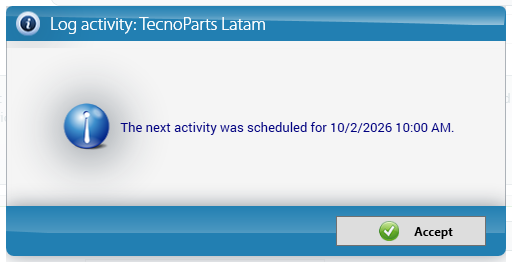
- Next step and its date: when you save a completed activity, KeyTray creates the next scheduled activity by itself and tells you when it is due.
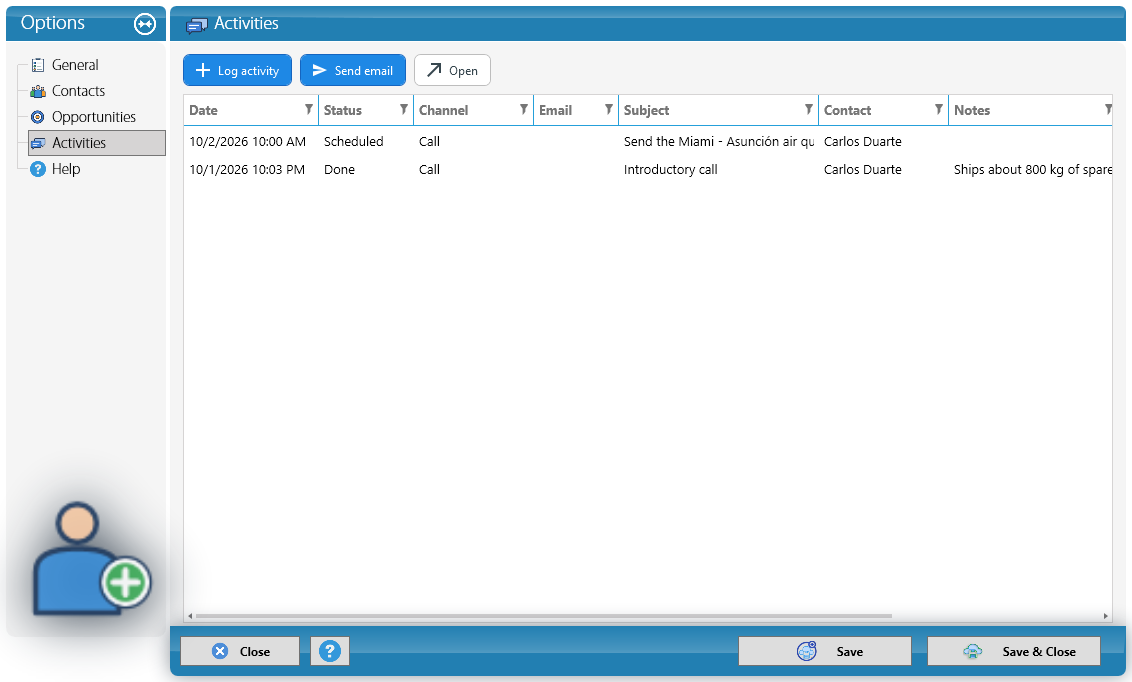
The Activities page of the record shows the full history:
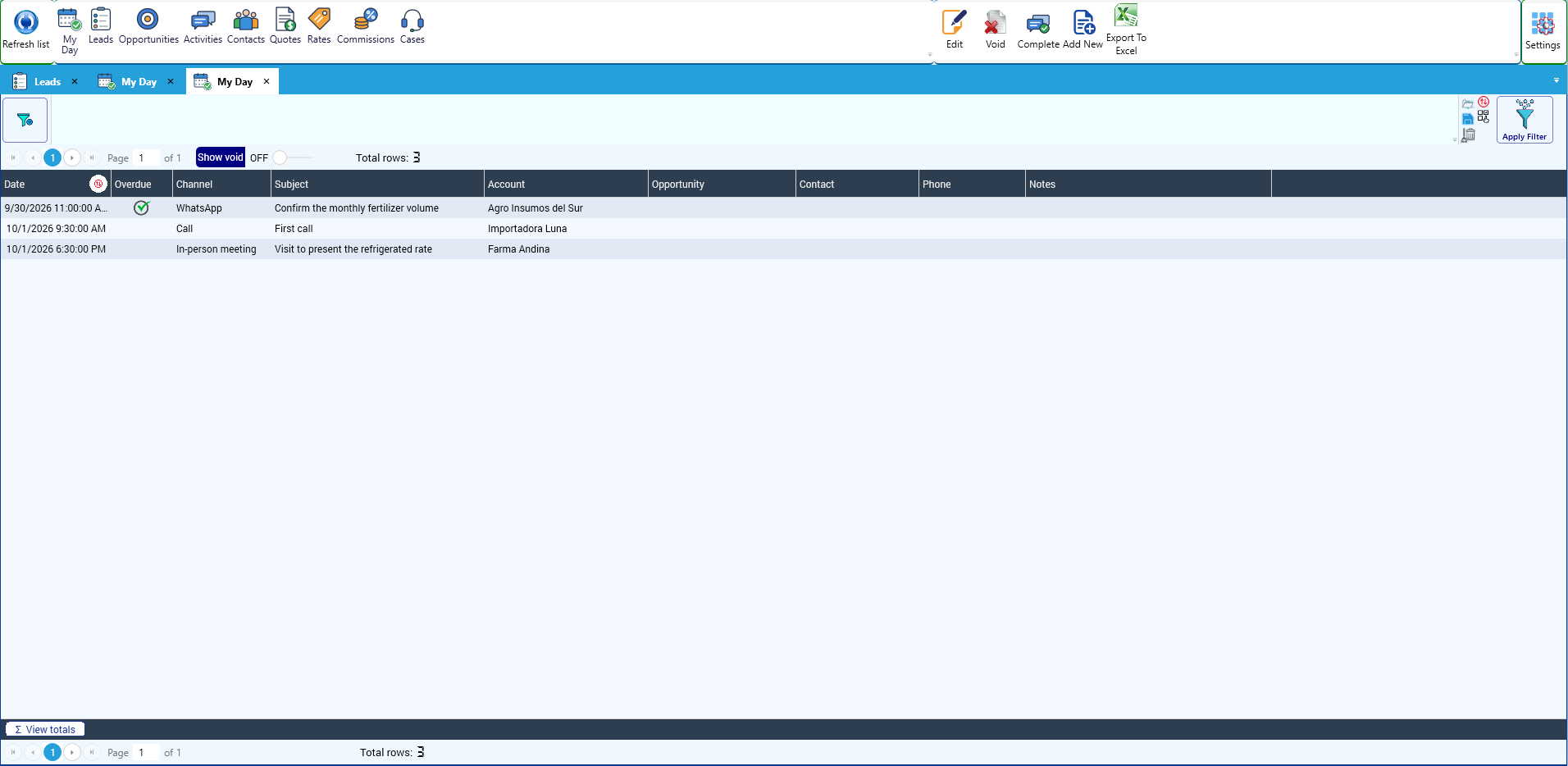
My Day (in the ribbon and in the Explorer) brings together the activities scheduled for today and the overdue ones, across all leads and opportunities. It is the list a salesperson starts the day with. Complete logs the result of the selected activity.
Why it matters: a completed activity cannot be edited; if it was entered wrong, it is voided with a reason and the trace remains. That keeps the customer history reliable.
4. Sending emails from KeyTray
Send email (in the lead, the opportunity or the quote) opens the email window. Choose the account in From account and, optionally, a Template: KeyTray fills in the subject and the message with the lead's and the contact's details. The suggested recipient is the primary contact; Add recipient adds more.
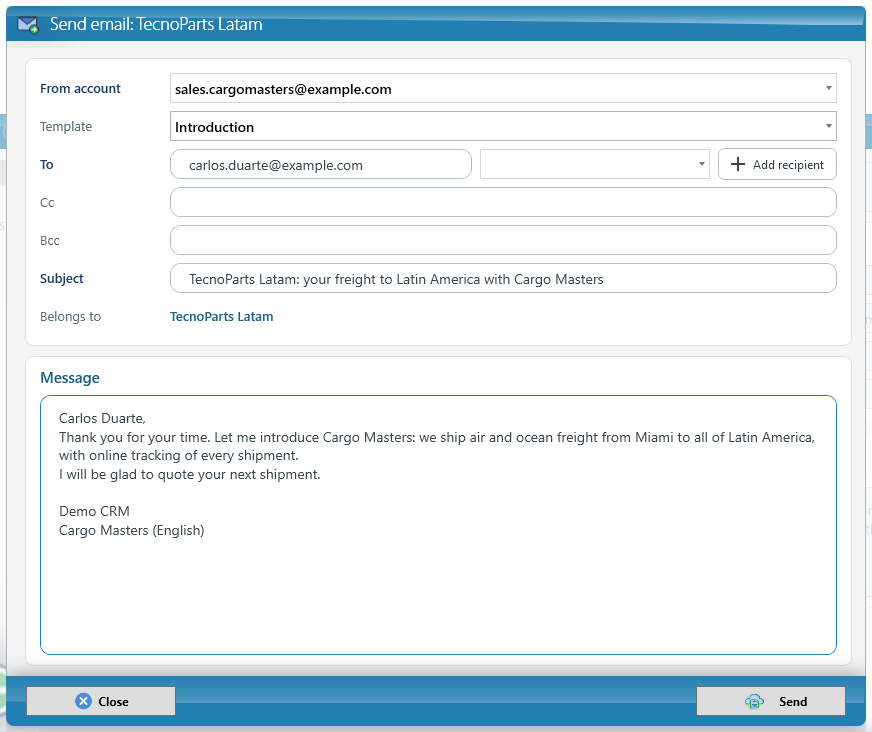
When you click Send, the email goes out from the company mailbox and is logged as an activity with the Email channel. If it could not be sent (for example, with no connection), it stays registered and KeyTray retries it automatically.
5. Opportunities and the pipeline
An opportunity is a concrete deal with a lead or a customer. Create it with New opportunity and fill in:
- Title, Pipeline and Stage. The stage sets the Probability (you can change it).
- Amount and Currency, Expected close, Owner, Source and Competitor.
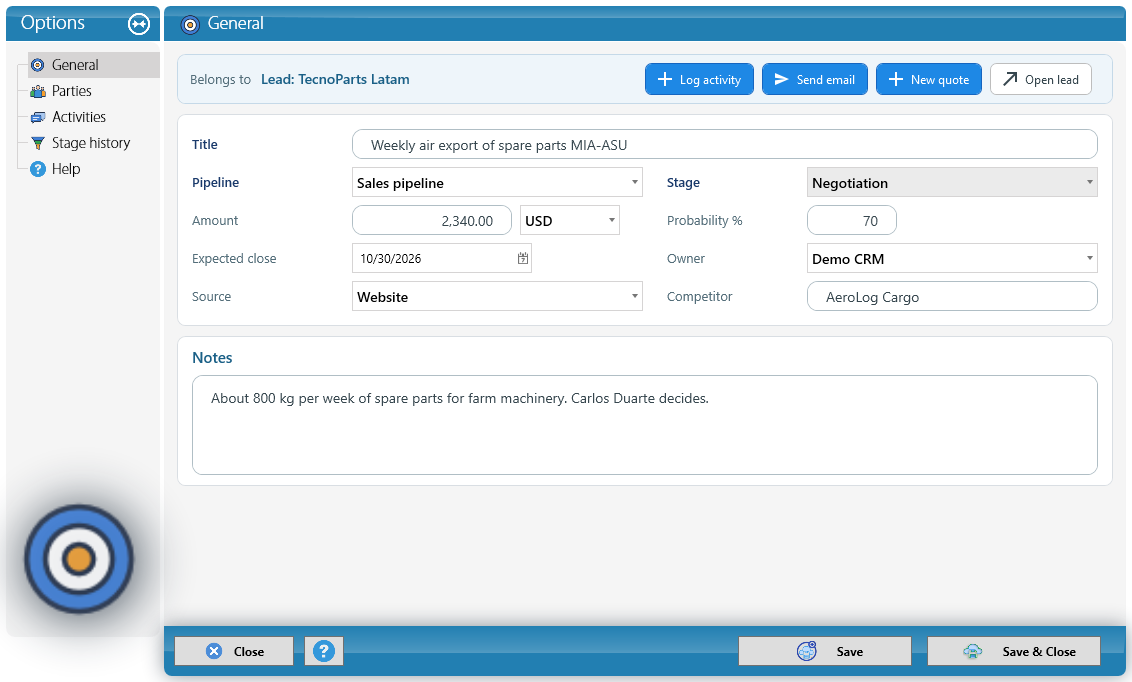
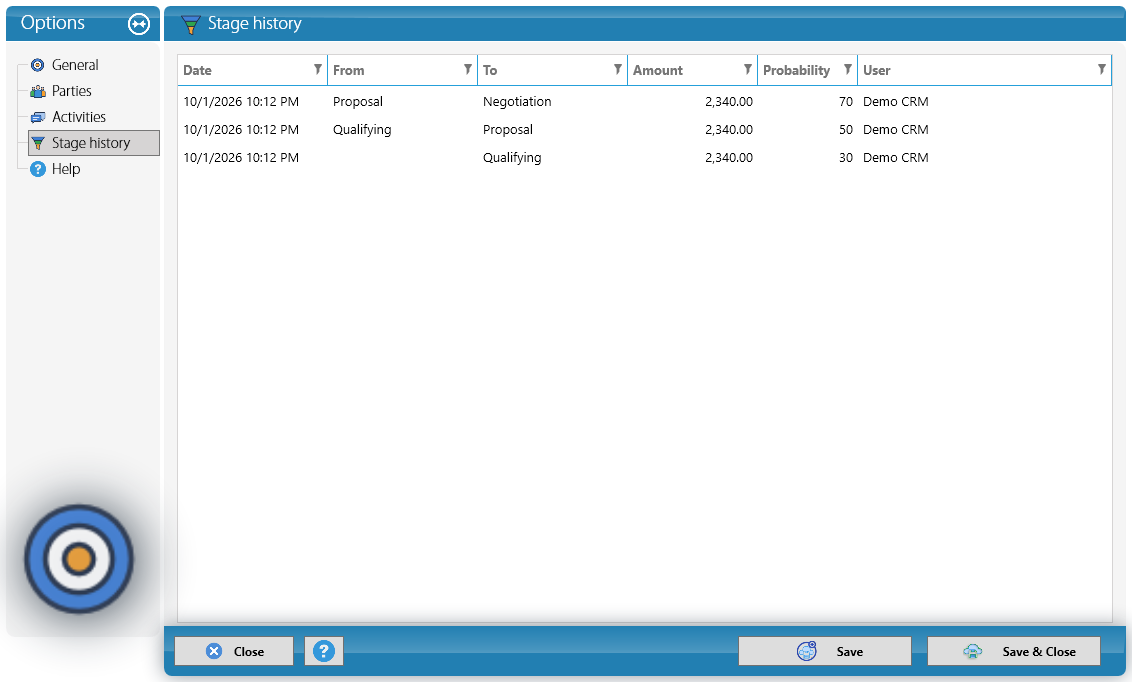
To move the deal forward, change the Stage and save. Every change is kept in Stage history, with the date, amount, probability and user:
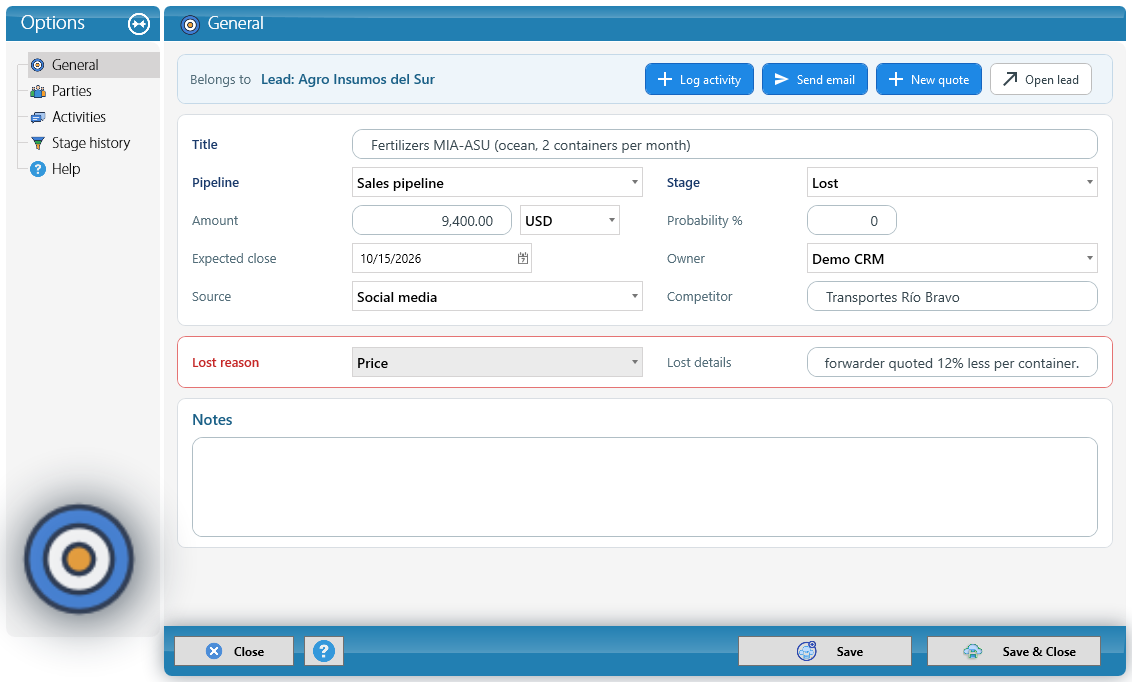
When a deal is lost, choose the Lost stage: KeyTray asks for the Lost reason and lets you note the details and the competitor. Those reasons feed the lost-deals chart of the dashboard.
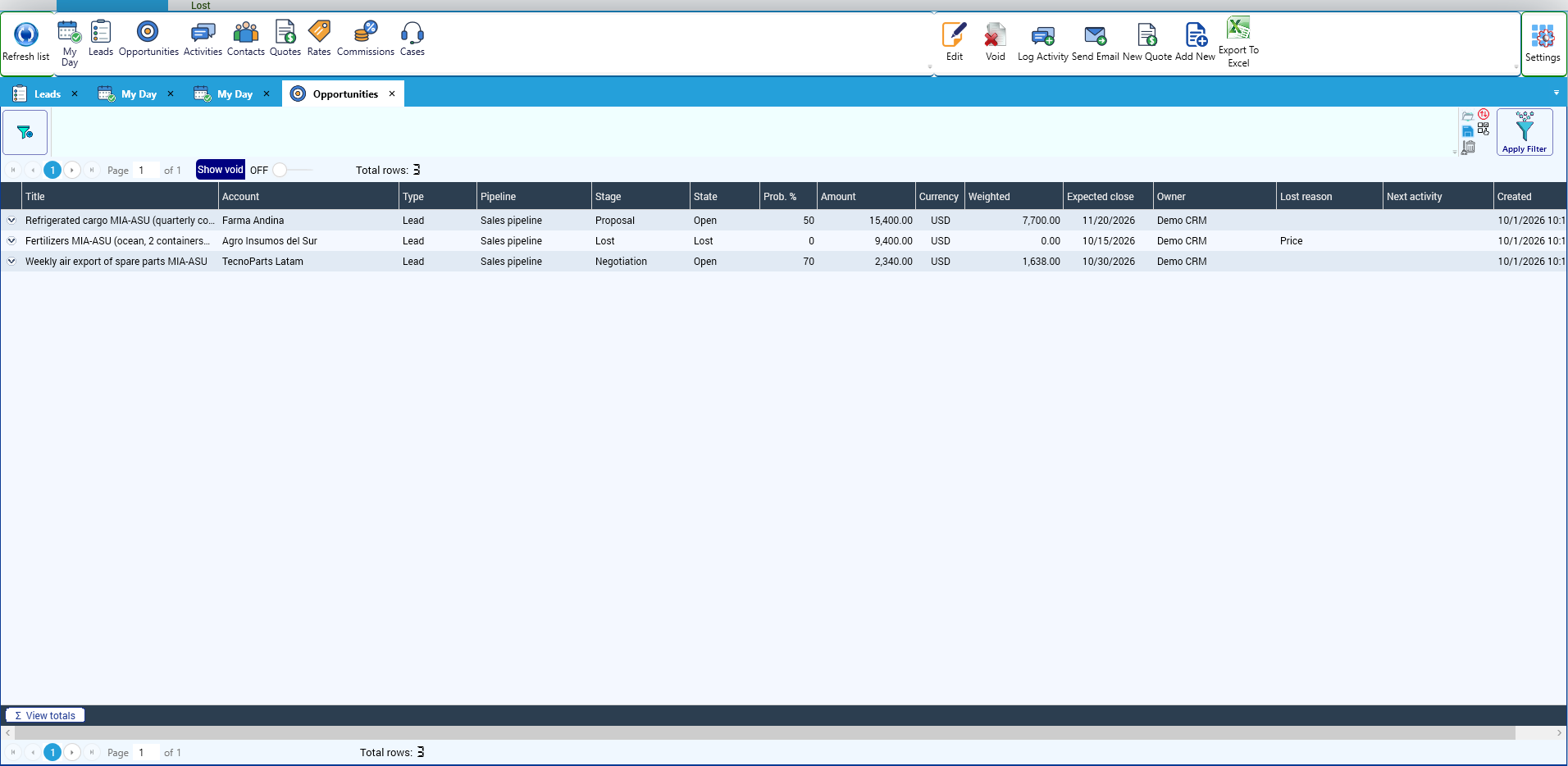
The Opportunities list in the Explorer shows the amount, weighted amount, stage and next activity of each one:
6. Rates
Rates are the sales price list. Quotes take their prices from here. Create them in the CRM Explorer > Rates > New; each rate has:
- Item: the product or service.
- Customer (optional): for a special price for one customer. Left empty, it is the general price.
- Basis: per unit, per kg, per m³, per container, per piece or flat.
- Currency, Price, Cost (to see the margin) and Minimum.
- Valid from and Valid to.
- Price breaks: prices by quantity. For example, a lower price from 10 units.
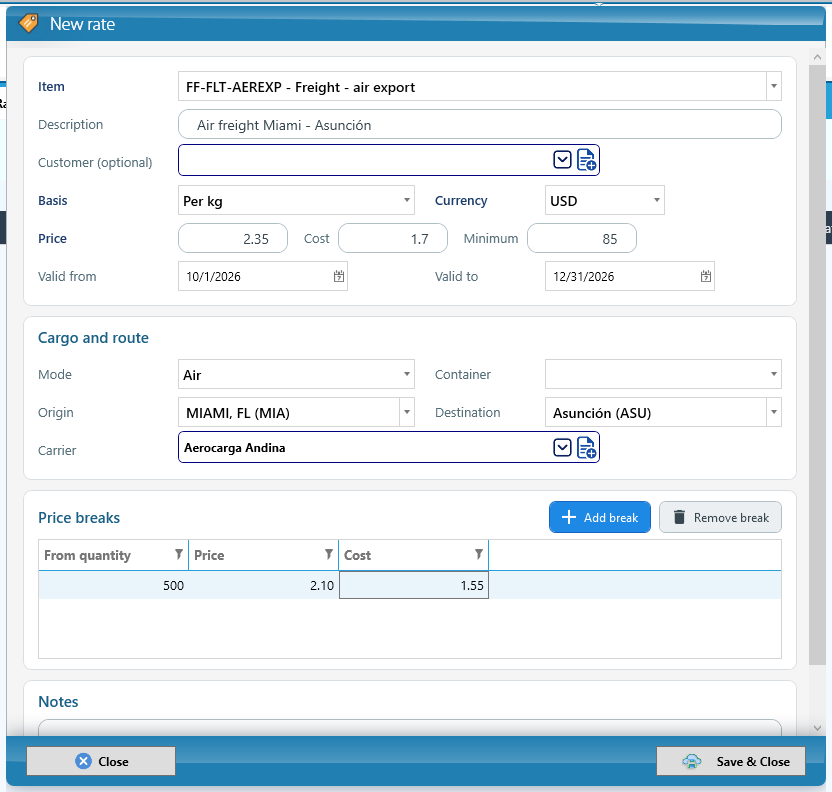
KeyTray picks the price like this: the one valid on the quote date and in its currency; first the customer's price and, if there is none, the general one; within the rate, the break for the quoted quantity. It never charges less than the minimum.
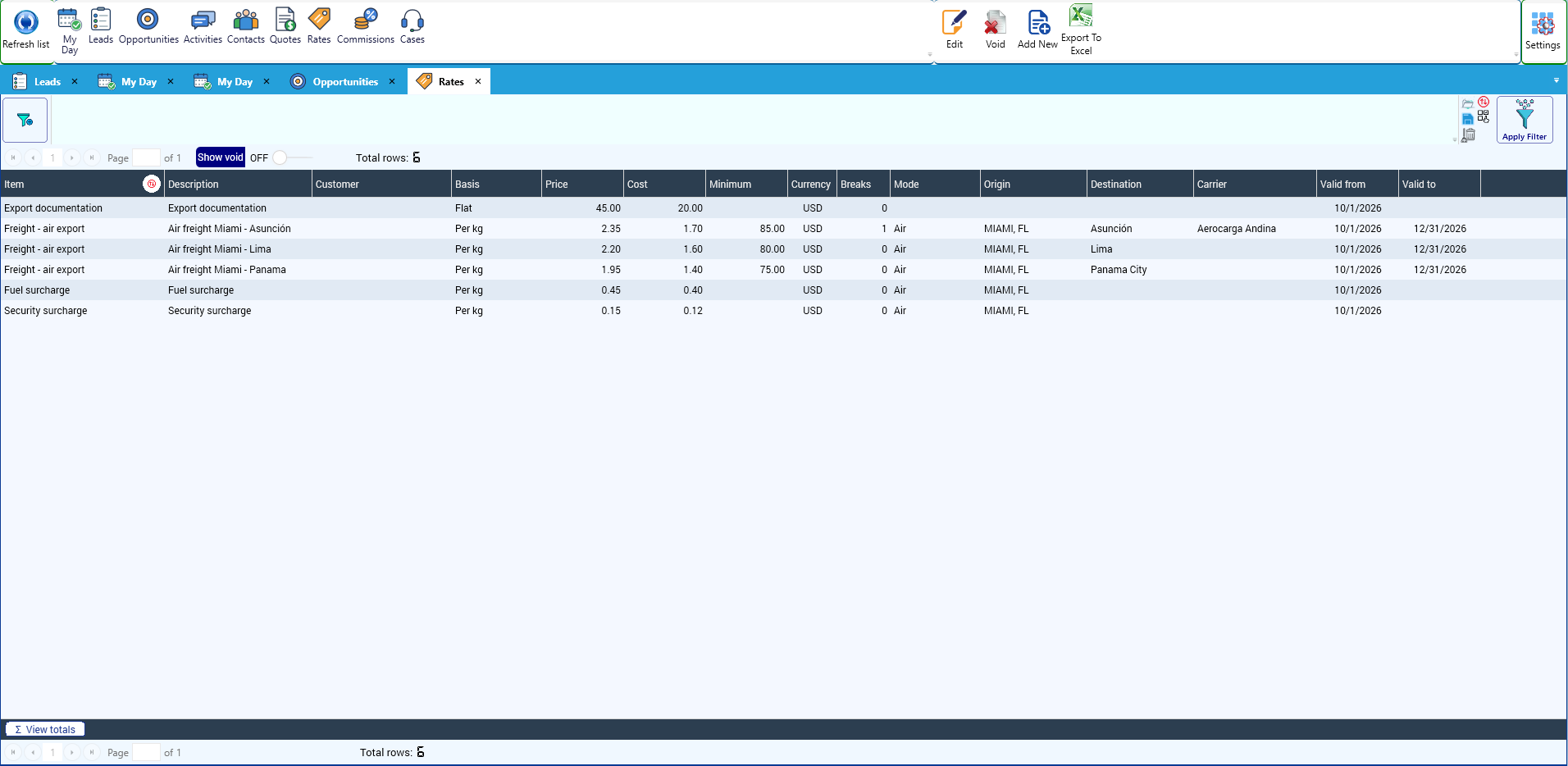
Why it matters: only the owner or a manager changes the rates. Salespeople quote with those prices and, when needed, change the price of a line in their quote.
7. Quotes
Create a quote with New quote from the ribbon, a lead or an opportunity. Fill in the Title, Quote date, Valid until (it comes with the company's default validity) and Currency, and enter the Lines with Add line: when you choose the item and the quantity, the price and the cost come from the rates. You can change the price and enter a Disc. %. Below you see the Sale, the Cost and the Margin.
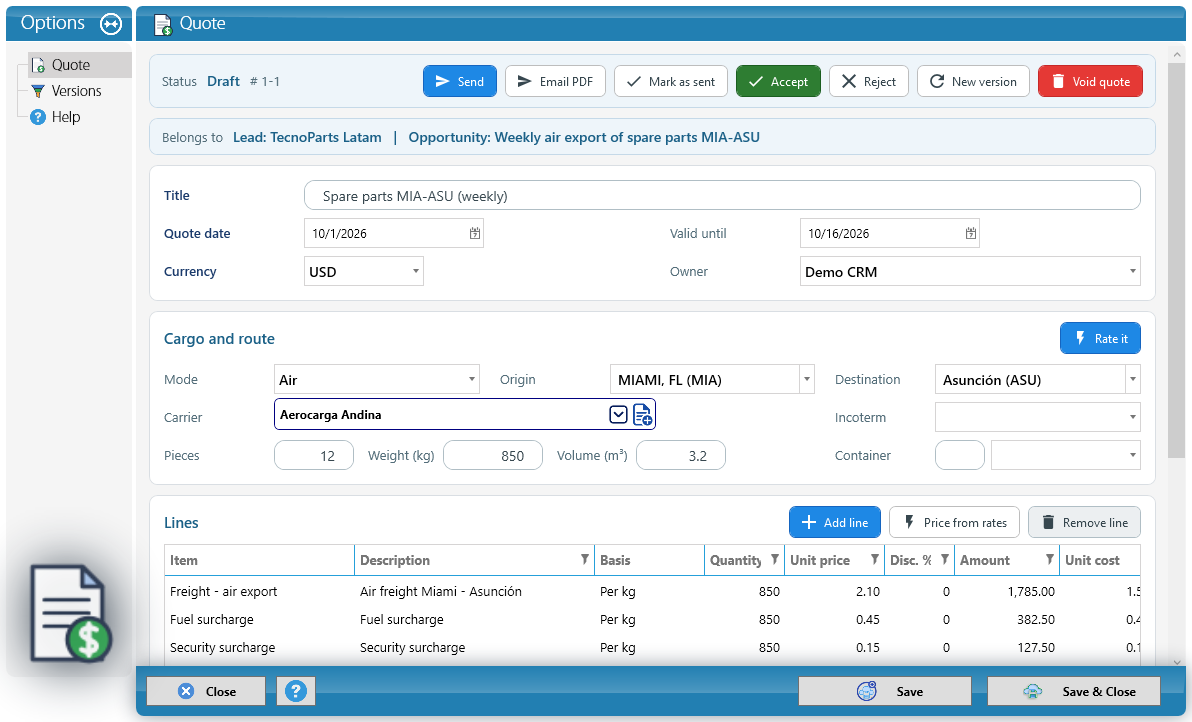
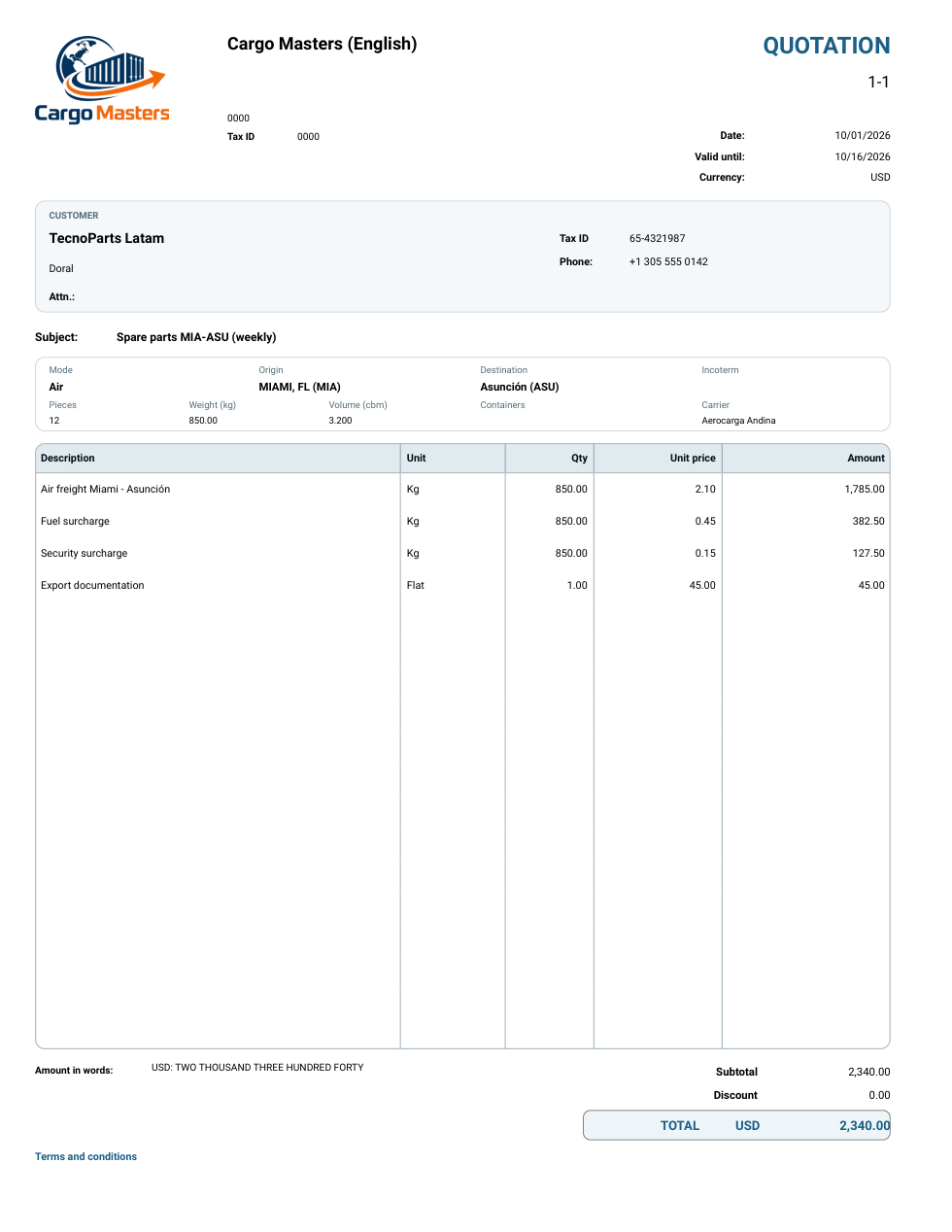
PDF and email. PDF creates the quote with the company logo, ready to send. Email PDF opens the email window with the PDF attached and marks the quote as Sent.
Accept. When the customer accepts, click Accept: the opportunity is marked as won with the quote amount. Only a customer's quote can be accepted: if it belongs to a lead, KeyTray asks you to convert it first.
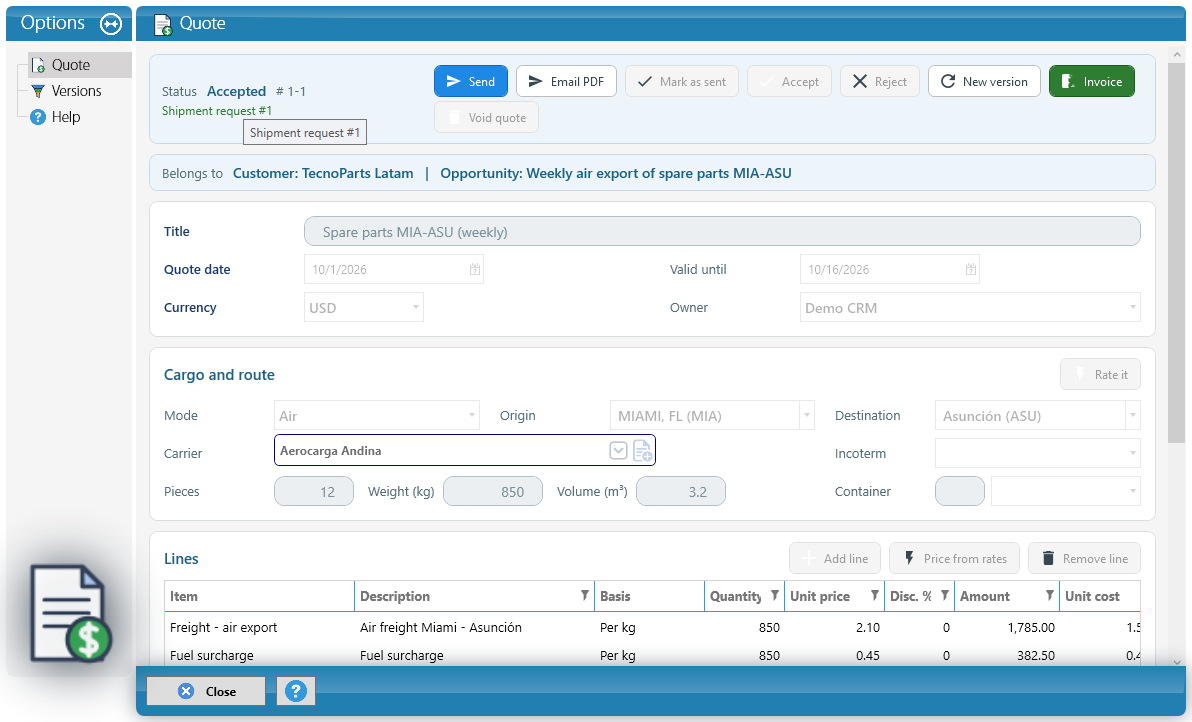
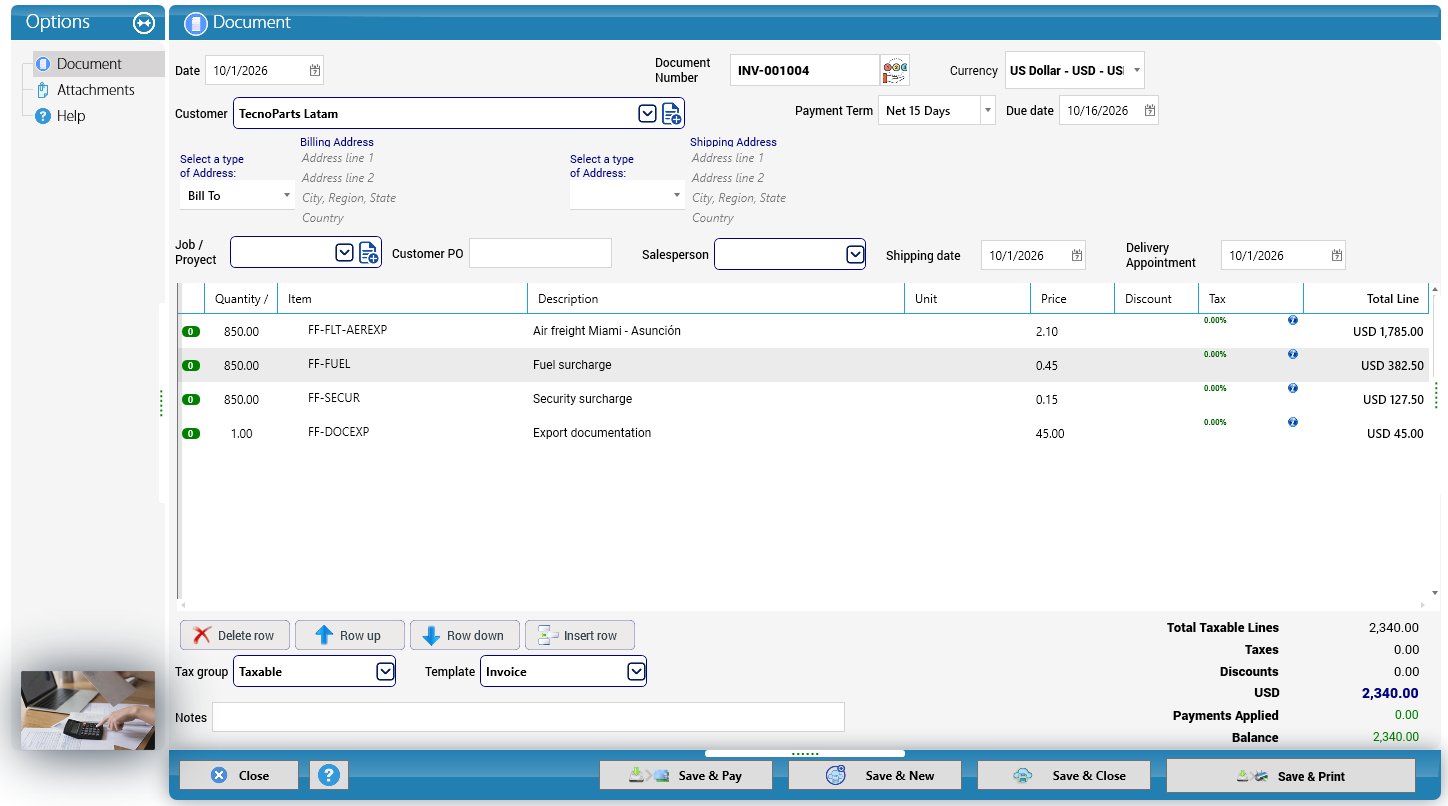
Invoice. An accepted quote shows Invoice. It opens the regular sales invoice window with the customer and the lines of the quote. Review it, complete whatever is needed (taxes, numbering, electronic invoicing) and save: the invoice is linked to the quote and it cannot be invoiced twice.
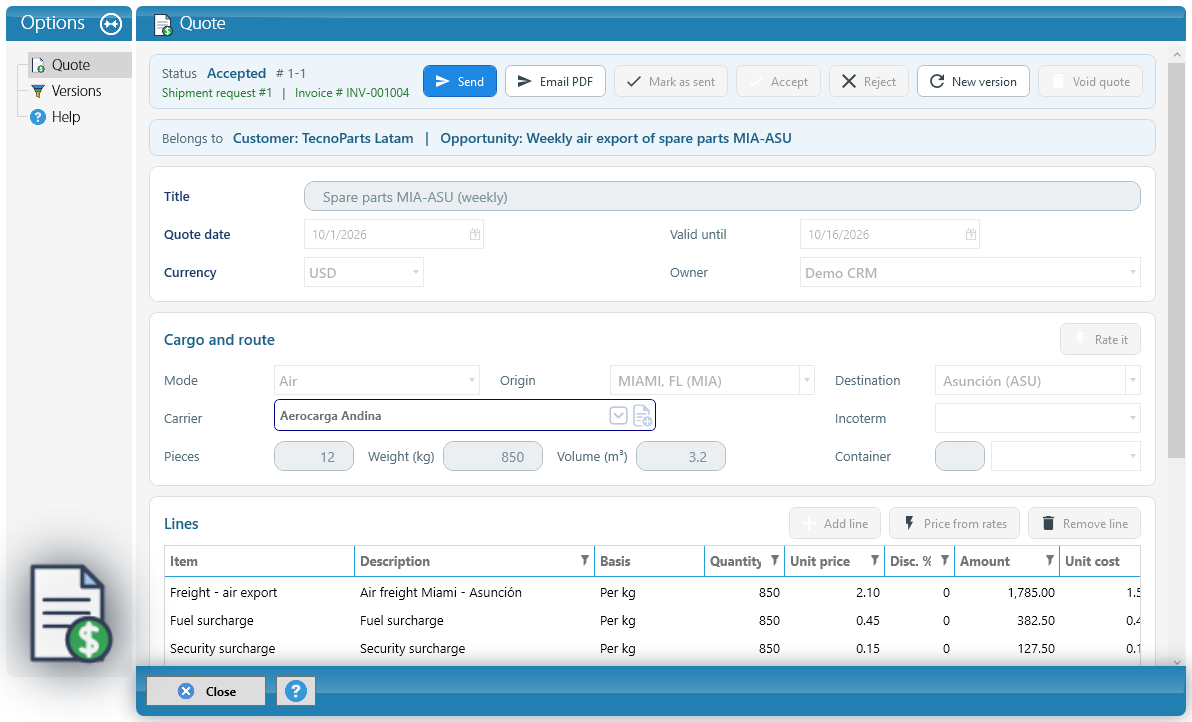
Follow-up and "No response". A sent quote does not stay open forever. After the configured days, if the customer has not answered, the salesperson finds the Follow up quote activity in My Day. If the quote expires and the grace days go by with no answer, KeyTray closes it as No response. A quote with no response can no longer be edited or accepted: if the customer answers later, Reject it with the real reason or make a New version.
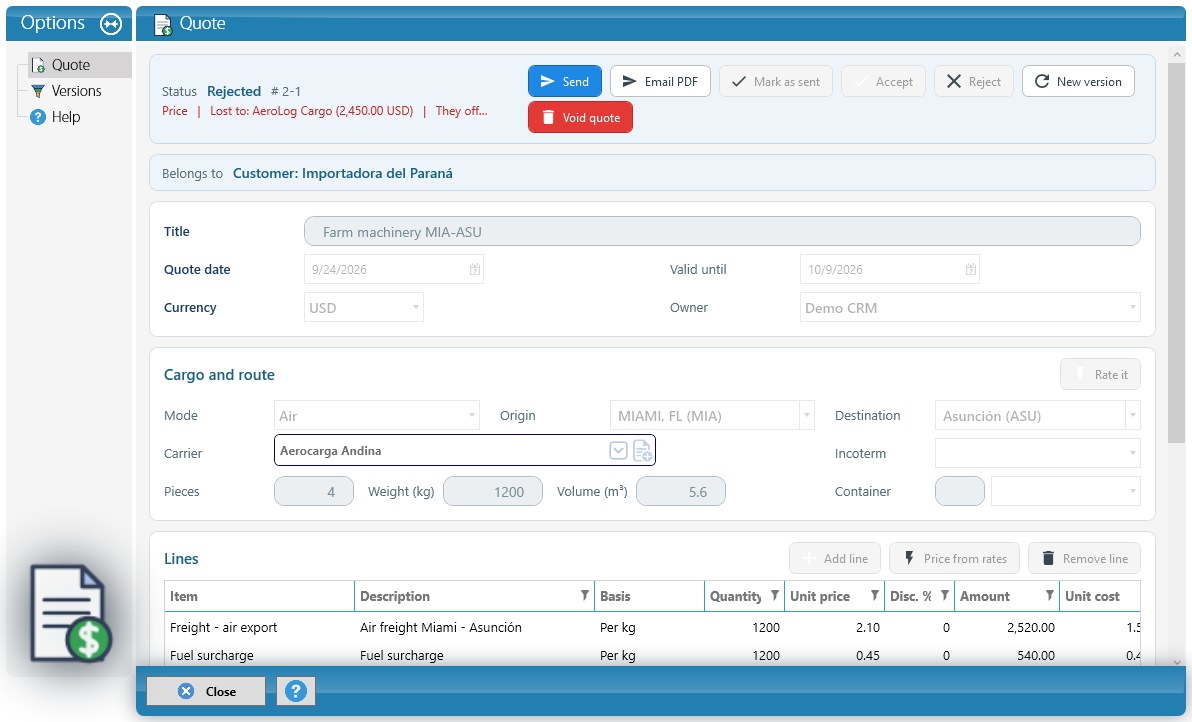
Reject. If the customer does not accept, Reject asks for the Reason and lets you record who you lost to: the Competitor and their Price, with the currency.
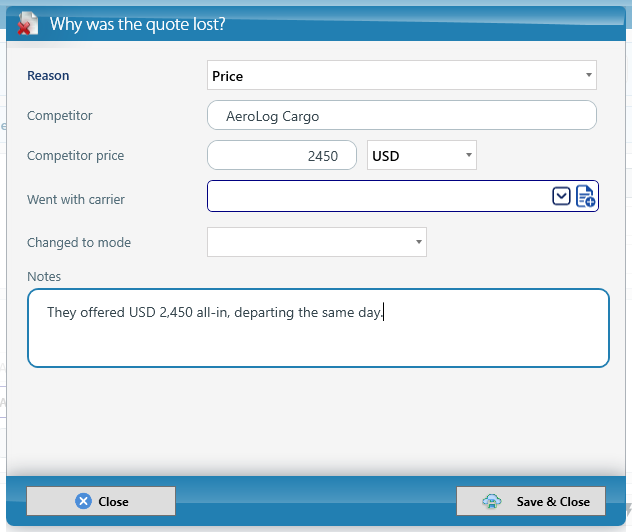
A rejected quote shows the reason and who it was lost to in red, next to the status:
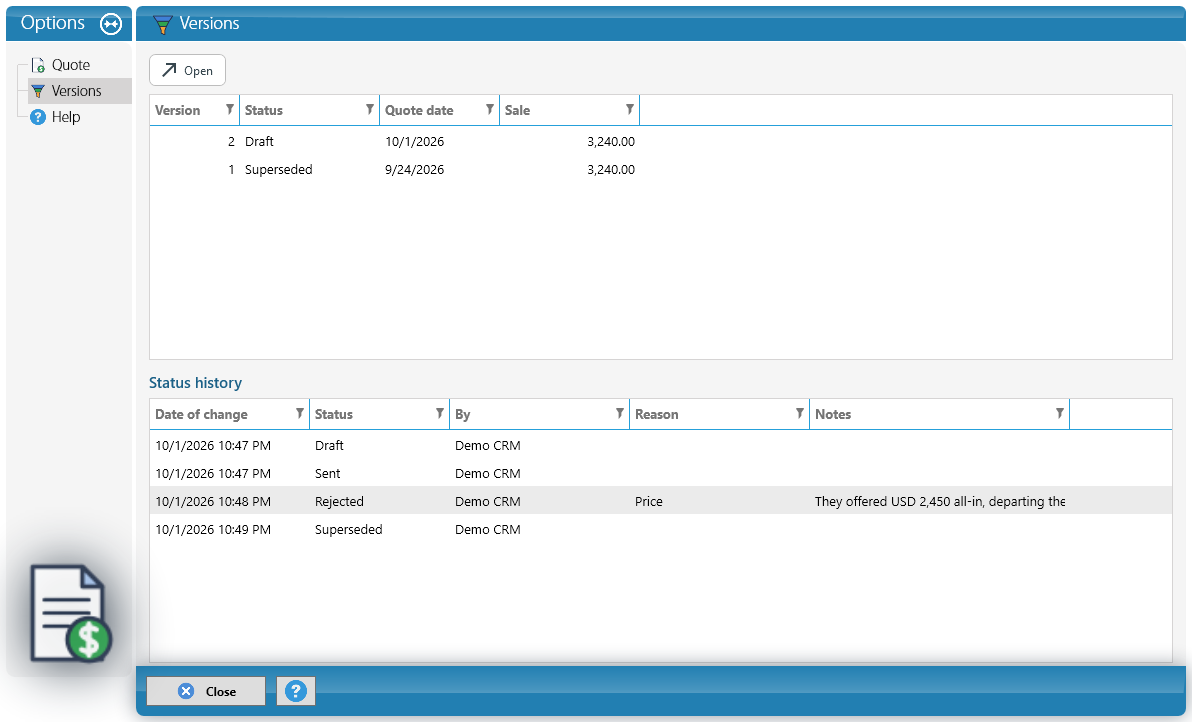
New versions and history. To change a quote that was sent, rejected or got no response, click New version: a draft copy is created with the same number and the previous one becomes Superseded. The Versions page shows every version and, below, the Status history of the open one: each change with its date, who made it and the reason. What KeyTray does on its own shows as KeyTray (automatic).
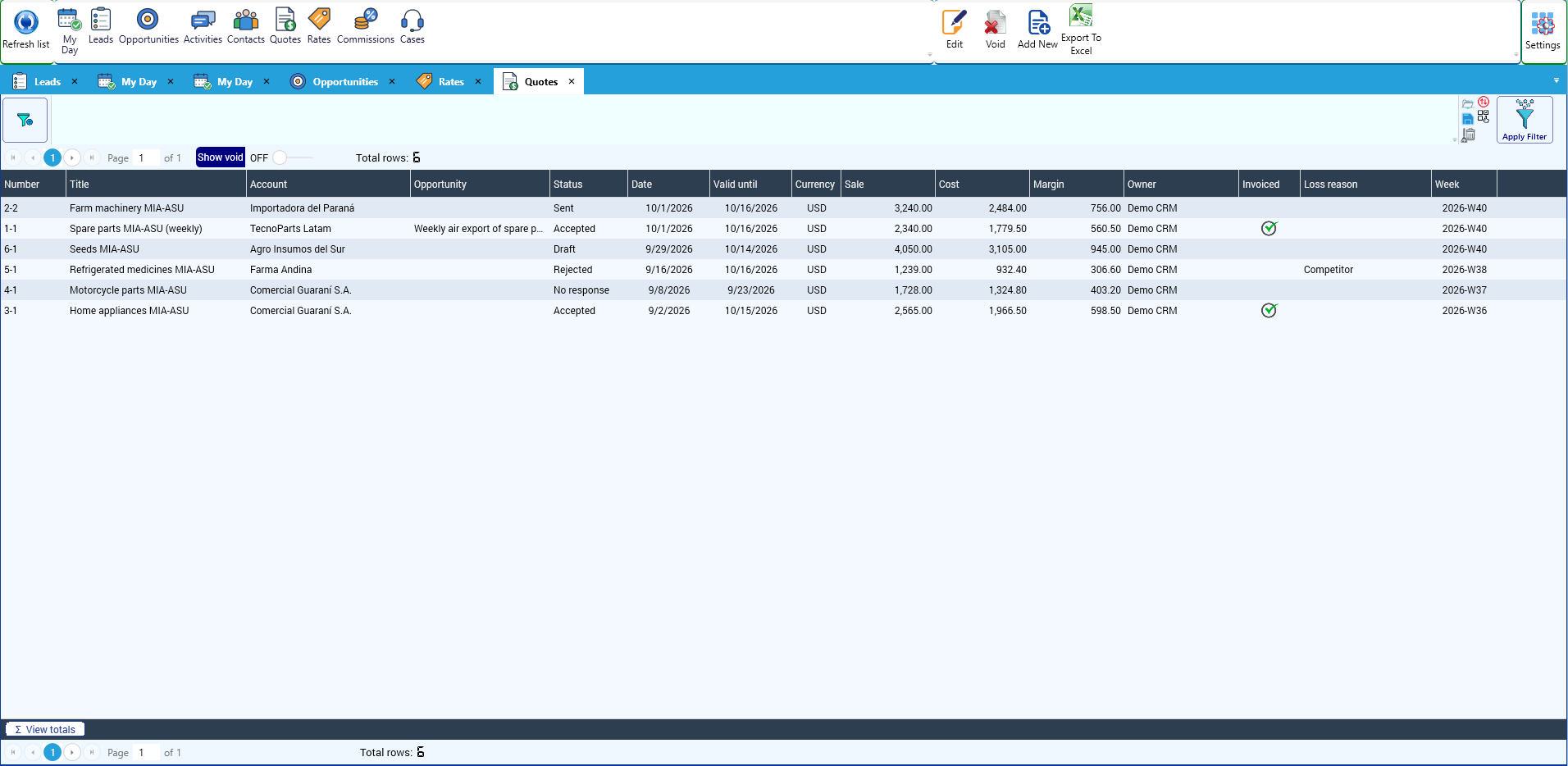
The Quotes list in the Explorer shows the number, version, status (Draft, Sent, Accepted, Rejected, No response, Void, Superseded, Expired), sale, cost, margin, loss reason and week:
8. Commissions
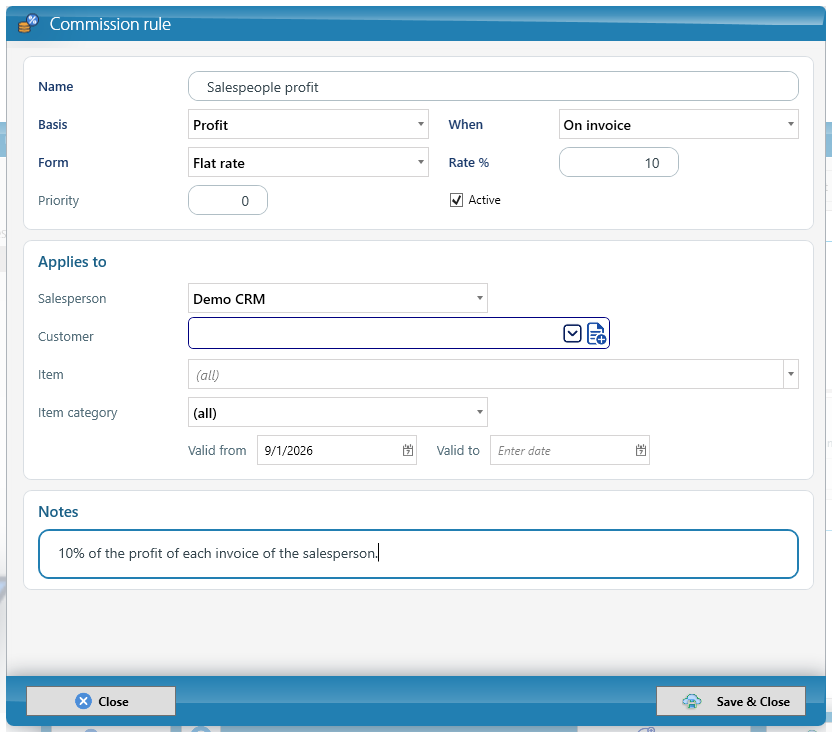
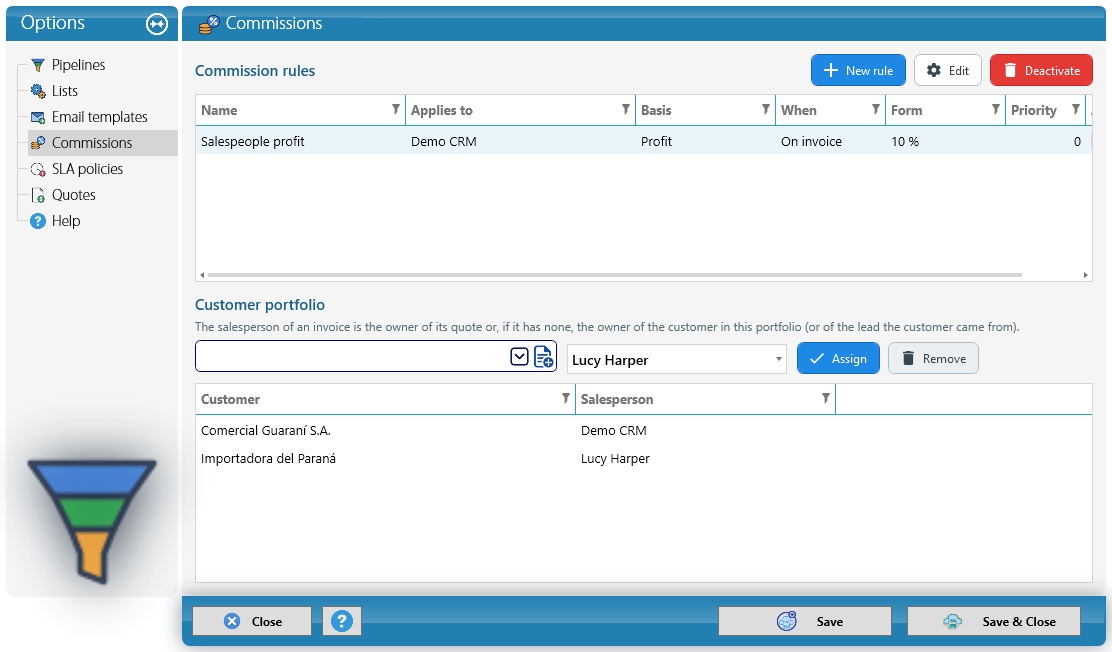
KeyTray calculates salespeople's commissions with the rules defined by the owner or a manager, in CRM > Pipelines & lists > Commissions. With New rule:
- Applies to: a Salesperson, a Customer, an Item or an Item category. Empty means all.
- Basis: the Sale (net of taxes), the Profit (the margin) or a Flat amount per document.
- When: On invoice or On payment (when the invoice is fully paid).
- Form: Flat rate or Tiered, with tiers by document amount or by the salesperson's month total.
- Validity and Priority: if two rules cover the same invoice, the most specific one wins.
Whose commission is it? For each invoice, the owner of the quote it came from. If it did not come from a quote, the owner of the customer in the Customer portfolio (lower on the same page), or the owner of the lead the customer came from.
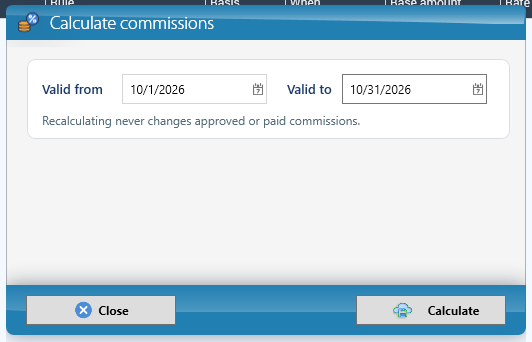
Calculate. In the CRM Explorer > Commissions, click Calculate and choose the period. KeyTray calculates one commission per invoice and tells you how many there are:
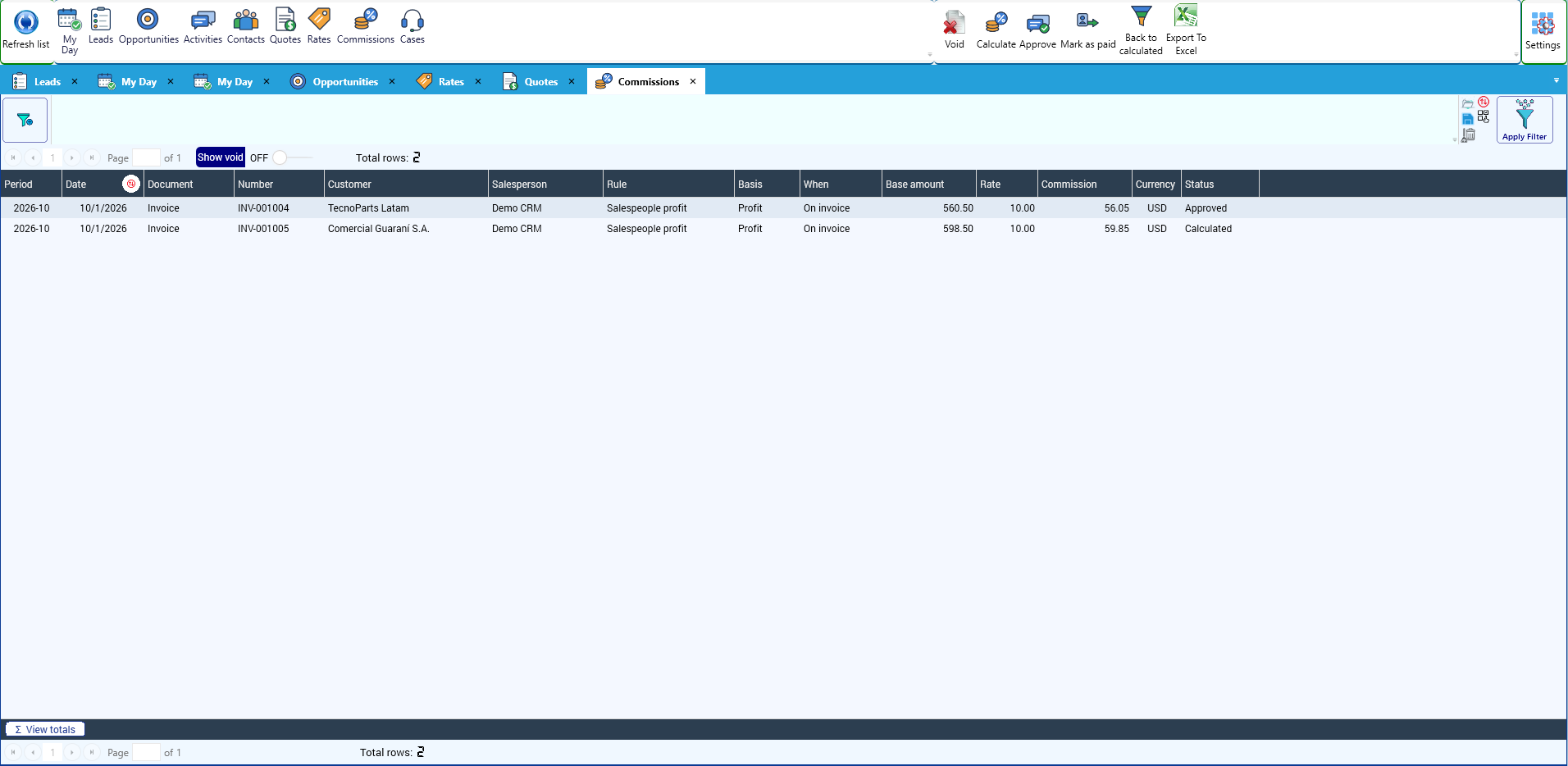
Then Approve the correct ones and, once they are paid, Mark as paid. Credit notes subtract.
Why it matters: recalculating never changes an approved or paid commission. If a rule changes later, it only affects commissions that are still calculated.
9. After-sales: cases and SLA
A case is a claim, request or question from a customer after the sale. Each case has deadlines: respond by one time and resolve by another. That is the SLA.
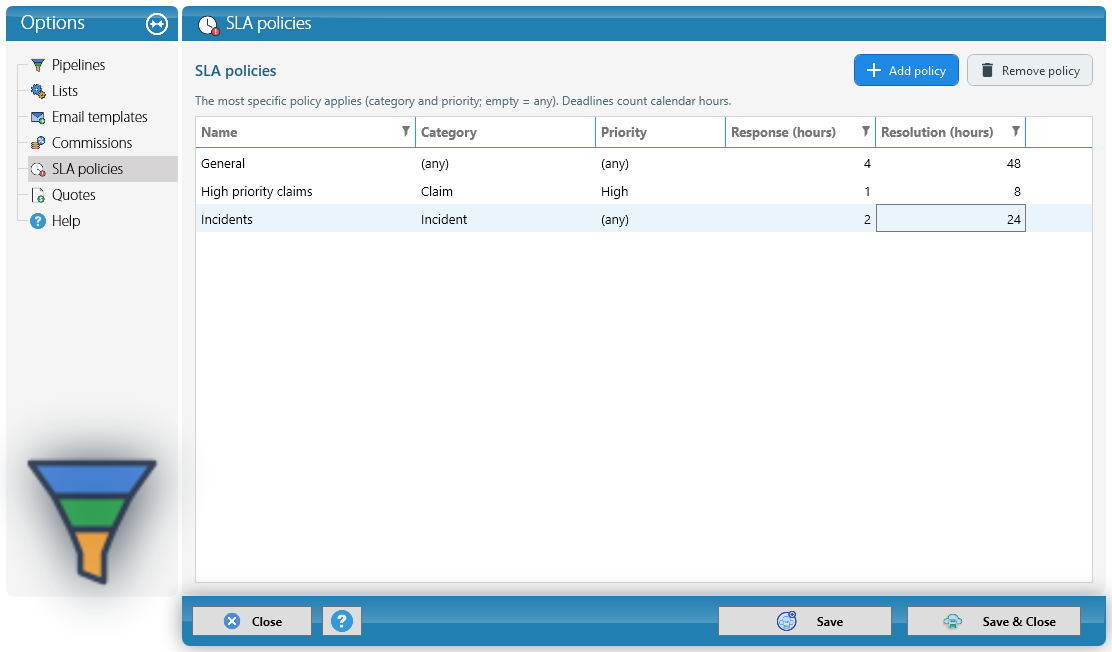
SLA policies. In CRM > Pipelines & lists > SLA policies, define the deadlines, in hours, by Category and Priority. If one of them is left empty, it applies to any; the most specific policy wins. Deadlines count calendar hours.
A case. Create it with CRM > New Case: the customer, Category, Priority, Subject, Reference (for example, the invoice or shipment number) and Owner. At the top, KeyTray shows the policy that applies and both deadlines, in green (On time), yellow (Due soon) or red (Breached).
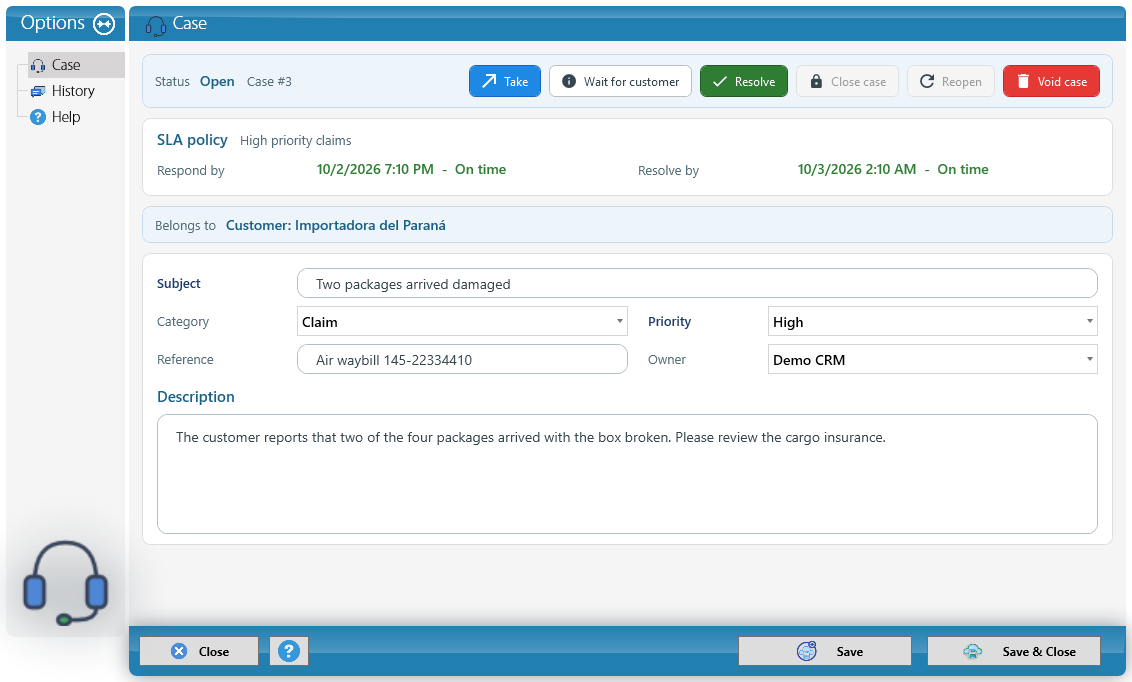
The buttons move the case forward: Take (in progress), Wait for customer, Resolve, Close case, Reopen and Void case. The first comment or the first status change counts as the first response. Everything is kept in History:
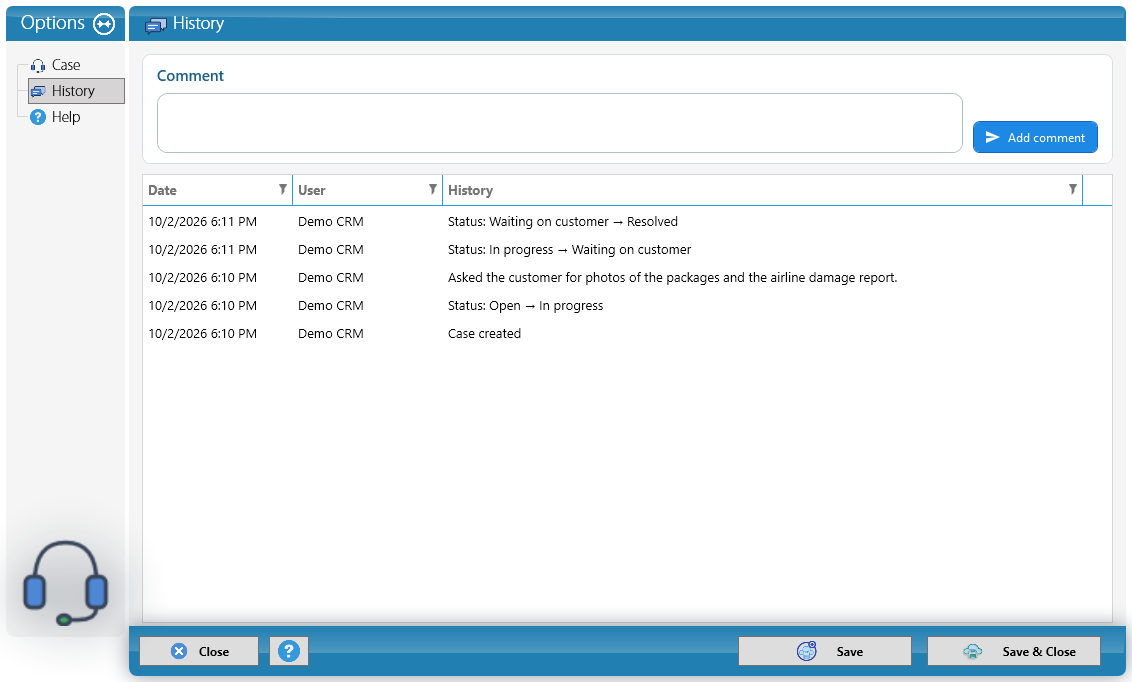
Alerts: if a deadline is breached, KeyTray sends an email and a phone notification to the case owner and the managers, once per deadline.
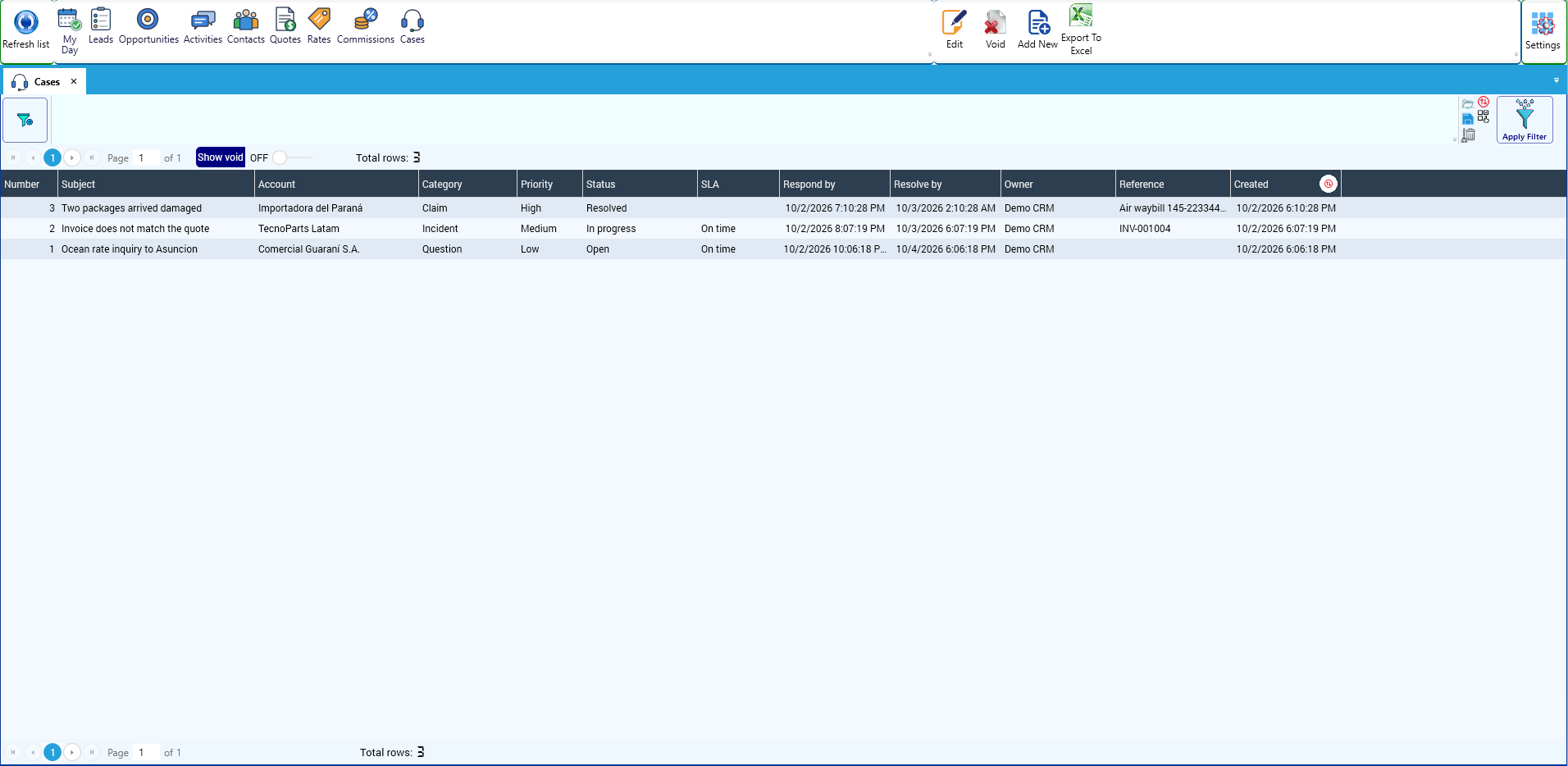
The Cases list in the Explorer shows the status and deadlines of each case:
10. The dashboard
CRM > Dashboard shows the sales work of a period: new leads, conversion, open, won and lost opportunities, win rate, quotes sent and accepted, activities done, open cases and breached SLAs. Below, the open pipeline by stage and lost deals by reason.
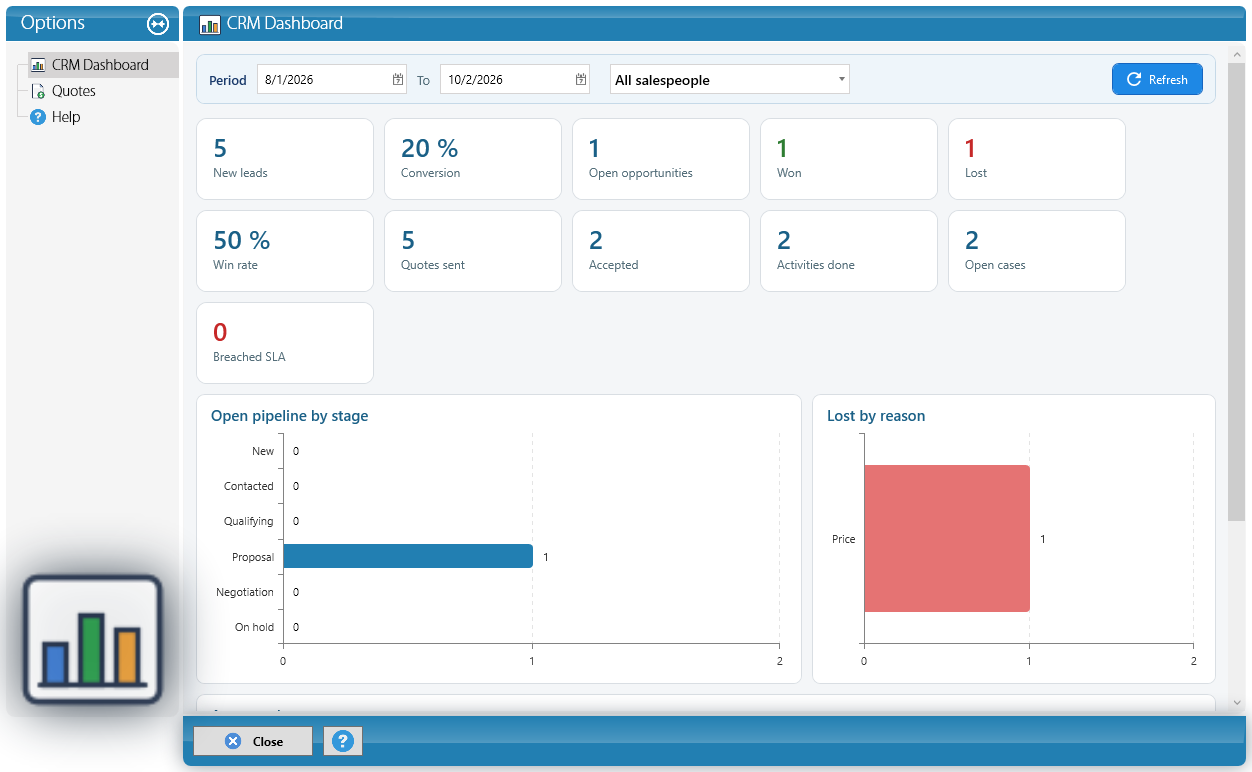
Further down, amounts by currency (pipeline, weighted, quoted, accepted and invoiced), activity by salesperson and commissions. The owner and managers can choose one salesperson or see everyone; other users see only their own numbers.
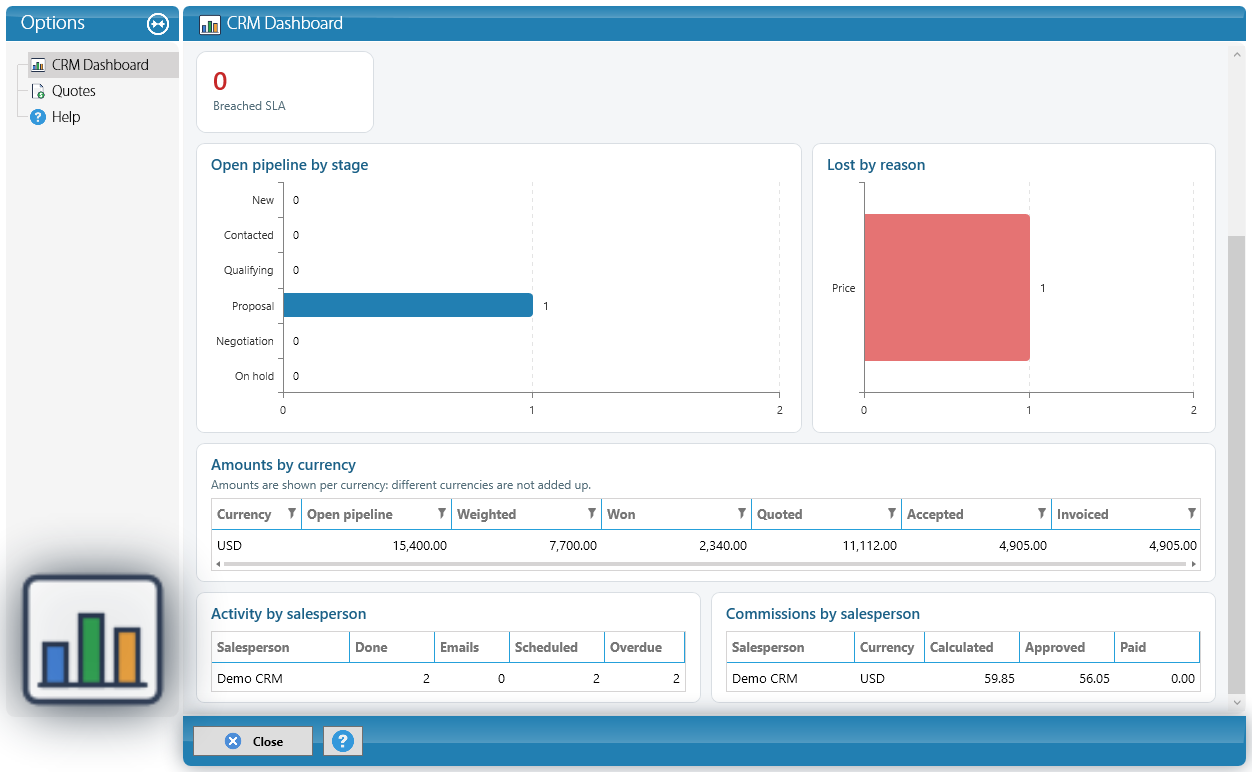
Why it matters: amounts are shown per currency: KeyTray never adds dollars to another currency.
The Quotes page of the dashboard measures how much you quote and how much you win. Choose the period, the salesperson and Group by week, month or quarter:
- Indicators: requests, accepted, rejected, no response, open, the acceptance rate (accepted over accepted, rejected and no response) and the average days to send and until the customer decides.
- Requests by period, with what was accepted, rejected, got no response or is still open each week or month.
- Loss reasons with their group, amounts by currency (quoted, accepted and its margin), results by salesperson, the customers with the most requests and the margin by item of what was accepted.
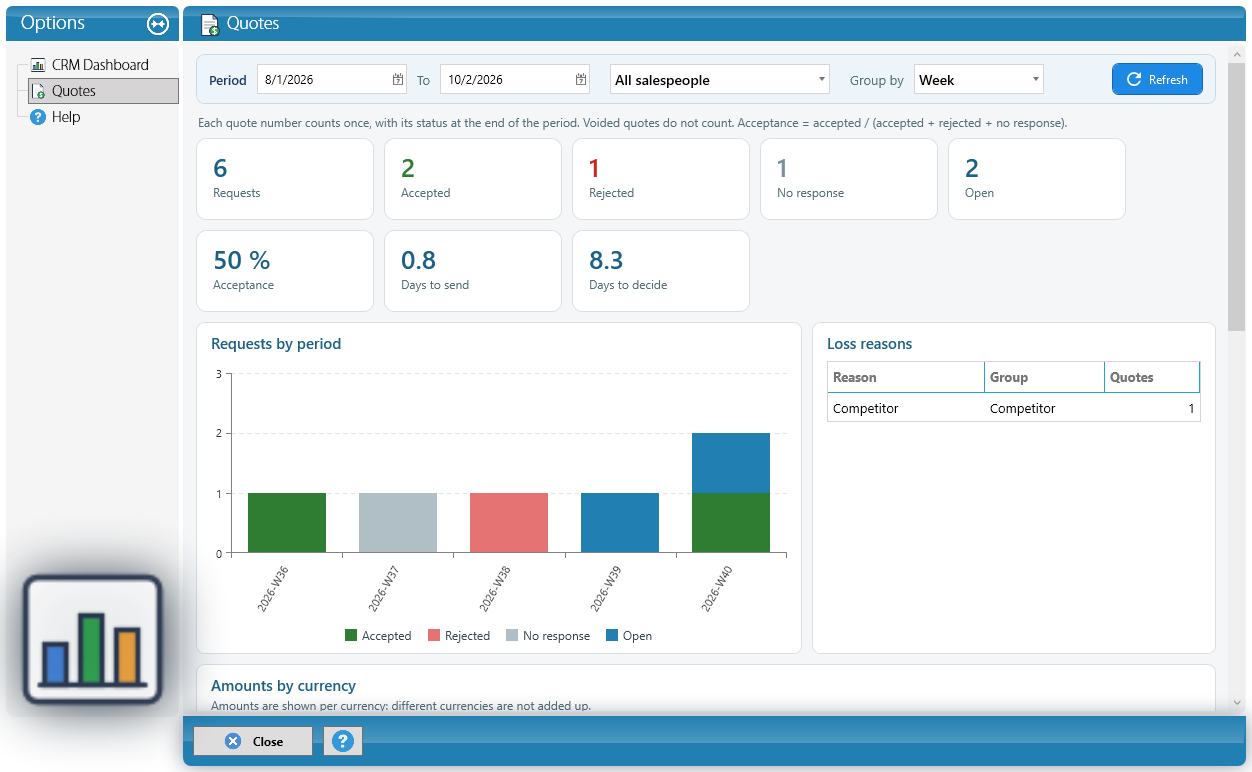
Each quote number counts once, with its status at the end of the period, so you can see how any past week stood. If the company chose it in the setup, managers and the owner also get the weekly summary with these numbers by email.
In a cargo company the CRM is the same, with three additions: rates and quotes have the cargo and route block (mode, origin, destination, carrier, container), Rate it brings all the rates of the route, and accepting a quote creates the Shipment request. It is explained in chapter 15 of the KeyTray Cargo manuals.