
KeyTray Clock: manual for employees
KeyTray Clock is the app you use to clock in and out of work from your phone. With it you can also request leave or vacation, let HR know when you forgot to punch, and receive your payslip.
This manual is for people who use the app. What Human Resources does on the other side (approving, reviewing, setting up) is in chapter 14 of the KeyTray manual. The screenshots come from the sample company Cargo Masters English and its employee Emily Carter.
Contents
- 1. Before you start
- 2. Setting up the phone
- 3. Registering your face
- 4. Clocking in and out
- 5. Your history
- 6. Requesting leave or vacation
- 7. Claiming a missing punch
- 8. Your payslip
- 9. Settings
- 10. Punching at a kiosk
- 11. Frequently asked questions
1. Before you start
You need:
- An Android phone or an iPhone with the KeyTray Clock app installed. HR tells you where to get it.
- An enrollment code from HR (a code or a QR) and your employee code.
- To allow the app to use your location and camera. Location tells which site you punch at; the camera confirms that it is you.
Your privacy: the app uses your location only at the moment you punch. It does not follow you during the day.
2. Setting up the phone
Video: Setting up the phone (English voice and subtitles).
The first time you open the app you see Set up this phone:
- Tap Scan QR and point the camera at the QR HR gave you. If you cannot scan it, type the code in Enrollment code.
- In Employee code, type your code.
- Tap Set up.
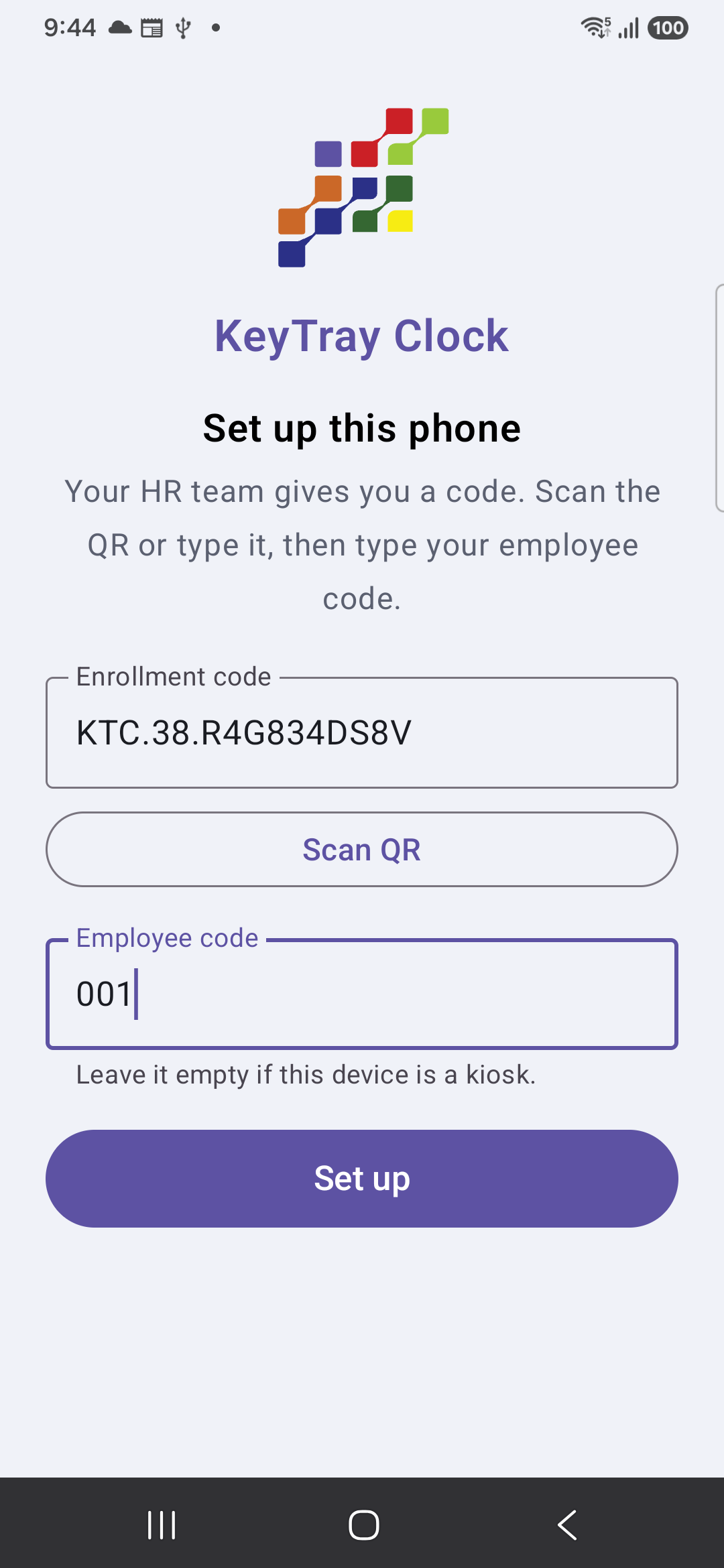
If everything is right, the app shows your name and your company's logo. Setting up needs internet, only this once.
Caution: the code works only once and expires (usually after 48 hours). If the app says That code did not work, ask HR for a new one.
3. Registering your face
To punch from your phone you have to register your face once. The app asks for it the first time you punch (Register your face > Register my face):
- Read the consent and accept it. The app keeps a mathematical template of your face, not the photo of your face. You can ask HR to delete it at any time.
- Look at the camera. The app takes several samples and guides you: Come closer, Look straight, without turning, Hold still… 3 of 5.
- Take a profile picture. It is required: HR looks at it to approve your face.
When you finish, the app says Done. HR will review your picture.
Until HR approves it, you can still punch, but your punches stay waiting for review. On the punch screen you see the notice Your face is waiting for HR approval.
4. Clocking in and out
Video: Clocking in and out (English voice and subtitles).
The Punch tab shows your name, the time and a big button. The button already knows what comes next: CLOCK IN or CLOCK OUT.
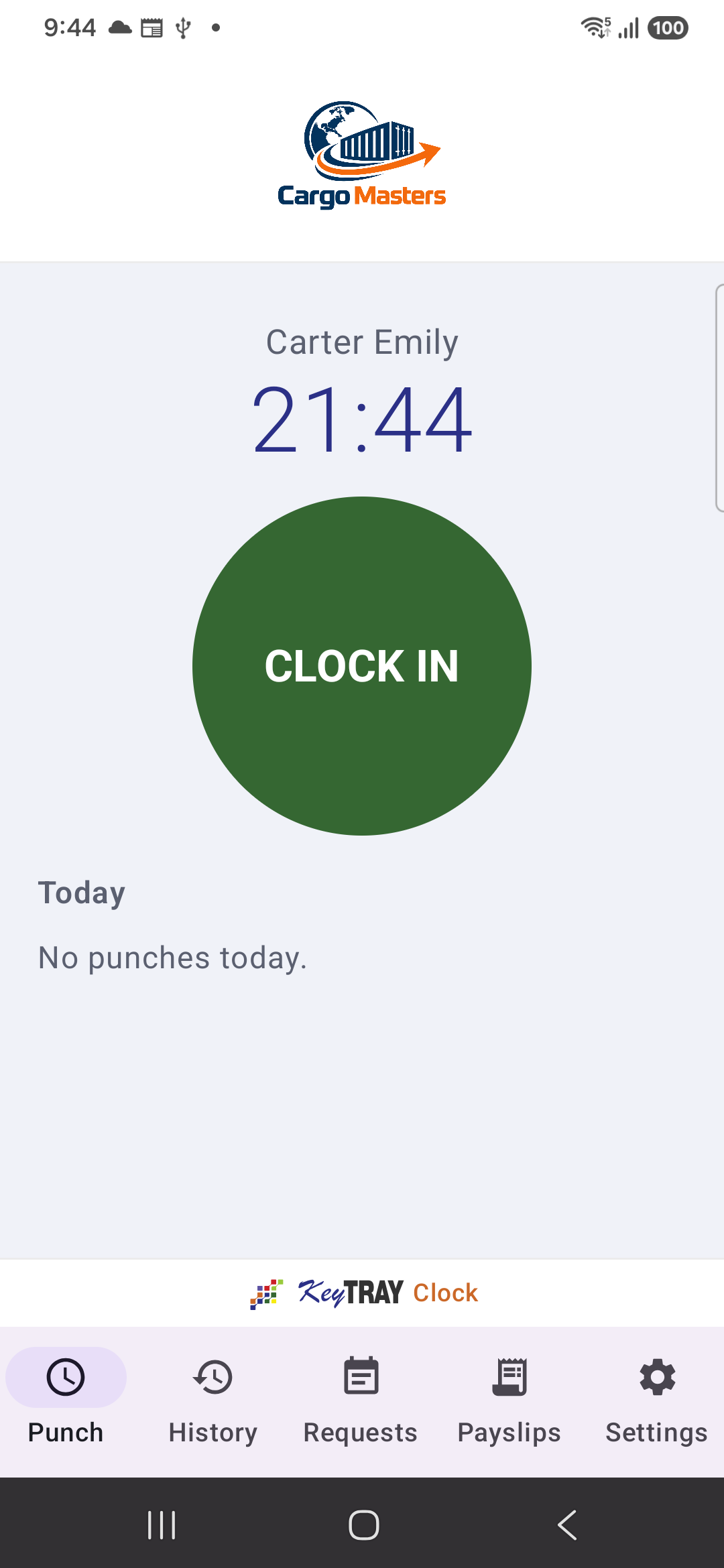
- Tap the button.
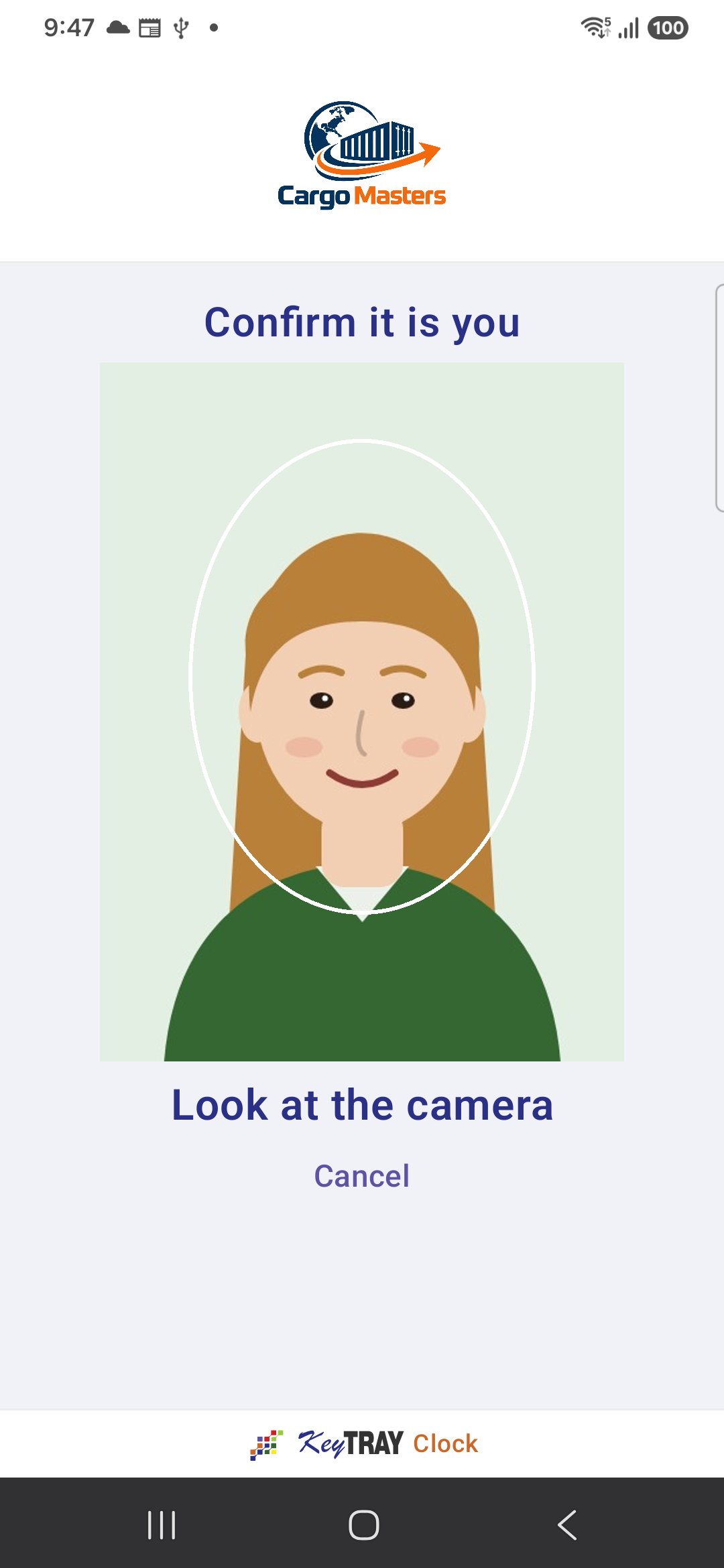
- Confirm it is you appears: look at the camera. If the app asks you to turn your head to one side, do it and look straight again: it checks that you are a person and not a photo.
- Done: the app says Clocked in at 8:58 (or Clocked out…) and the punch appears under Today, below.
If the app does not recognize you, the punch is not registered and you can Try again. Find good light and look straight at the camera.
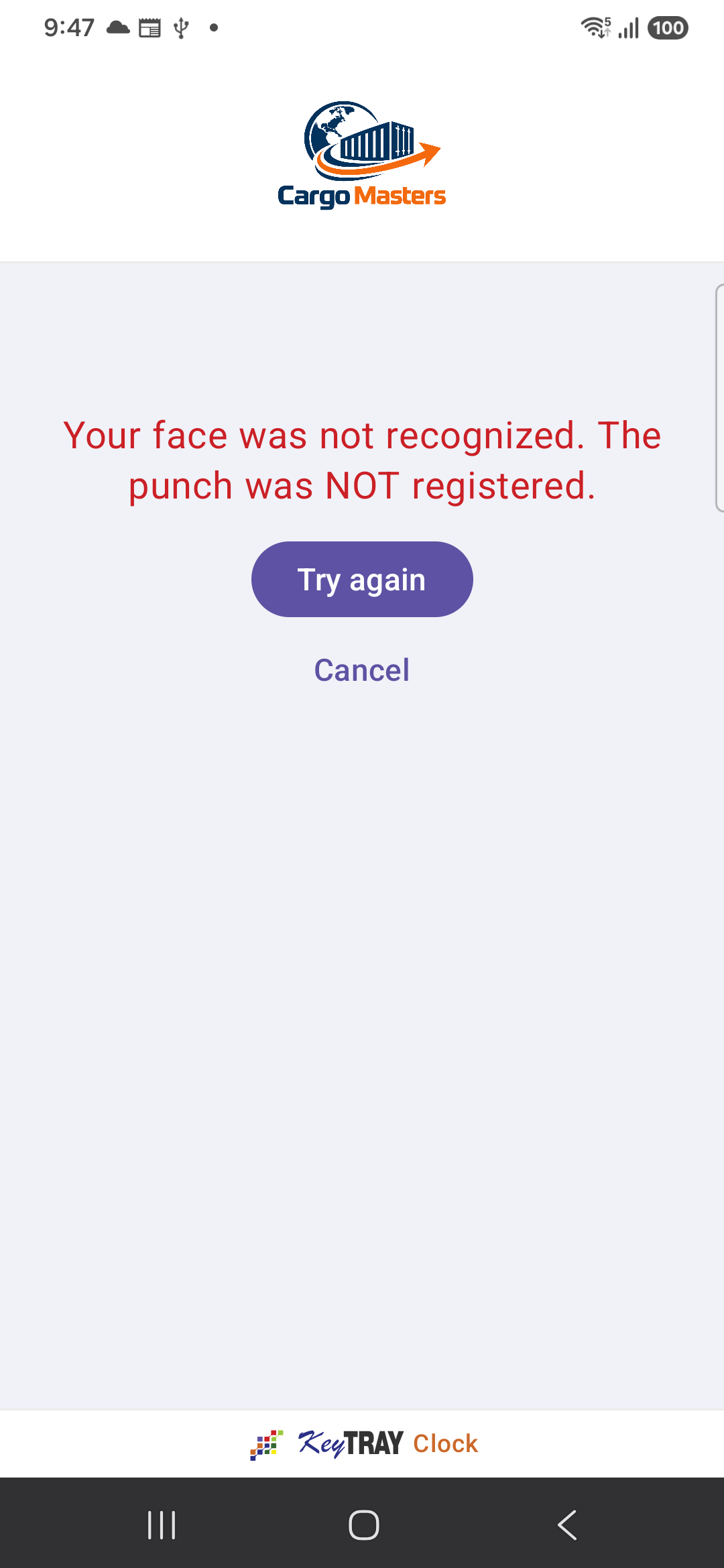
What can happen when you punch:
| The app says | What it means |
|---|---|
| Saved on this phone. It will be sent when there is signal. | You had no internet. The punch was kept with its real time and uploads by itself when the signal returns. |
| You are 350 m from Miami Warehouse, so the punch was not registered. | You are outside your site and your site does not allow punching from outside. Get closer and punch again. |
| Turn on location so the punch can be registered. | The phone's location is off or the app has no permission. The phone offers to turn it on. |
| The position is not precise enough. The punch was registered and will be reviewed. | The GPS had a weak signal (for example, inside a building). Your punch counts, but HR looks at it. |
| Registered. It is waiting for review: … | The punch was saved with something to look at (the reason appears at the end). |
5. Your history
Video: Your history (English voice and subtitles).
The History tab shows your punches of the last days: date and time, whether it was In or Out, whether you were Inside the geofence and how far from the site.
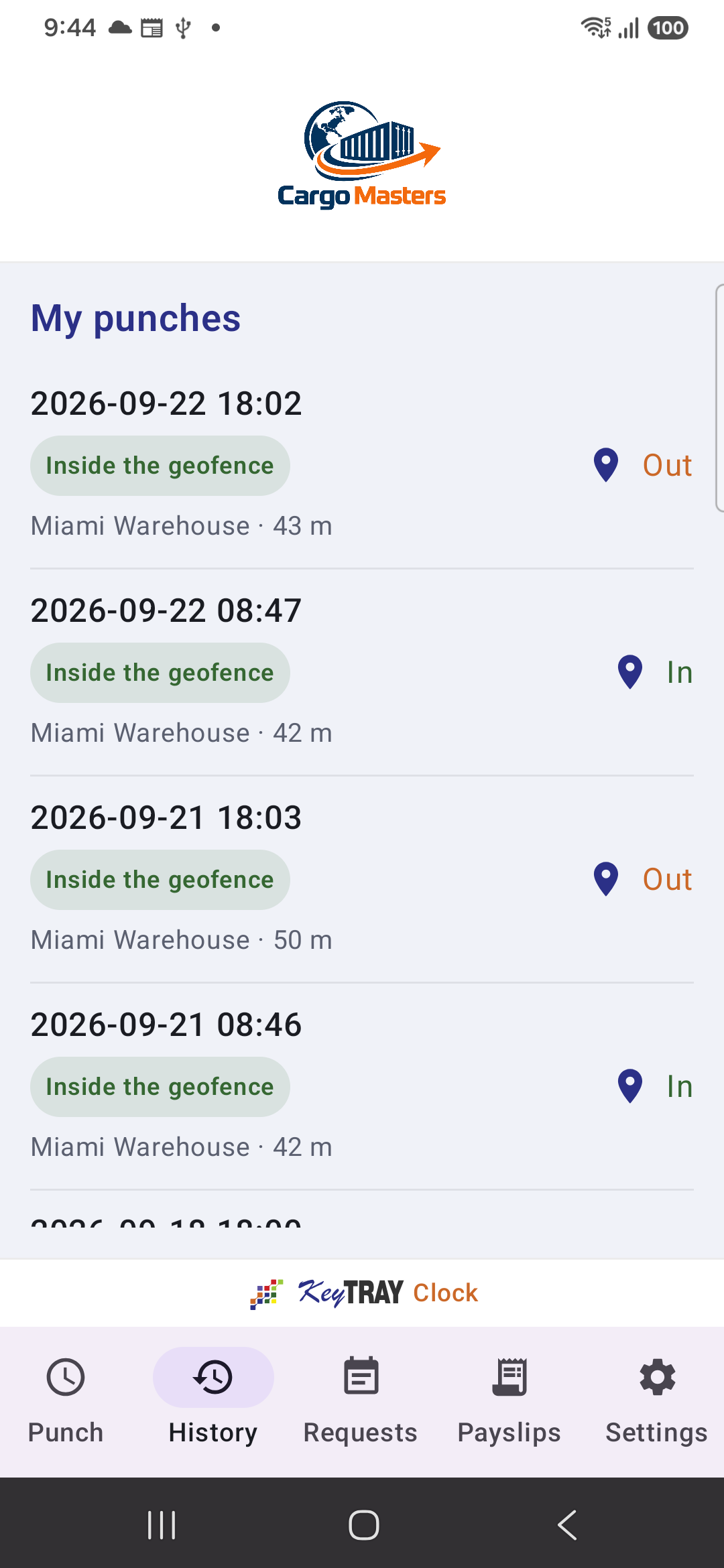
Tap a punch to see it on the map. If a punch says waiting for review, HR has not looked at it yet; if it says rejected, it does not count: check with HR.
6. Requesting leave or vacation
Video: Requesting leave or vacation (English voice and subtitles).
The Requests tab shows your requests and the buttons to make a new one.
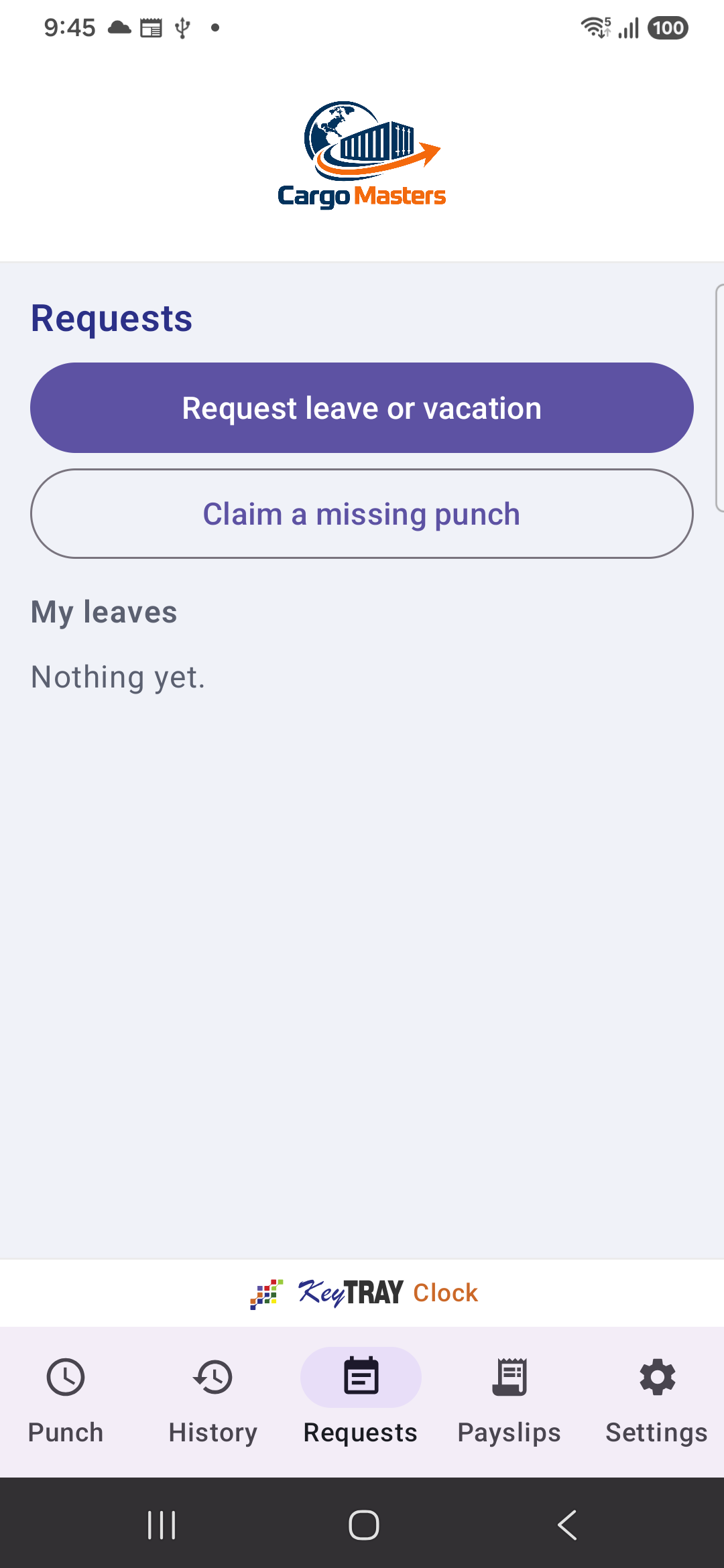
- Tap Request leave or vacation.
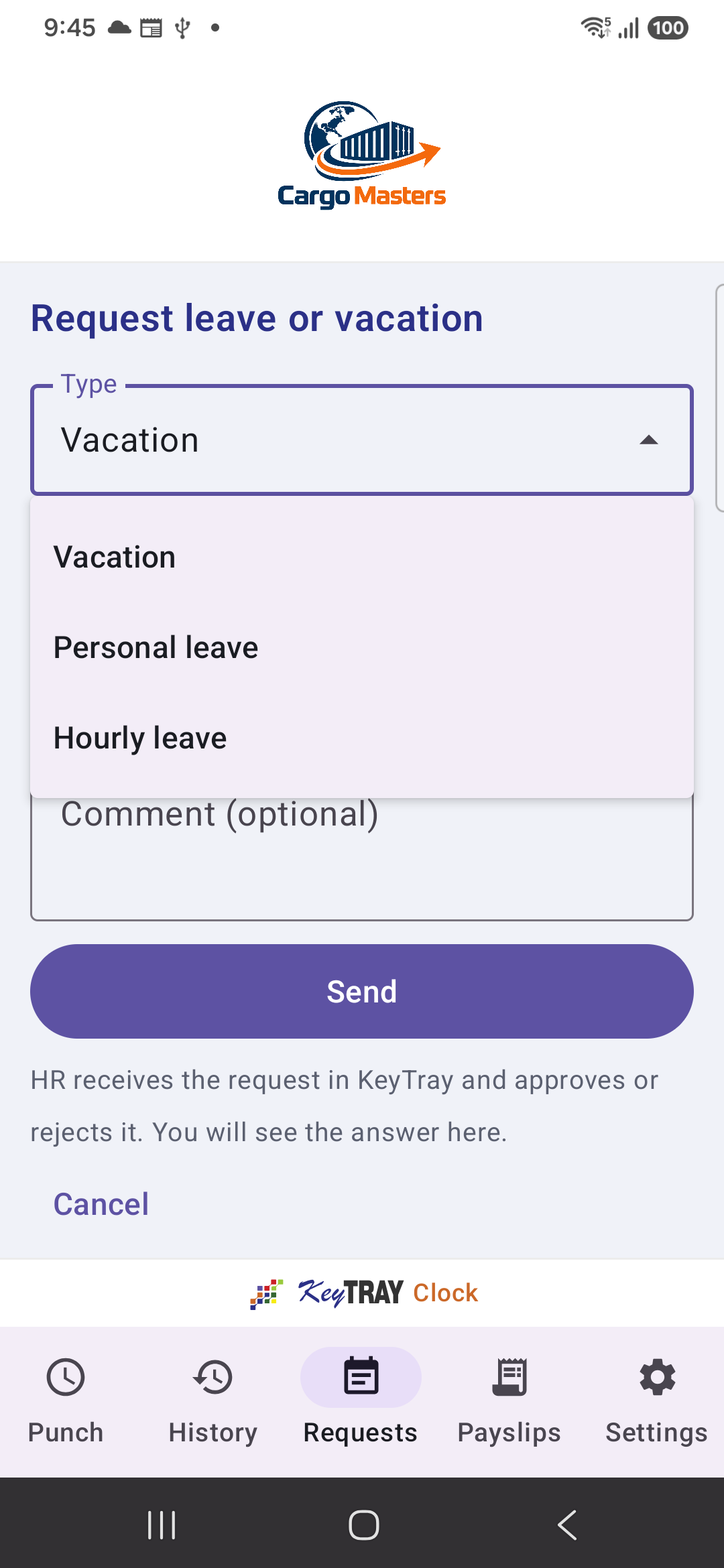
- In Type, choose what you are requesting. Only the types your company allows from the app appear.
- Choose the From and To dates. For Hourly leave you choose the Date and the Start and End times.
- Optionally type a Comment and tap Send.
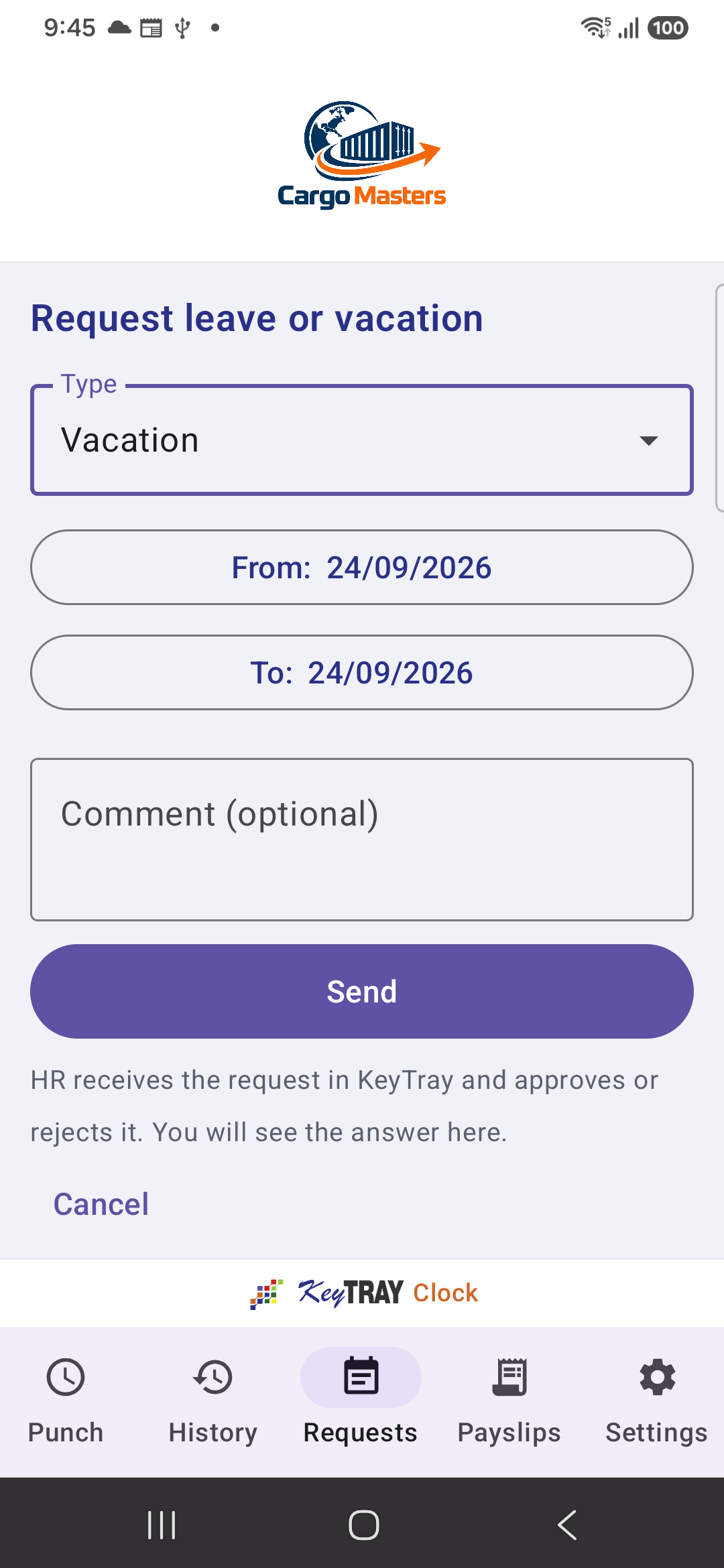
HR receives the request in KeyTray and approves or rejects it. Under My leaves you see each request with its status: Waiting for HR, Approved or Rejected, and the note they left.
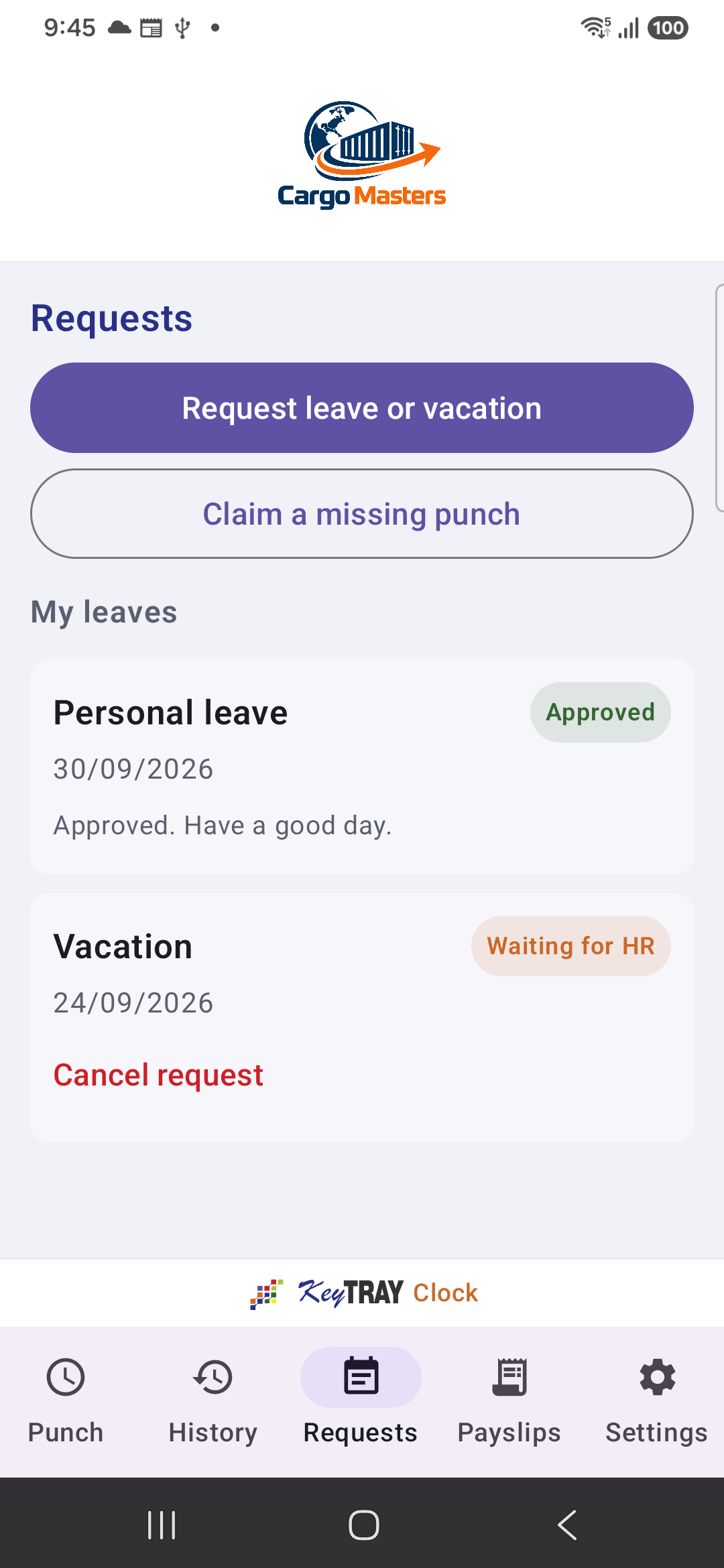
While a request is waiting for HR, you can Cancel request. Once answered, you cannot.
Note: if you already have leave on those days, the app says You already have a leave on those days and does not send it.
7. Claiming a missing punch
Video: Claiming a missing punch (English voice and subtitles).
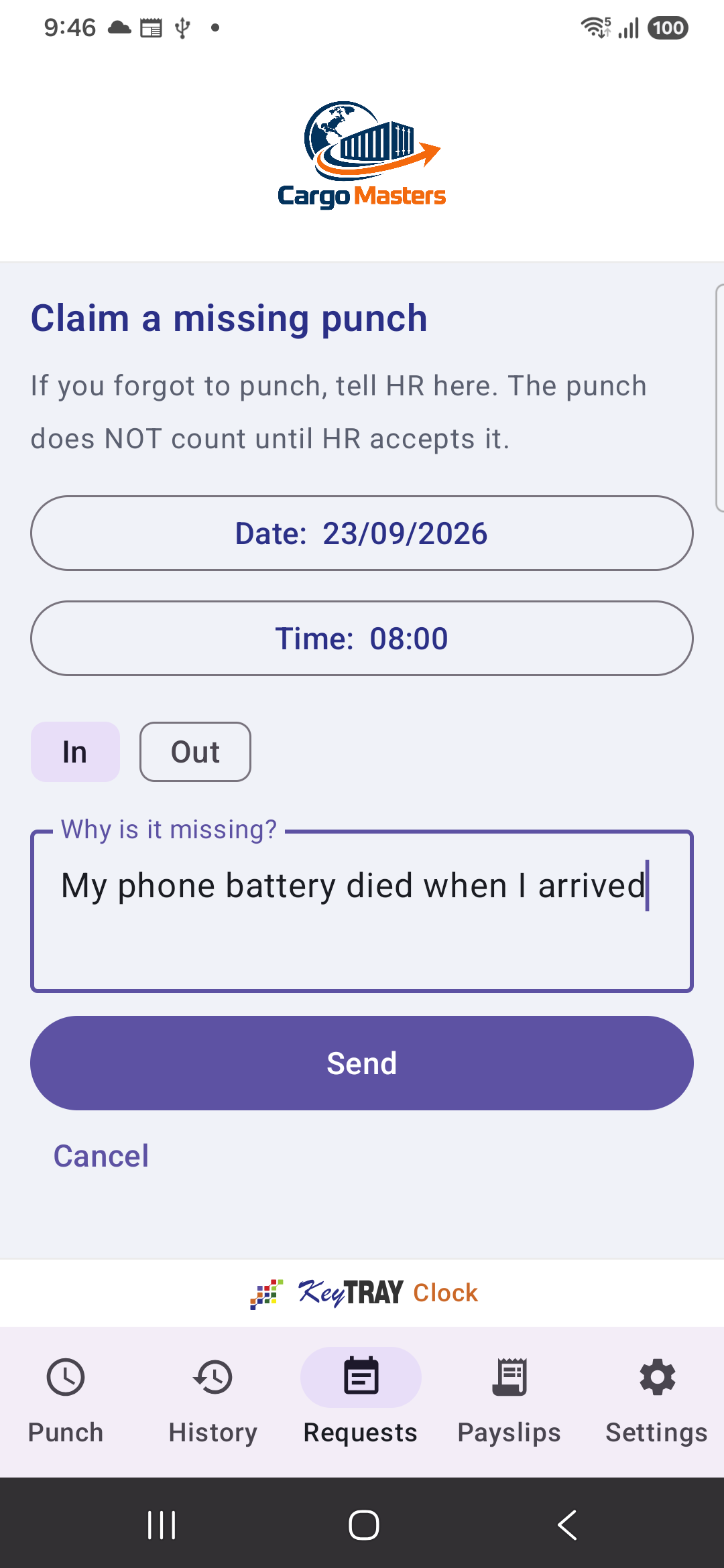
If you forgot to punch (or your battery died), let HR know from Requests > Claim a missing punch:
- Choose the Date and Time of the missing punch.
- Choose whether it was In or Out.
- In Why is it missing?, say what happened. It cannot be sent without a reason.
- Tap Send.
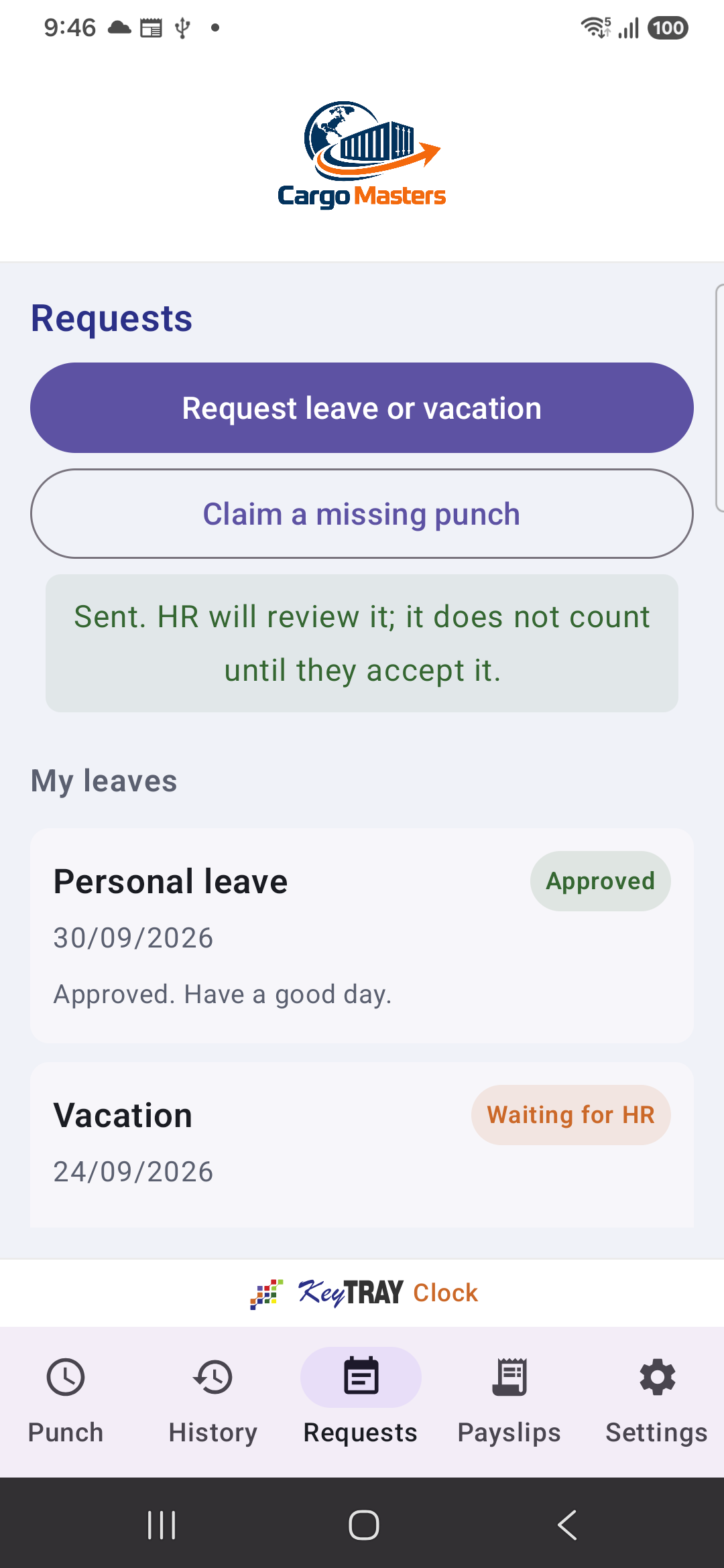
The app confirms: Sent. HR will review it; it does not count until they accept it. The punch appears in your History as waiting for review.
8. Your payslip
Video: Your payslip (English voice and subtitles).
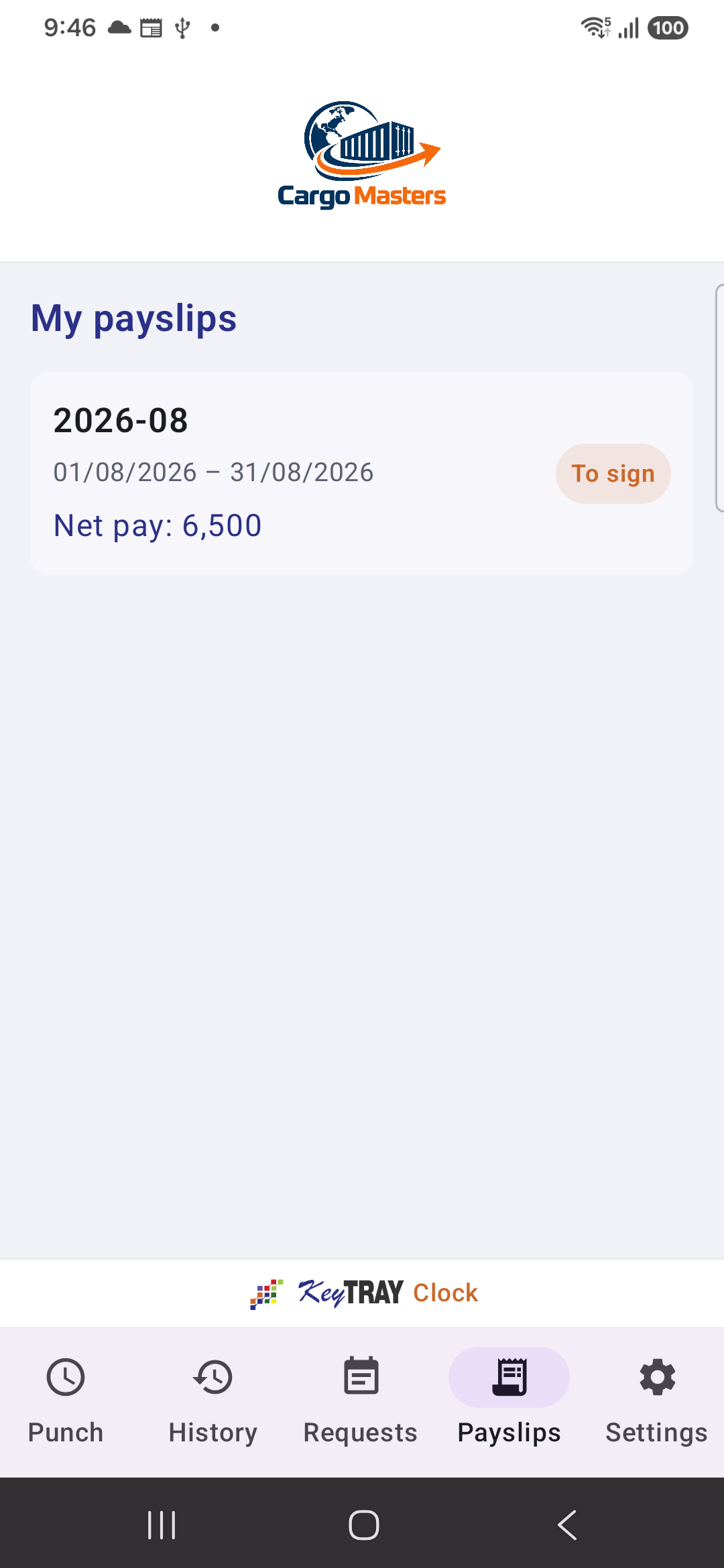
When HR approves the payroll, your payslip appears on the Payslips tab, with the period and the net pay. The ones you have not signed yet say To sign.
Tap the payslip to open it. It is the same official payslip HR prints:
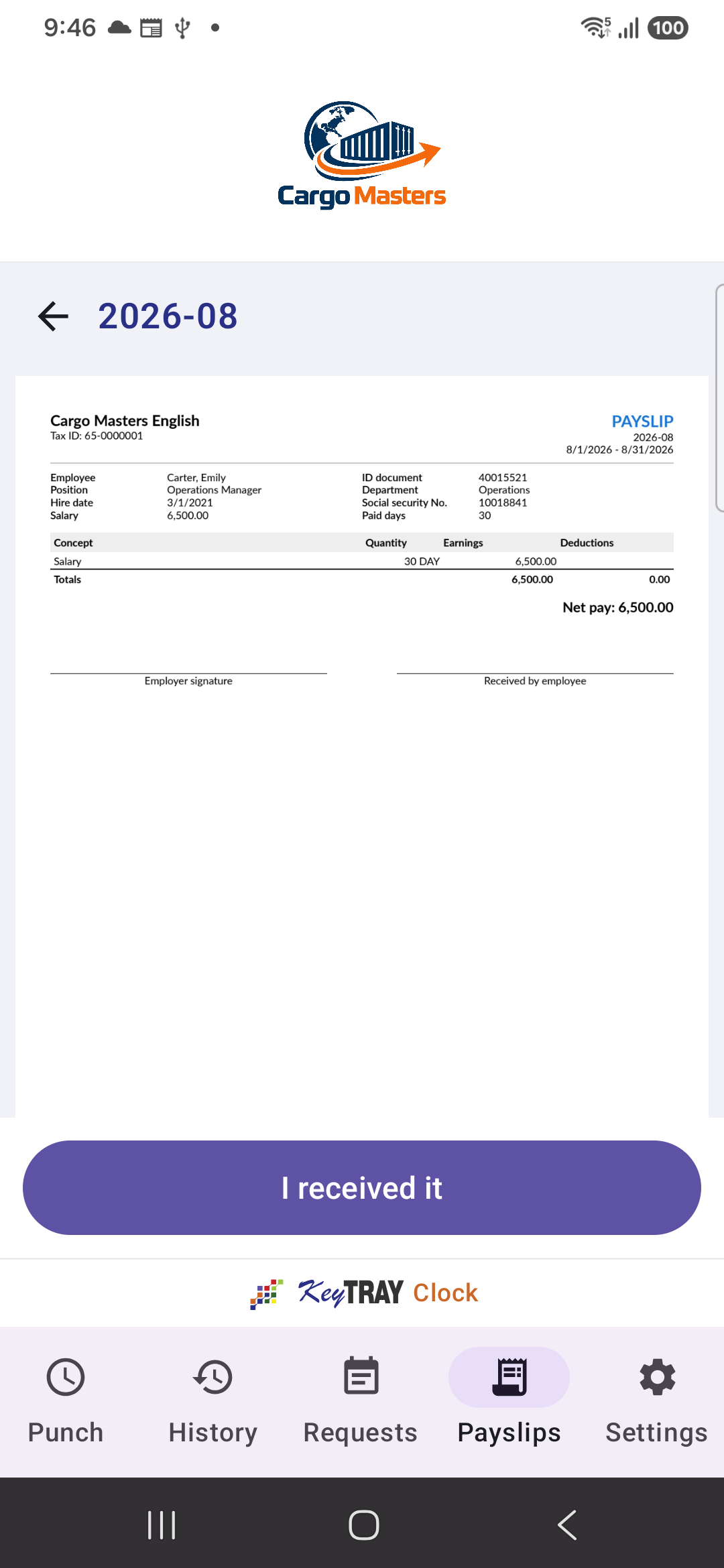
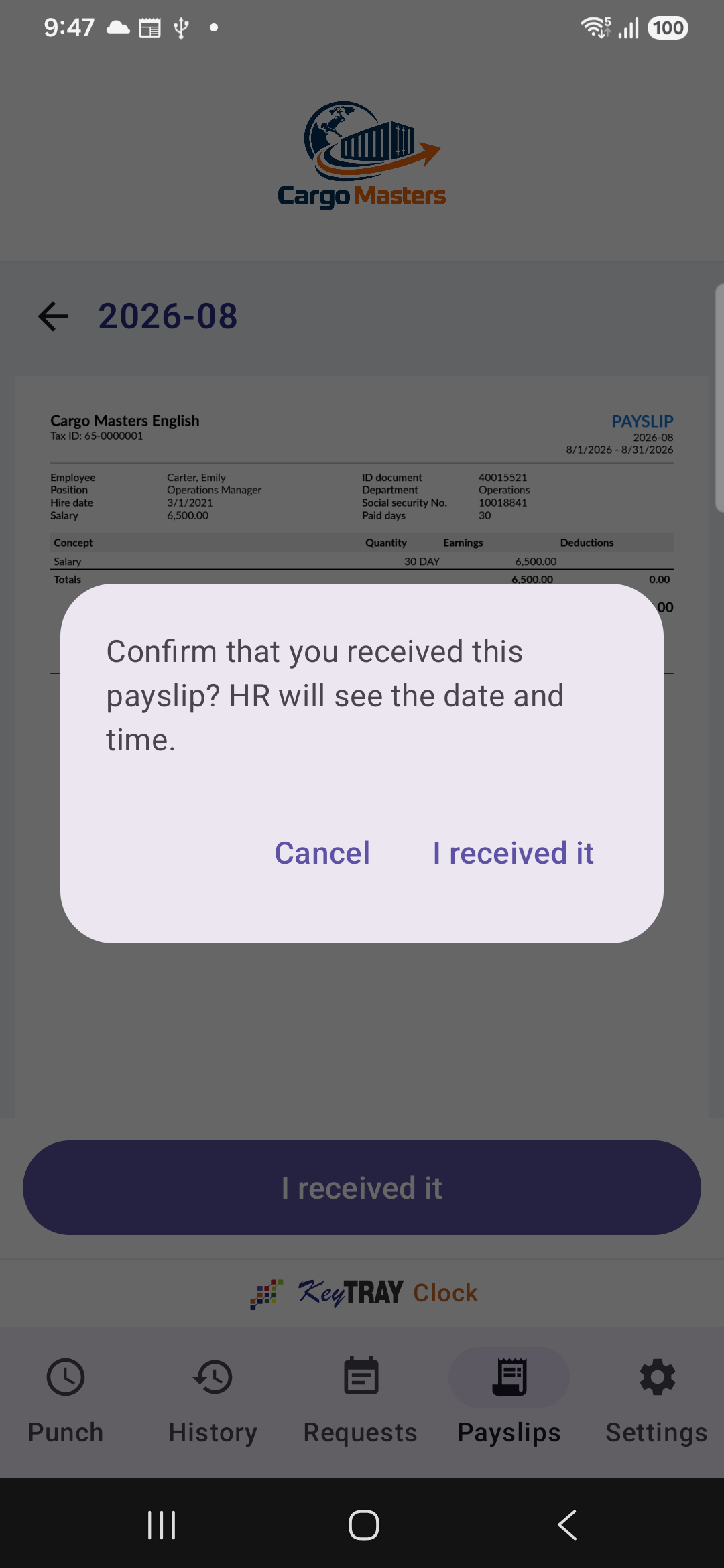
Once you have read it, tap I received it and confirm. HR sees the date and time you signed it.
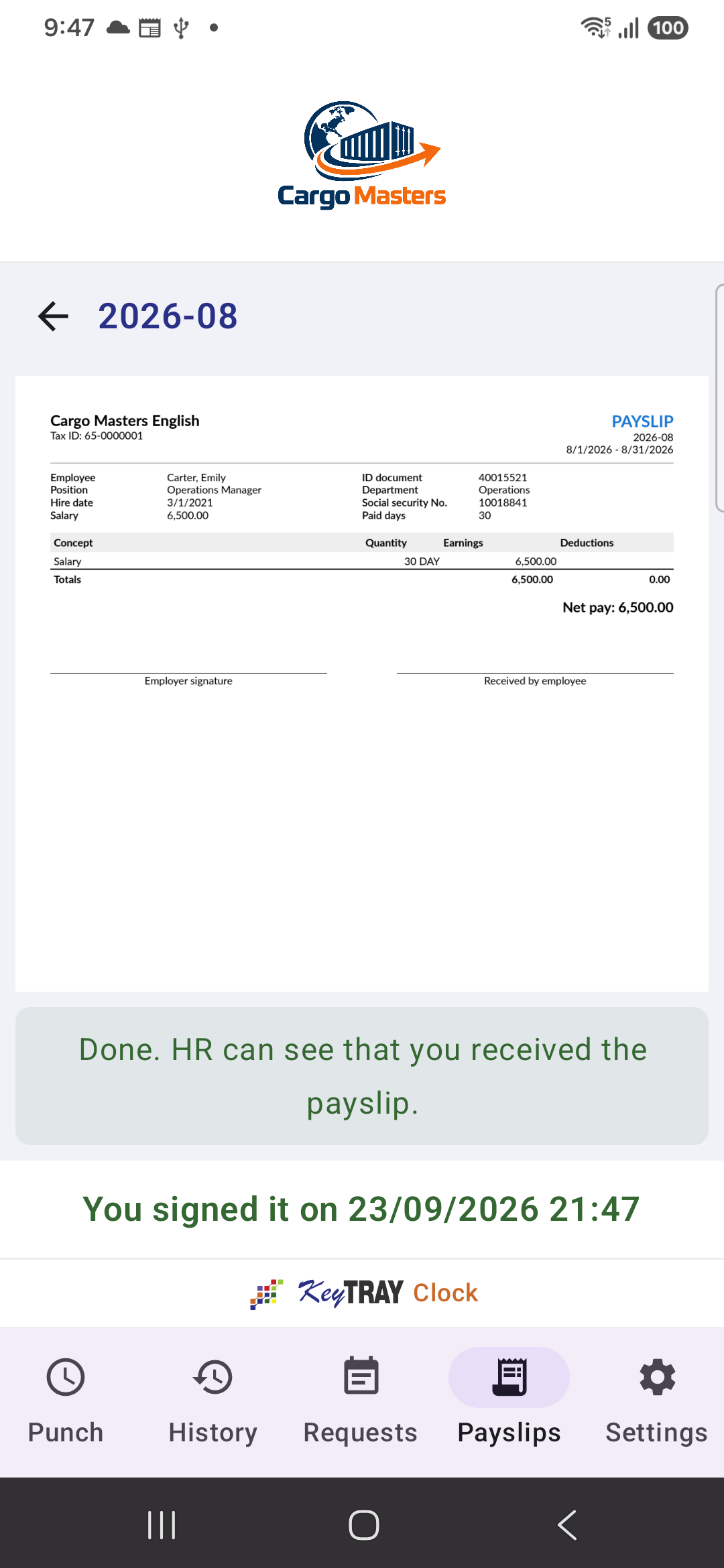
Below it now says You signed it on 23/09/2026 21:47, and in the list the payslip shows Received.
Note: the payslip needs internet the first time you open it. After that you can view it again without signal.
9. Settings
Video: Settings (English voice and subtitles).
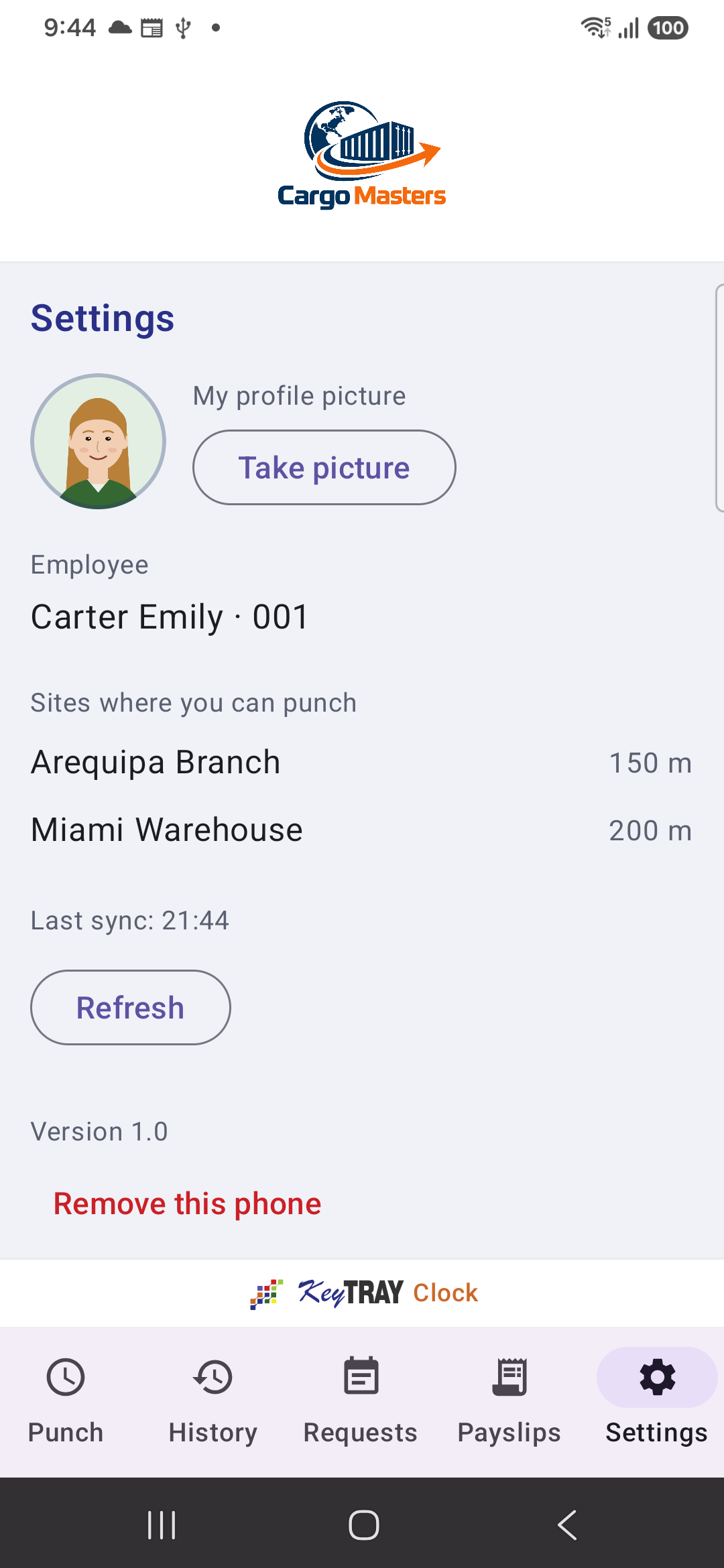
The Settings tab shows:
- My profile picture, with Take picture to change it.
- Your name and Employee code.
- Sites where you can punch, with the radius of each one.
- Last sync and the Refresh button, which reloads your sites and your company's data.
- Remove this phone: unlinks the phone. To punch again you will need a new code from HR.
10. Punching at a kiosk
Some sites have a kiosk: a fixed phone or tablet where everyone punches. You do not need your phone:
- Stand in front of the camera. The kiosk looks for you and greets you: Hello, Emily.
- If it asks, turn your head to the side it shows and look back at the camera.
- The kiosk shows IN 8:58 or OUT 18:02 and saves the punch.
The first time, your supervisor registers your face at the kiosk with their PIN. If the kiosk says I do not recognize you, ask them to do it.
11. Frequently asked questions
I have no signal at work. Can I punch?
Yes. The punch is kept on the phone with its real time and uploads by itself when the signal returns. Under Today it shows as not sent yet.
I changed phones.
Ask HR for a new code and set up the new phone. Also tell them so they remove the old phone.
I lost my phone.
Tell HR right away: they remove that phone and from then on nobody can punch with it.
The app does not recognize me.
Find good light, take off sunglasses and look straight at the camera. If it still does not recognize you, ask HR to check your face.
I forgot to punch.
Use Requests > Claim a missing punch (section 7).
Does the app know where I am all day?
No. The location is taken only at the moment you punch.